
Make a Payment - Electronic Check
Make a Payment
To make an online payment to Student Business Services, log into the TTUHSC Portal.
Click My Tech Tab > Manage My Finances > Student Business Services > Make a Payment /View eBill
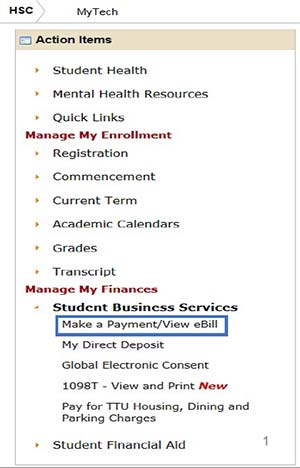
The Make a Payment/View eBill section allows you to
- Make Online Payments
- View eStatements
- Check Account Activity
- Change Authorized Users
Make a Payment - click to proceed to the next page for payment options.
View Account Activity - click to see current account activity.
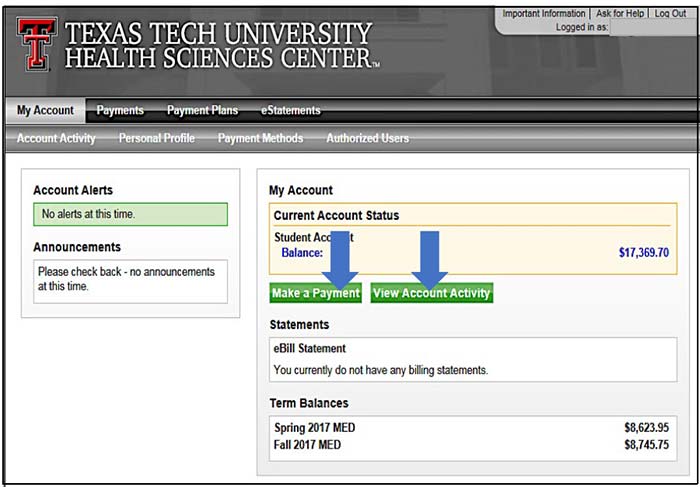
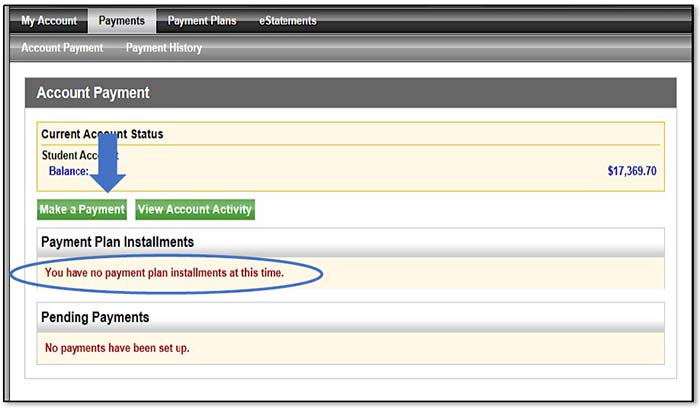
Make a Payment - Click to continue to next make a payment page.
(Please note - Payment Plan Installments will always show no plans at this time. Please see our website for Payment Due Dates based on School/Program at http://www.fiscal.ttuhsc.edu/studentbusserv/ )
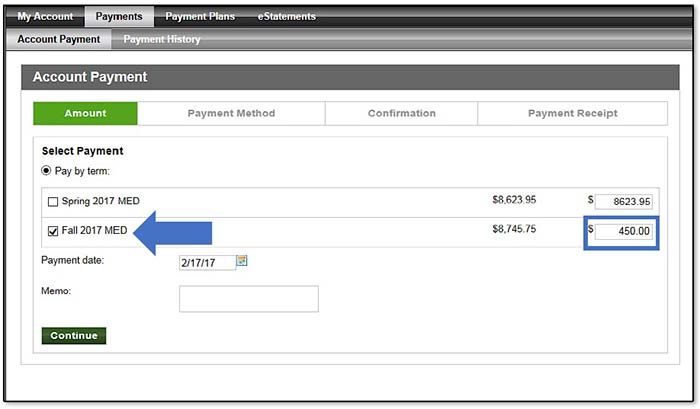
Pay by Term
Pay by Term - Check the box next to the Term that you are paying against and adjust the total in the far right column to the amount of your payment.
Select Payment Method
Please note - to avoid the credit card service fee please choose Electronic Check or Debit Card.
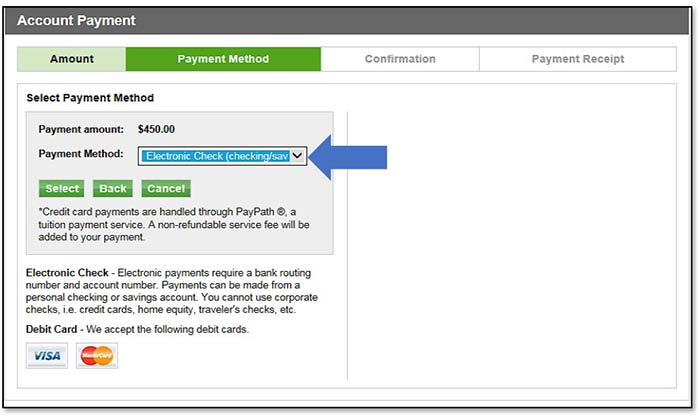
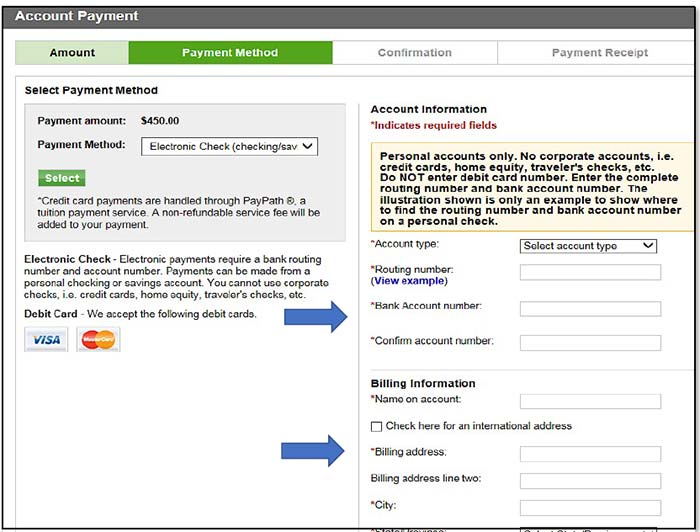
Electronic Check Payment
Account and Billing Information - Enter your bank account information. Personal accounts are the only type of accounts allowed for electronic check payment.
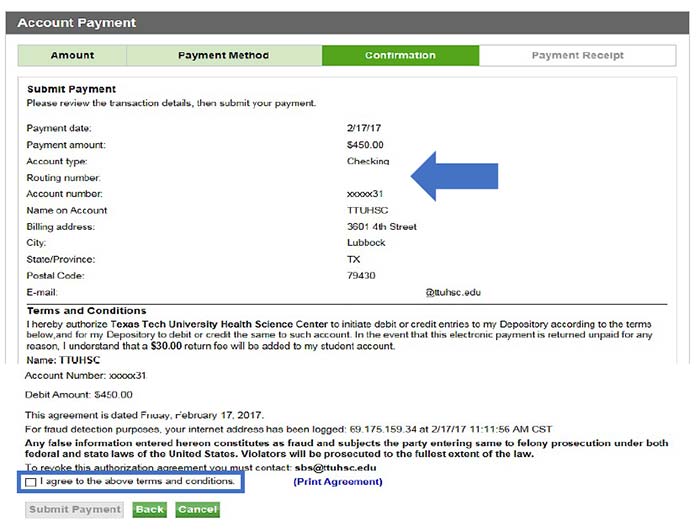
Confirmation
Review - Confirm your banking information.
(Please note, if electronic check is returned unpaid, a return check fee of $30 will be added to accounts.)
Click "I agree to the above terms and conditions" and Submit Payment to continue with the next step in the process.
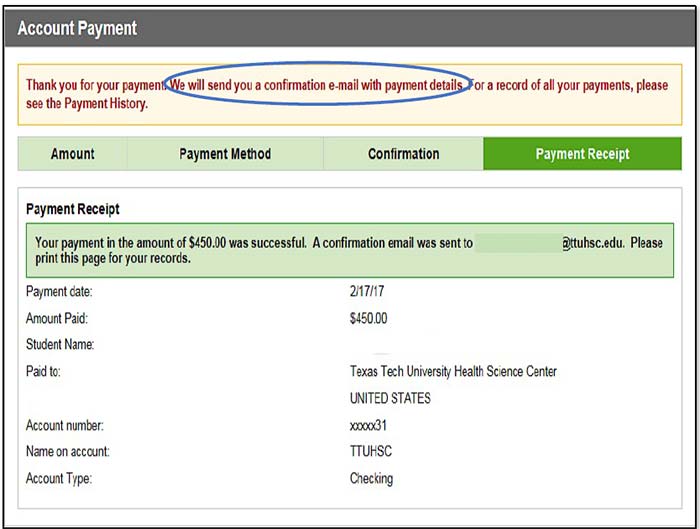
Payment Receipt
Payment Receipt - A confirmation email with payment details will be sent to the account email address.
You have the option to print a copy of the page for your records.
For additional questions, contact Student Business Services at sbs@ttuhsc.edu or (806) 743-7867.
Contact
Student Business Services
-
Address:
Student Business Services | PO Box 5868 | Lubbock, Texas 79408 -
Phone:
(806) 743-7867 -
Email:
sbs@ttuhsc.edu