
Financial Manager Change Request Training
Financial Manager Change Request
The Financial Manager Change Request allows a department to submit requests for Fund Manager or Orgn Manager changes. Once submitted, the request routes to the Fund Managers for each fund in the request, notifying them that the request is in their queue for approval. After Fund Manager approval, the request will route to Finance Systems Management for final review and processing.
Requests can be tracked through the Search feature where the status and details of the request can be viewed.
The system and related training documentation can be accessed from:
- Financial Manager Change Request
- WebRaider portal > Business Affairs tab > Links to Financial Systems > Financial Manager Change Request
Note: The FOP Orgn Maintenance section of the Finance New FOP system is not utilized by TTUHSC. The Program Description Setup and Program Fund Class Setup sections, found under the Functions tab, are not used by functional users.
Submit a Fund or Orgn Manager Change Request
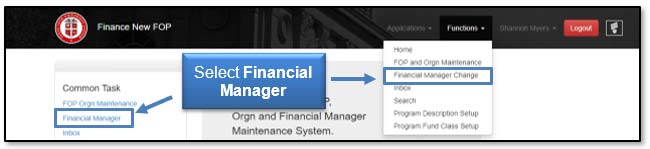
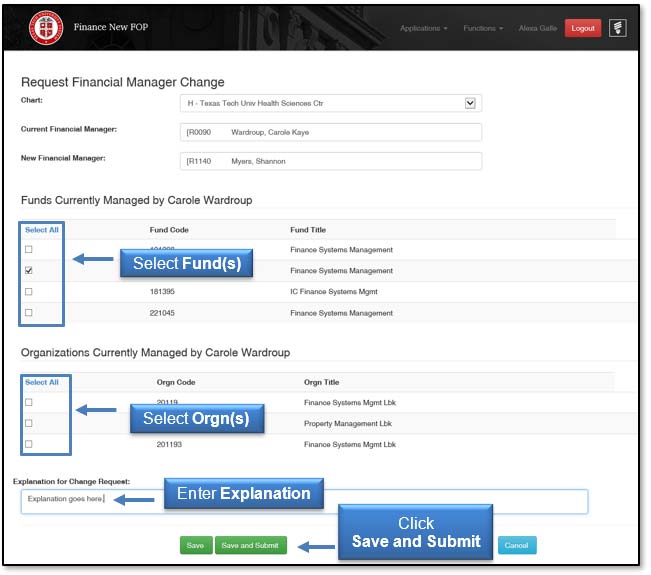
Upon accessing the Finance New FOP, select Financial Manager from the Menu bar on the left side of the page or the drop-down list under Functions.
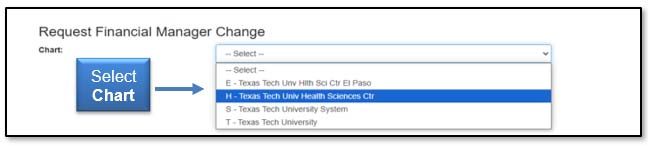
Select the appropriate Chart of Accounts from the drop-down list.
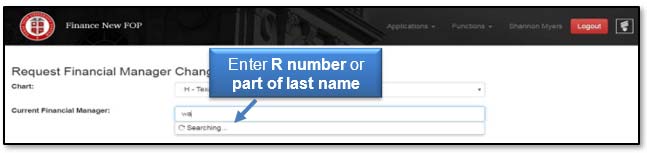
In the Current Financial Manager box, enter the R number or part of the name for the Current Financial Manager. Search results will display a list of names or name from which to select. Select the proper name of the Current Financial Manager.
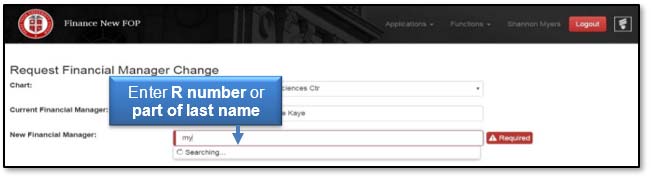
In the New Financial Manager box, enter the R number or part of the last name for the New Financial Manager. Search results will display a list of names or name from which to select. Select the proper name of the New Financial Manager.
A list of Funds and Organizations currently managed by the Current Financial Manager will be displayed. Select the proper Fund(s) or Organization(s) to be changed to the New Financial Manager. If all Funds or all Organizations currently managed by the person should be changed, click the Select All link at the top of each list.
Provide an explanation in the Explanation for the Change Request text box. After selections are made, click Save to complete later, Save and Submit to send through approvals, or select Cancel to go back to the beginning of the change request.
Email notifications from the Finance New FOP system are sent to Fund Managers for each fund included in the request notifying them that the request is in their queue for approval.
After approval, the request routes to Finance Systems Management (FSM) for final review and processing. If the request has an Orgn change on it, it will route to the Budget Office.
Note: Any new fund manager who has not completed the online Fund Manager training will need to do so before the request is approved. A link to the training will be emailed by FSM.
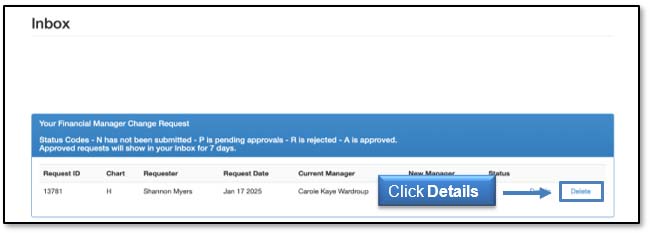
After submitting the request, a Status Message will go to your Finance New FOP Inbox.
The message displays the Request ID, Chart, related information, Status, and a link to view the request details.
The possible statuses are:
- N - Not been submitted
- P - Pending Approval
- R - Rejected
- A - Approved
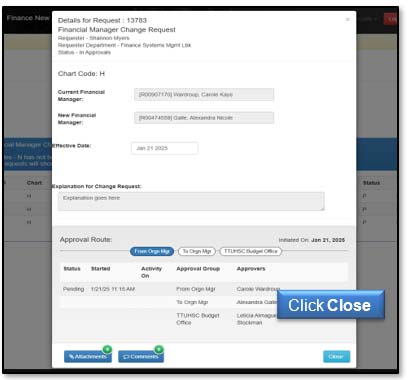
The approved requests will show in your Inbox for 7 days. To view the Details of the request, click the Details link.
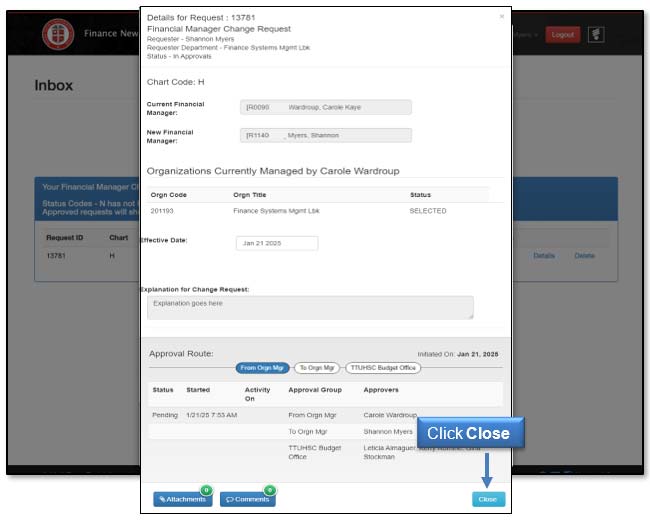
The Details section includes approval routing and eligible approvers. Click Close to exit Details.
Approve a Fund or Orgn Manager Change Request
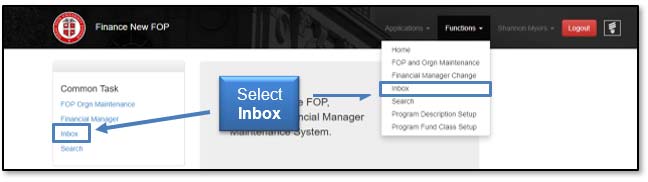
Upon accessing the Finance New FOP application, click the Inbox to review Financial Manager Change Requests for approval.
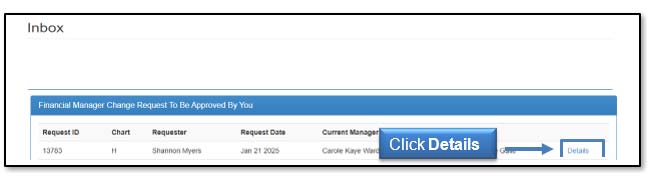
Click the Details link of the request that needs to be approved.
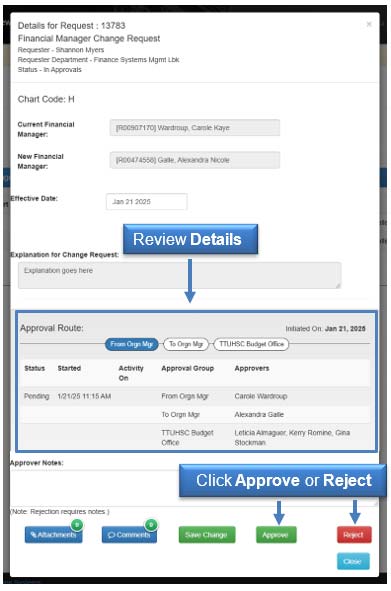
Review the details including:
- From: Fund Manager Name
- To: Fund Manager Name
- Explanation for the fund listed in the change request
If all information is correct, click the Approve button. If the information is not correct or the request is not valid, click the red Reject button.
Manage Your Inbox
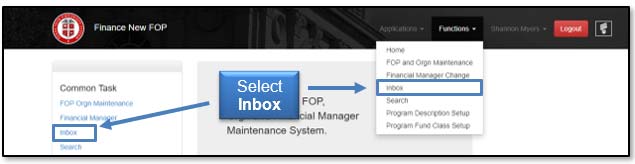
Access your Inbox from either the menu list on the left side of the page or from the Functions drop-down list at the top of the page.
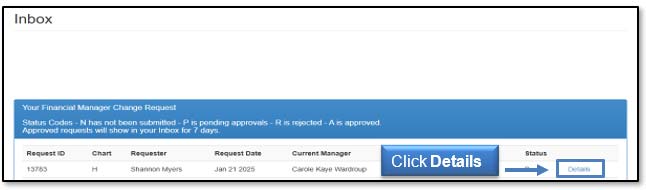
A list of your Financial Manager Change Requests is displayed with the Request ID, Chart, related information, Status, and a link to view the request Details.
The possible statuses are:
- N - Not been submitted
- P - Pending Approval
- R - Rejected
- A - Approved.
The approved requests will show in your Inbox for 7 days. To view the details of the change request, click on the Details link.
Click Close to exit the details.
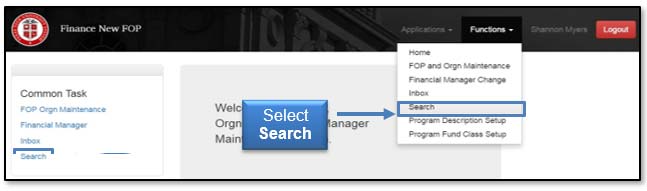
Search
To use the Search feature, click the Search link in the menu list on the left side of the page or from the drop-down list under Functions at the top of the page.
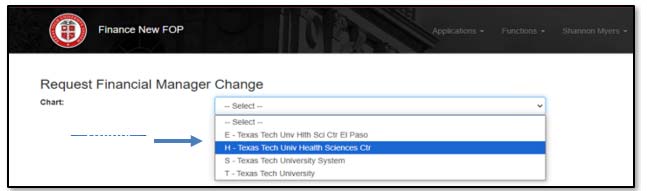
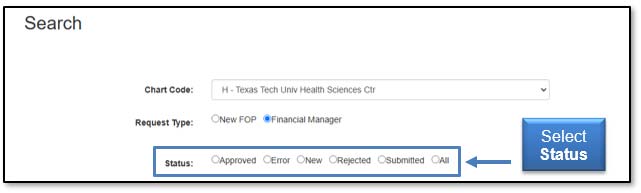
Select the appropriate Chart of Accounts from the drop-down list in the Chart Code box.
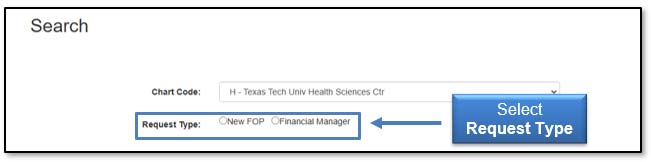
Select the type of request to search, either New FOP or Financial Manager.
Select a Status type, such as approved, error, new, rejected, or submitted. If you want to include all status types, then select All.
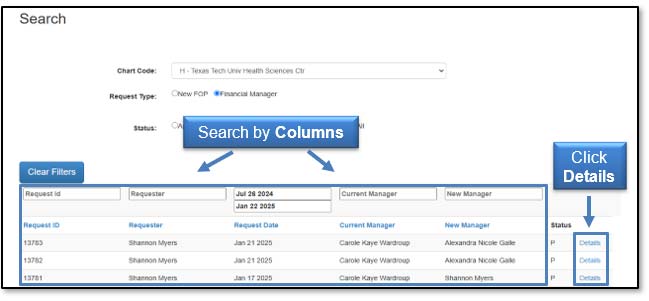
A list of all requests is displayed based on the selections from the prior screens. The requests are sorted by Request ID.
You can filter any column with a filter field at the top of each column. You can search for a single date or a range of dates by entering both the begin date and the end date. Only those requests that meet the entered criteria will be displayed.
To view the details of a change request, click the Details link.
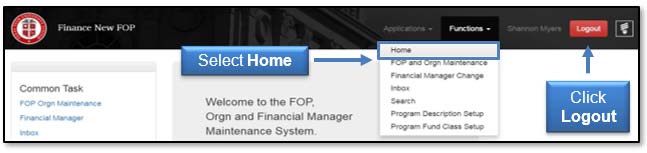
To return to the main page, click the Home link from the drop-down list under Functions at the top of the page. To exit the system, click the red Logout button at the top right of the page.
If you have additional questions, please contact Finance Systems Management at fsm@ttuhsc.edu.
Contact
Finance Systems Management
-
Address:
3601 4th Street STOP 6209 | Lubbock, Texas 79430-6209 -
Email:
fsm@ttuhsc.edu