
Emburse Enterprise - PCard Expense Report
Cardholders are responsible for ensuring their PCard expenditures are fully reconciled with a Emburse Enterprise expense report every week. Full reconciliation includes the report submission, electronic departmental approvals, review by PCard Admin, final export of the expenditure(s) to Banner, and resolution of any violations of PCard/Purchasing policies and processes.
This training document will provide guidance on how to create and submit a PCard expense report in the Emburse Enterprise system.
- All PCard transactions feed to the dashboard of the Cardholder. To ensure that you are on the appropriate dashboard, verify the name displayed in the top right corner.
Cardholders - If you reconcile your own PCard expenses, simply log into your Emburse Enterprise account.
Delegates - If you are a Delegate on an account for expense report submissions, go to the Cardholder's dashboard by logging into Emburse Enterprise and clicking your Name in the top right corner. Click the appropriate user name from the list of authorized accounts.
For more information on delegate setup, view Emburse Enterprise - How to Add a Delegate.
- PCard transactions can be reviewed before starting an expense report:
- Click the Menu in the top left-hand corner.
- Choose the eWallet option.
- Click Credit Card.
This will display all PCard transactions that have been fed to the dashboard and are awaiting reconciliation by expense report submission and approval. Viewing these transactions before beginning the expense report is not required, but is recommended.
- To start a new expense report, click the + New link in the top left corner of the dashboard and choose New Expense Report.
- Enter the following basic information from the Header page of the expense report: (Disregard Import from Pre-Approval)
- Report Name - Cardholder Last name, First initial, Transaction posting month and year, Report number
- Report Type - Procurement Card
- Start Date/End Date - Time period for submission (should be weekly and reflect transaction posting dates)
- Chart - H
- Approver - Must be a supervisor of the Cardholder or Department Fund Manager
- Fiscal Year - The system automatically populates the current FY. Do not alter this field unless instructed to do so by HSC Emburse Enterprise Admin.
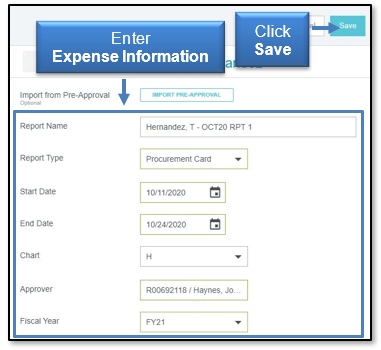
After entering the correct information, click Save in the top right corner of the header page to begin entering transactions to your expense report.
This expense report will now be located in your Drafts until it is submitted or deleted.
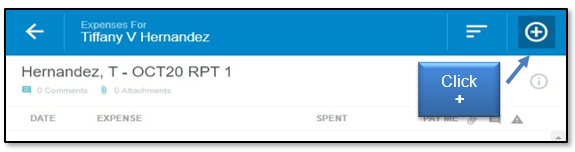
- Click the + button to open the eWallet and add PCard transactions to the expense report.
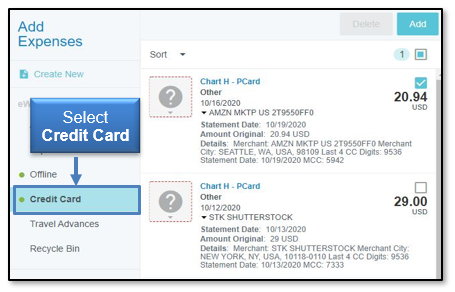
- Choose the Credit Card option from the eWallet list on the right side of the screen to see all PCard transactions that are pending reconciliation.
The transaction date is shown above the merchant's name. Expand the transaction detail to verify the posting date (shown in Emburse Enterprise as Statement Date).
Transactions that fall within the weekly expense report period by the posting date can be added to the expense report.
Transactions MUST come from the credit card list in the eWallet.
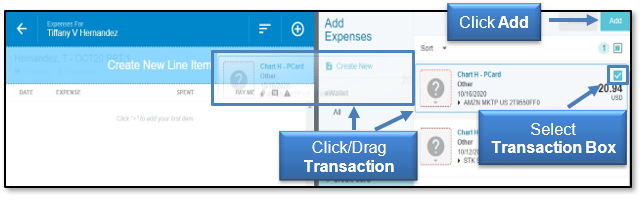
- Appropriate transactions can be added to the expense report in two ways:
- Select the checkbox (directly above the amount) and click the Add button.
- Click the transaction and drag it to the Create New Line Item drop zone. It must be dropped to the correct area, or it will not attach to the report.
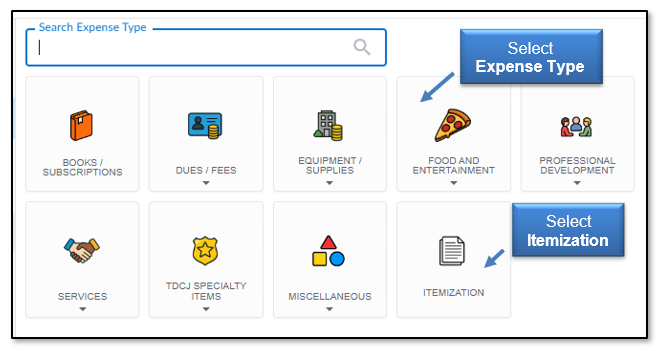
- Verify the transaction expense type and account code by choosing the appropriate expense tile.
There are 109 account codes housed in the tiles/drawers. Use the Emburse Enterprise - PCard Expense Reference Sheet to determine which expense tile to select.
If you need to expense a single transaction to multiple account codes, use the Itemization tile. For assistance, view Emburse Enterprise - How to Itemize a Transaction.
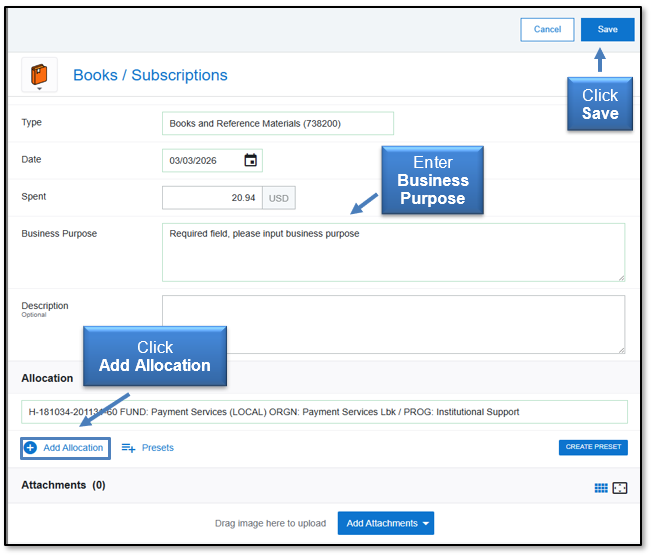
- After locating the appropriate expense tile, enter the information required.
Forms can vary by expense type, but all forms will require the following:
- Date and Spent - Verified by the transaction; cannot be altered.
- Business Purpose - Justification/benefit to TTUHSC.
- Allocation - Search all valid FOP combinations available for application to the expense; multiple allocations can be added to a single expense by clicking the Add Allocation button.
- Receipt - Can be uploaded directly from your computer to the line item or the Receipt Gallery can be utilized. See Emburse Enterprise - Upload and Attach Receipts for further instruction.
When requirements have been completed, click Save and the credit card transaction will be added as a line item to the expense report.
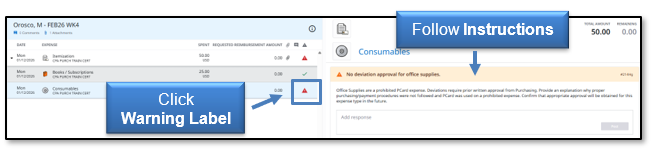
- Emburse Enterprise has been built to enforce institutional purchasing guidelines and funding restrictions. If an added line item has a warning label to the right, the expense requires your attention for a compliance issue. Follow the instructions per the warnings given on the form.
NOTE: Until issues have been corrected or comments have been entered (depending on the type of error), the system will not allow you to submit the expense report.
- Continue to add credit card transactions to your expense report that fall within the period chosen on the header level.
You may leave the expense report at any time and come back to it later. The report will be waiting for completion in your Drafts folder.
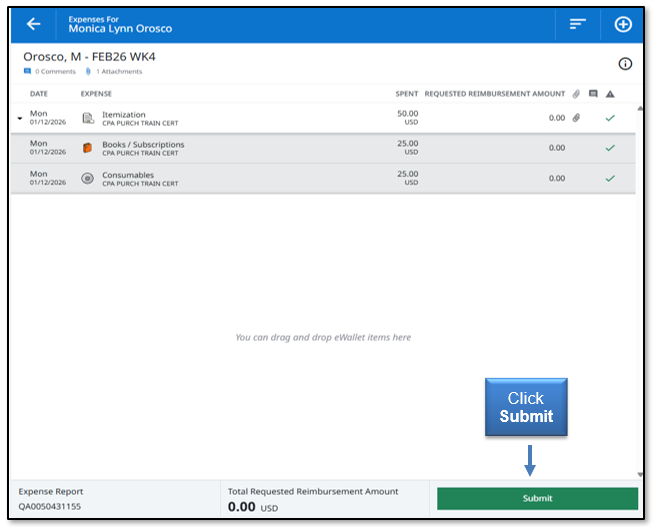
- When you are ready to submit the expense report, click the Submit button at the bottom.
NOTE: Total Pay Me Amount should always be 0.00 USD since all PCard expenses are paid by the institution.
- Click Submit in the Submit Confirmation box.
Disregard the Pre-Approval button. This does not apply to the PCard report type.
- After submission, the expense report will be routed for electronic approvals and exported to Banner. The report can be located in the Expense Report submitted folder.
If you have questions, contact PCard at pcard@ttuhsc.edu.
Contact
Finance Systems Management
-
Address:
3601 4th Street STOP 6209 | Lubbock, Texas 79430-6209 -
Email:
fsm@ttuhsc.edu