
Emburse Enterprise - How to Add a Delegate
Definitions
Delegate: An employee who has been authorized to create and submit reports on behalf of another employee. Delegates assigned in Emburse Enterprise will have access to an individual's dashboard for creating, submitting, and correcting their expense reports.
Delegates will also receive copies of automated email notifications regarding the return or adjustment of reports created for the user.
Delegate access does not include approval authorization.
Approval Delegate: An employee who has been authorized to temporarily provide report approvals (via email only) on behalf of another employee who will be unavailable for an extended period of time. This resource cannot be used to set up a permanent approval proxy.
Approval Delegates will be reviewed regularly by TTUHSC Emburse Enterprise Admin to ensure appropriate use.
Adding a Delegate
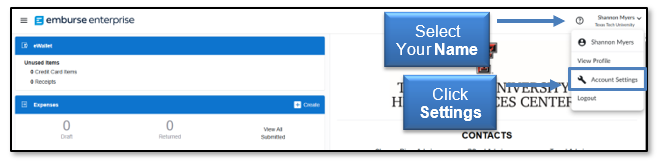
To add a user who is allowed to work as your delegate, select your Name in the upper right corner, then click Settings.
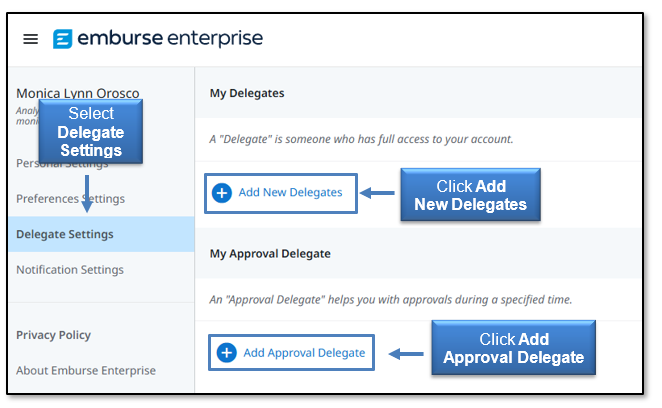
Select Delegate Settings and then click either Add New Delegates or Add Approval Delegate.
Begin entering the user's name, R number, or email address. As you type, the search results will narrow. Once the appropriate Delegate is selected, they will be able to choose the user from their delegation list and create expenses on the user's behalf.
Deleting a Delegate
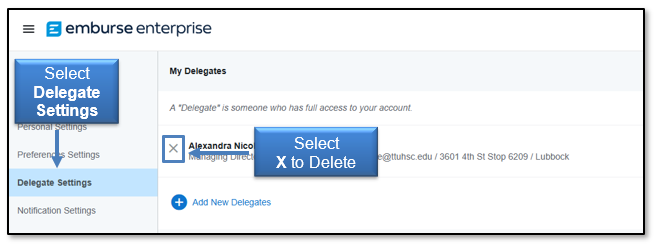
To remove a delegate, return to Settings, Delegate Settings, and select the X next to the person's name under My Delegates.
 If you have PCard-related questions regarding delegates in this system, contact PCard at pcard@ttuhsc.edu.
If you have Travel-related questions regarding delegates in this system, contact Travel at travel@ttuhsc.edu.
Contact
Finance Systems Management
-
Address:
3601 4th Street STOP 6209 | Lubbock, Texas 79430-6209 -
Email:
fsm@ttuhsc.edu