
Emburse Enterprise - How to Itemize a Transaction
The Itemization tile allows users to allocate a single transaction to multiple accounting codes. To itemize a single credit card transaction, complete the following steps:
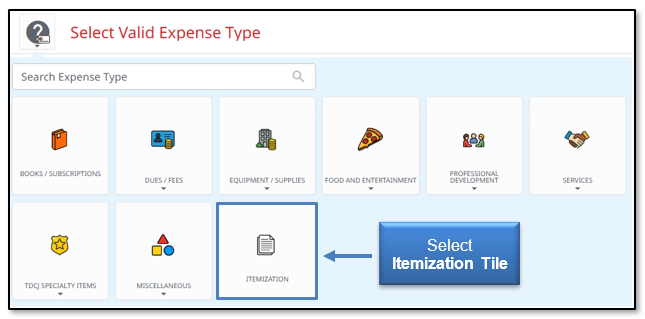
- When adding the transaction to an expense report and the system asks you to select a valid expense type, choose the Itemization tile. Selecting the Itemization tile will identify the transaction as requiring allocation to multiple expense types.
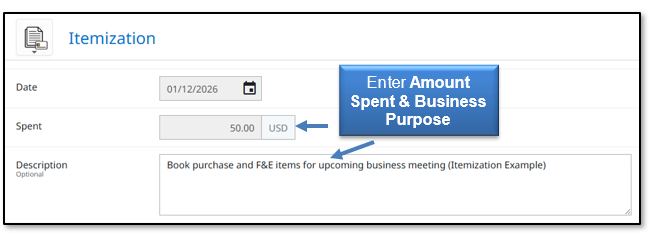
- After selecting the Itemization tile, the Itemization Header form will appear.
- Enter the Business Purpose of the entire expense and the allocation.
- Add supporting documentation to the Itemization Header.
NOTE: All information entered on the Itemization Header will be carried over to the individual expense types.
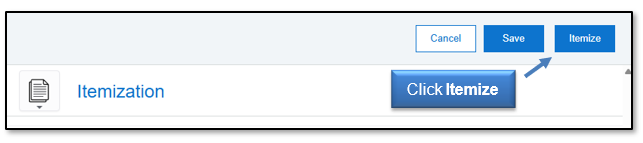
- Click the Itemize button on the top right corner to validate the appropriate expense types and the corresponding amounts.
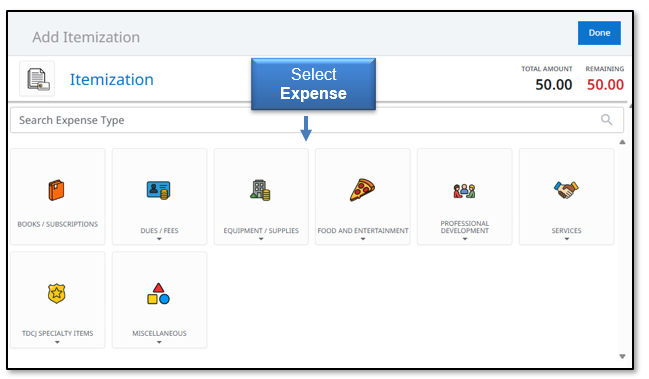
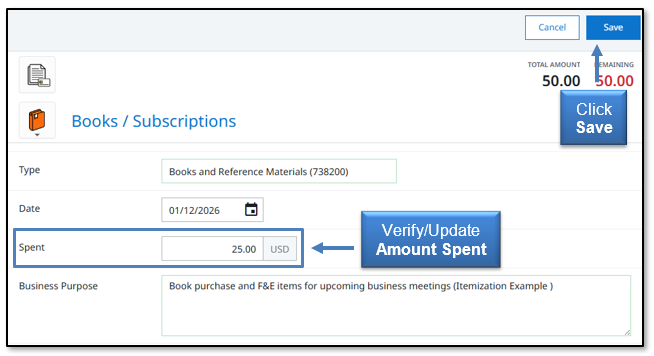
- All expense tiles will appear for your selection of the first expense type. Select the appropriate expense tile for the first itemization. In this example, the first itemization will be to Books/Subscriptions.
- The appropriate form will appear for the expense type chosen.
- Verify the appropriate amount for this expense type in the Spent field.
- Update the form as necessary for this specific portion of the expense.
- Additional documentation that applies only to this expense type can be uploaded at this time by selecting Add Attachments.
- The initial allocation and receipt provided on the Itemization Header will carry over.
Once completed, click Save.
- After saving, the system will display the expense tiles again for the remainder of the itemization and will indicate the remaining amount.
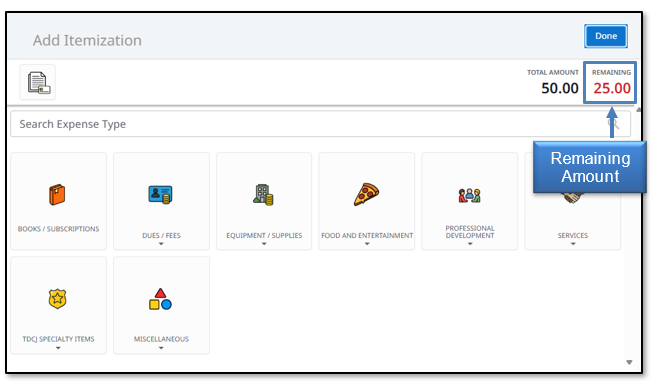
- Repeat the process of selecting the next appropriate expense type and filling out the expense form with the amount and additional information until the total amount of the transaction has been expensed to 0.00.
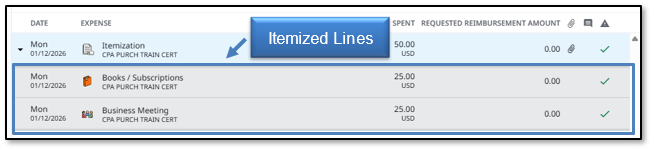
- Once completed, the itemization will be broken down on the expense report for the single transaction.
 If you have PCard-related questions about itemizing transactions, contact PCard at pcard@ttuhsc.edu.
If you have Travel-related questions about itemizing transactions, contact Travel at travel@ttuhsc.edu.
Contact
Finance Systems Management
-
Address:
3601 4th Street STOP 6209 | Lubbock, Texas 79430-6209 -
Email:
fsm@ttuhsc.edu