
Emburse Enterprise - Upload and Attach Receipts
Upload and Attach Receipts Directly to Expense Report Header
Once you have entered the header information for a new expense report (Report Name, Start/End dates, Approver), scroll down to the Attachments section.
There are two ways to attach images:
- Drag and drop images onto the DRAG IMAGE HERE TO UPLOAD.
- Select ADD ATTACHMENTS to browse for images on your device for upload or add a document from the Receipt Gallery.
Please note that all expense line items will require separate receipt attachments. Documentation uploaded directly to the Expense Report Header should be used for miscellaneous supporting documentation and not individual receipts or invoices.
If you forget to add a supporting document to an expense report, you can upload documentation to an expense report header even after it has been submitted. Simply find the report in the Submitted list and select it. When the preview of the expense report appears on the right, scroll to the bottom and add by using the Drag and Drop or Add Attachments option.
Upload and Attach Receipts Directly to an Expense Line Item
When adding a credit card transaction to an expense report, receipts can be added directly to that specific line item.
After choosing the appropriate expense tile, attachments can be added by using one of the two options available at the bottom of the form:
- Drag and drop images onto the DRAG IMAGE HERE TO UPLOAD.
- Select ADD ATTACHMENTS to browse for images on your device for upload, or add a document from the Receipt Gallery.
Line items that have an attached document will display a paper clip.
If you uploaded a receipt or invoice at the header level, you can drag an image from the header to a specific line item on the report.
Upload to the Receipt Gallery
Receipts can be uploaded and stored in this gallery before creating an expense report. Emburse Enterprise uses Optical Character Recognition (OCR) to extract data such as date, amount, and vendor from uploaded receipts.
There are three methods for uploading documentation to the Receipt Gallery:
- Direct Upload to the Receipt Gallery
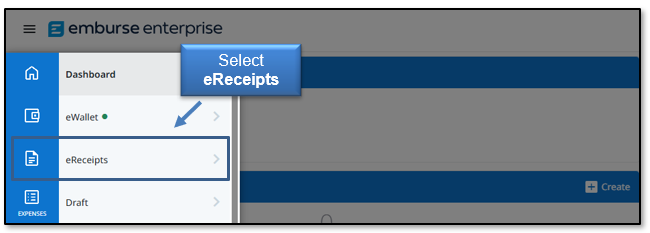
Access the Receipt Gallery by opening the main menu on the top left corner of the Emburse Enterprise dashboard and choosing the eReceipts option.
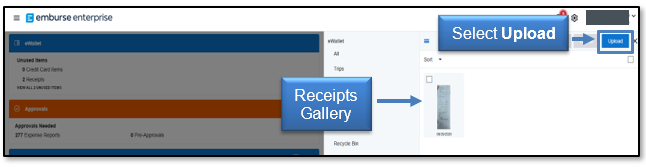
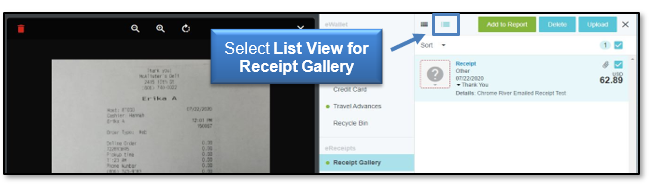
Use the Upload button or drag and drop files from your desktop to add them to the Gallery. Receipts are shown as a preview picture or a list.
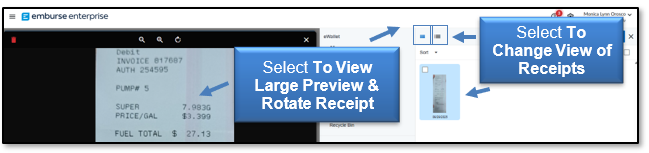
You may alter the receipt view to your preference. Click a receipt to view a large preview and rotate the image (if necessary).
 Upload to the Receipt Gallery Using the Emburse Enterprise SNAP App
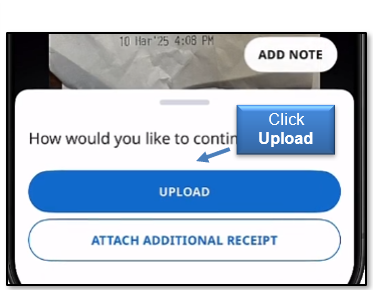
The free Emburse Enterprise app for smartphone devices (available for Android and iOS) enables expense owners to easily capture and upload receipt images as soon as the purchase occurs. Pictures taken of receipts with this app will be uploaded directly to the user’s Receipt Gallery for use the next time Emburse Enterprise is accessed.
After installation, verify your primary work email address in Emburse Enterprise. The app will send a verification code to the ttuhsc.edu email address provided. When the code is confirmed, log in using your eRaider username and password.
Use the app to take a picture of a receipt. It is recommended that you click the optional Add Note. You will be able to enter an amount and purpose before the image is uploaded.
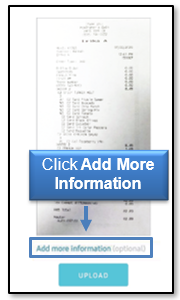
Additional information provided in the Emburse Enterprise app can be seen in the List View of the user's Receipt Gallery after a successful upload.
Emburse Enterprise can also access photos from other applications on your mobile device. If a receipt photo was taken with the device's regular camera app, simply find the receipt image in the photo gallery and select the SHARE icon. The image can be shared with the Emburse Enterprise app and uploaded.
Photos taken with Emburse Enterprise app are not stored in a device's default photo gallery, so they do not mix with personal photos.
- Upload to the Receipt Gallery Using Email
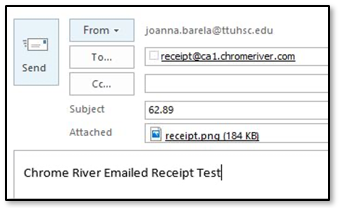
Receipt images can also be emailed to the Receipt Gallery. The message should contain the following information:
From: your.name@ttuhsc.edu
(must be an address associated with the user’s Chrome River account)
To: receipt@ca1.chromeriver.com
Subject: xx.xx [amount, no symbols]
(optional, can be left blank)
Body: [purpose of expense]
(optional, can be left blank)
After the message information is complete, attach the receipt and click Send.
The receipt will be uploaded to the Receipt Gallery of the sender. The dollar amount provided in the subject line and the purpose of the expense provided in the email body will be verified in the List View of the user's Receipt Gallery after a successful upload. If no amount or purpose is provided, Emburse Enterprise's OCR functionality will attempt to extract the basic receipt information.
NOTE to Delegates: Receipt images can be emailed directly to another user's Receipt Gallery by placing the other user's ttuhsc.edu email address in the Subject line.
Attaching Receipts to an Expense Report from the Receipt Gallery
When uploaded to the Receipt Gallery, all receipt data extracted through OCR will be used by Emburse Enterprise in an automatic matching process that attempts to pair the receipt with the user's PCard transaction. If a receipt is successfully matched with a PCard transaction, it will attach itself to the credit card transaction and will be removed from the Receipt Gallery.
Any documentation sent to the Receipt Gallery that cannot be matched to a specific transaction may be manually added to an expense report header or expense report line item. Review the Upload and Attach Receipts Directly to an Expense Line Item section.
NOTE: Receipts should never be added to a report directly from the Receipt Gallery. This will create an expense report line item for reimbursement, which is not allowed on a PCard expense report.
If you have any questions, contact PCard at pcard@ttuhsc.edu.
Contact
Finance Systems Management
-
Address:
3601 4th Street STOP 6209 | Lubbock, Texas 79430-6209 -
Email:
fsm@ttuhsc.edu