
Fund Name Change Training
The Fund Name Change module of the Fund Maintenance System allows departments to submit name changes for existing funds. After review and approval, the system will update Banner with the new fund name.
The system can be accessed from:
- Fund Maintenance System
- WebRaider portal > Business Affairs tab > Links to Financial Systems > Fund Maintenance
Fund Name Change Process
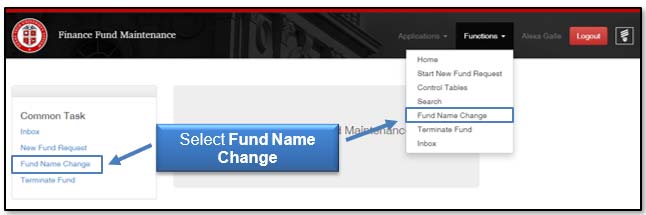
To begin a Fund Name Change request, select Fund Name Change under Common Task on the left side of the web page or from the drop-down list under Functions.
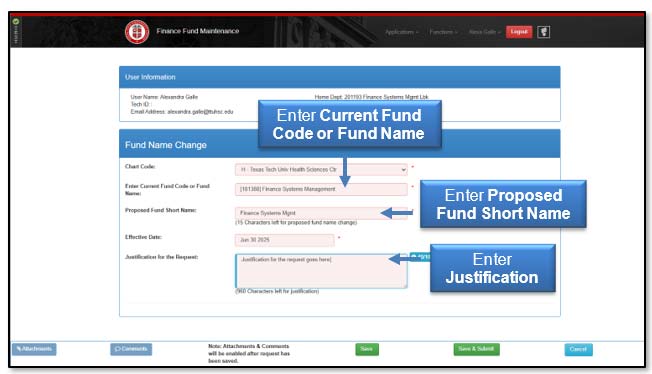
The system auto-populates information about you and your department in the User Information section. This information is based on data from Banner HR. A red asterisk appears next to all required fields.
The Chart Code is auto-populated from the drop-down menu based on your User Information.
You can type the current fund name or fund number in the Enter Current Fund Code or Fund Name field to initiate the search.
Enter the Proposed Fund Short Name. Keep in mind that this field is limited to 35 characters.
The Effective Date will be auto-populated to today's date, but may be changed to a future date. A date prior to today's date may not be used.
Enter the Justification for the Request.
You are able to click either the Save button (saves your work) or the Save & Submit button (sends your request to the approval process).
When the Save button is clicked, the system will notify you that your request was successfully saved in the top right corner and redirect you to the Search page.
When the Save & Submit button is clicked, the system will notify you that your request was successfully submitted at the top right corner and redirect you to the Search page. If any required fields are not completed, the system will remain on the same page and will not submit the request to approvals. All required fields must be completed before clicking Save & Submit.
When the Fund Name Change request is submitted, the request will first be routed to the Fund Manager for approval. An email will be sent to the Fund Manager notifying them that a Fund Name Change request is waiting for their approval. A link to the request will be provided in the email.
Attachments and Comments
An Attachments button and a Comments button will appear at the bottom left corner after clicking the Save button.
After the Attachments box opens, click the Choose File button. Select the file you wish to upload and click Upload Attachment. If you accidentally upload an incorrect file, you are able to delete it by clicking on the trash can icon under Actions. Once the attachment is added, click Close.
After the Comments box opens, click the Add button to include additional information about the request. Click the plus sign to add the comment or the minus sign to delete the comment. Once the Comment is added, click Close.
The green bubble icons on each button indicate how many attachments or comments the request has attached to it.
Attachments and comments may be added until the request has received final approval.
My Requests
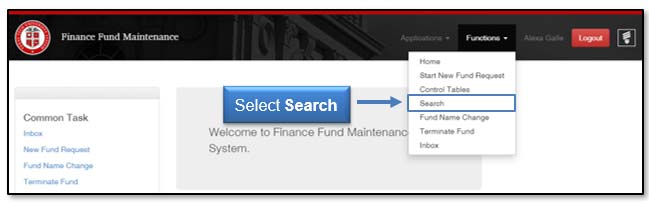
To view your Fund Name Change requests, click Search in the drop-down list under Functions at the top of the page.
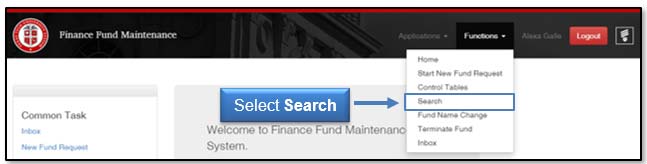
Search will direct you to My Requests, which is a list of requests you have initiated and saved or routed to approvals. Each request will provide information regarding the Request Number, Submitter, Request Type, Activity Date, Chart, Fund Class, Fund Code, Fund Name, and Status.
If the request needs to be submitted for approval, the Status will indicate In Process. Click Review to view the Fund Name Change form. Then click Save & Submit to begin the approval process.
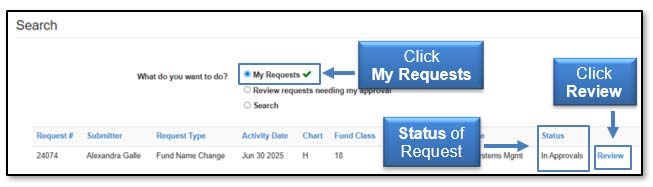
When the Status of a request indicates In Approvals, the request can be reviewed, but no changes may be made.
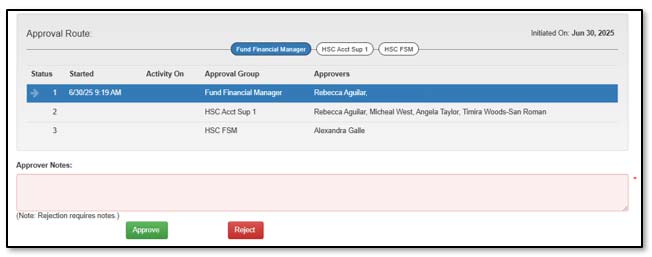
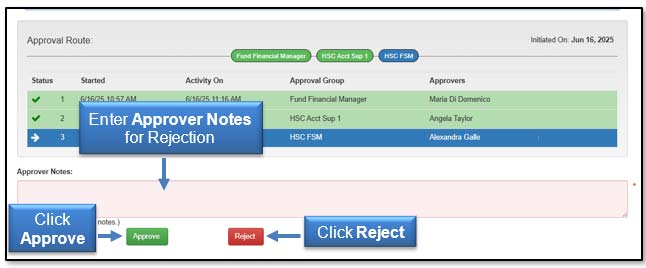
Users can view the approval route of the request by scrolling to the bottom of the request form. A Fund Name Change request is routed to the Fund Manager, Accounting Services, and Finance Systems Management for final review and processing.
Review Requests Needing Approval
To look for requests needing your approval, click Search in the drop-down list under Functions at the top of the page.
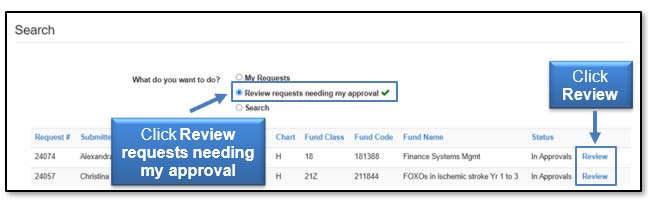
Select Review requests needing my approval. Requests will be sorted by Request Number for all Fund Maintenance System requests. Users may view a request by selecting Review.
After reviewing the Fund Name Change request, either click Approve or Reject. If the Reject button is selected, a reason must be entered in the Approver Notes before processing the rejection.
Search
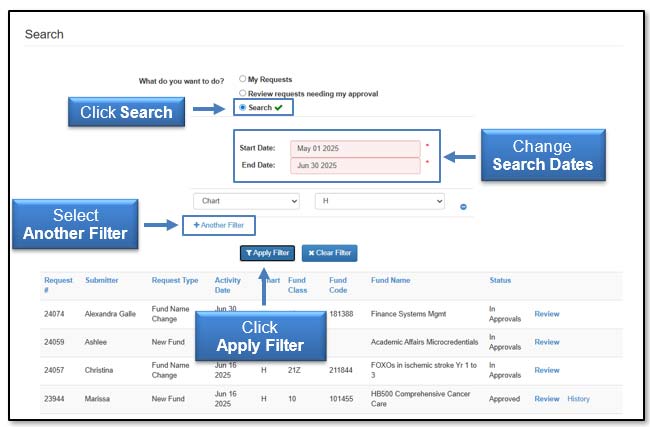
By selecting the Search button, all Fund Maintanence System requests for the past two months will appear. The required search dates may be changed by entering new information in the Start Date field or End Date field.
If the search needs to be narrowed beyond the dates and Chart, select Another Filter. A drop-down menu will appear allowing the search to be filtered by Request Number, Submitter, Chart, Fund Class, Fund Code, Fund Name, Status, and Request Type.
Once a filter has been selected for a search, click Apply Filter. To remove a filter from a search, click Clear Filter.
If you have policy questions, please contact Accounting Services at hscacc@ttuhsc.edu.
If you have questions about the system, please contact Finance Systems Management at fsm@ttuhsc.edu.
Contact
Finance Systems Management
-
Address:
3601 4th Street STOP 6209 | Lubbock, Texas 79430-6209 -
Email:
fsm@ttuhsc.edu