
New Fund Request
The New Fund Request module of the Fund Maintenance System allows departments to submit requests for the establishment of new fund codes. After review and approval, the system will update Banner with the new fund code information.
The system can be accessed from:
- Fund Maintenance System
- WebRaider portal > Business Affairs tab > Links to Financial Systems > Fund Maintenance System
The Fund Maintenance System allows a departmental user to:
- Start a New Fund Request
- Review the status and track the approval routing of a New Fund Request
- Resume completion of a New Fund Request
- Review the history of a New Fund Request
- Delete a New Fund Request
New Fund Process
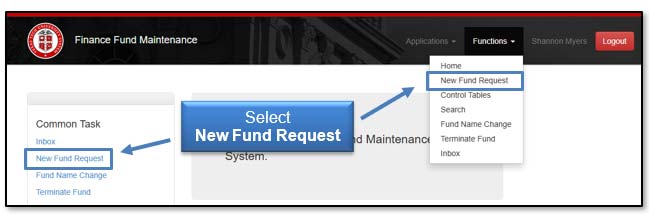
To begin a new fund request, select New Fund Request under Common Task on the left side of the web page or New Fund Request in the drop-down list under Functions.
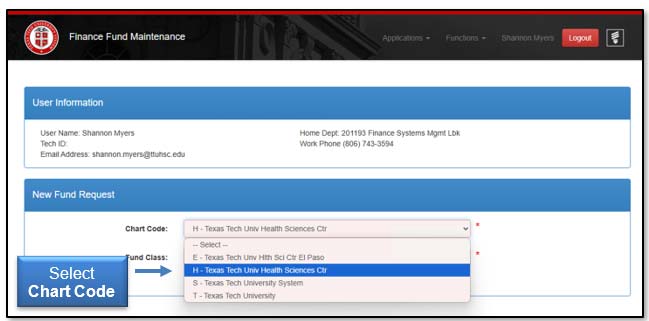
The system auto populates information about you and your department in the User Information section. This is based on information from Banner HR data.
If a red asterisk appears next to a line, this means the field or line is required and must be completed before moving forward. Select the Chart Code from the drop-down menu if you need to change the chart code.
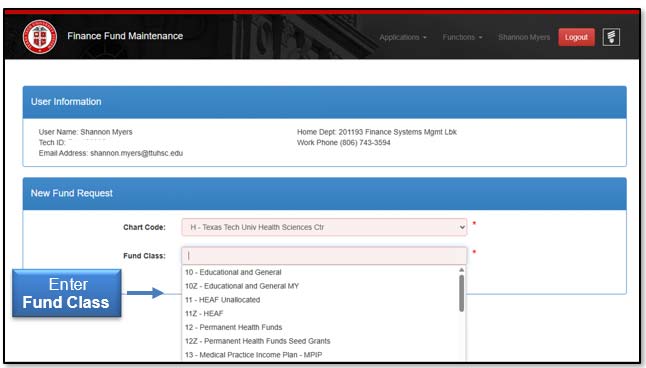
Enter the Fund Class information. The system will provide a drop-down box, or the Fund Class can be autocompleted as numbers or text are entered into the field.
Select the appropriate Fund Class from the Fund Class Definitions - Appendix A referenced toward the end of this training information.
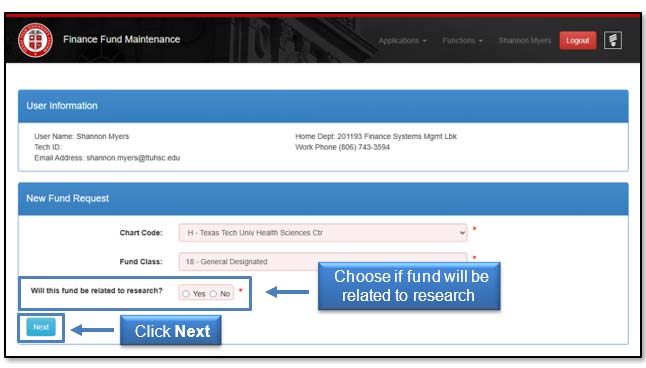
If the fund is related to research, select Yes. If not, select No. Click Next to be routed to the New Fund Request form.
New Fund Request Form
The New Fund Request form will auto populate information based on previous answers. If changes to the selection of the chart code, fund class, or research determination are necessary, click Change Fund Class.
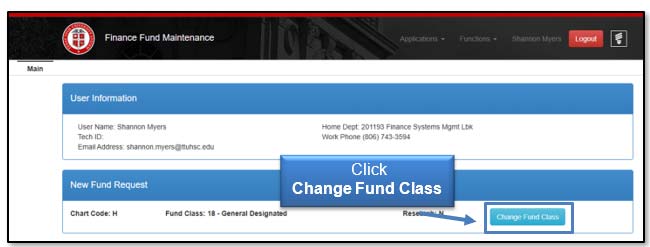
The New Fund Request form will have different sections depending on the answers provided in the New Fund Request section.
Those sections may include:
- Main Fund Information (required section for every fund request)
- Grants
- Research
- Service
Main Fund Information
Required fields in the Main Fund Information section include Fund Manager, Fund Name, Source of Funds, Backup FOP, and Prior Year FOP.
Populate the fields by either selecting from allowable values in drop-down boxes or typing information into the text boxes. The drop-down box will provide options or autocomplete when valid beginning numbers or text are entered. The Fund Name and Fund Long Name must not contain any special characters except "/". If a red asterisk appears next to a line, the information for that line is required and must be completed before the New Fund Request is submitted for approval.
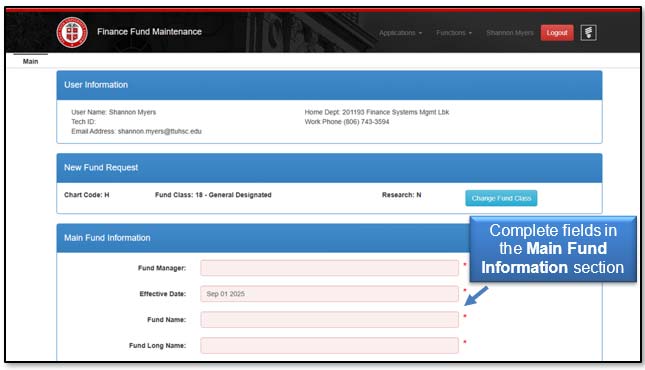
Selecting the proper program code on a New Fund Request assures that expenditures are correctly categorized to indicate why expenses were incurred and are correctly reported on required reports. For program code definitions refer to the Program Codes training web page available from the Training Center.
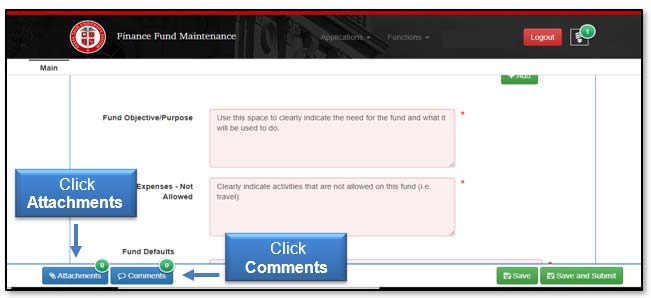
The Attachments and Comments buttons are enabled after the request has been saved.
Attach any required documents, e.g. award notices, email correspondence, etc., by selecting Attachments. Attachments larger than 10MB need to be split into multiple documents.
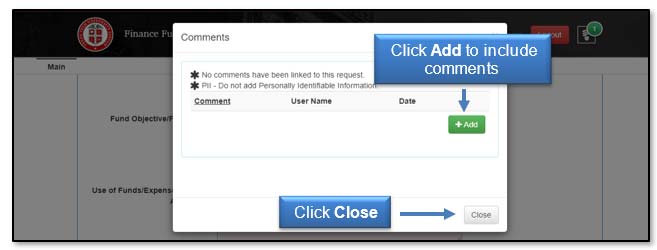
Click Comments to add additional information about the request.
After the Comments box opens, click the Add button and enter the comment. Click the plus sign to add the comment or the minus sign to delete the comment. Once the Comment is added, click Close.
Comments may be added until the New Fund Request has received final approval.
Additional Sections
Based on the selection of the Fund Class, the New Fund Request may include additional sections related to the following areas:
- Grants
- Research
- Service
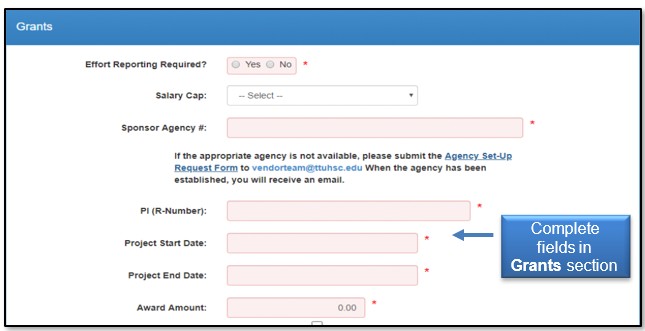
Any additional required sections are added directly under the Main Fund Information section. These sections gather data in a way similar to the Main Fund Information section. Populate the fields by either selecting from allowable values in drop-down boxes or typing information into the text boxes. The drop-down box will provide options or autocomplete when valid beginning numbers or text are entered. If a red asterisk appears next to a line, the information for that line is required and must be completed before the New Fund Request is submitted for approval.
Required fields in the Grants section include:
- Effort Reporting
- Sponsor Agency Number
- Project Start Date
- Project End Date
- Award Amount
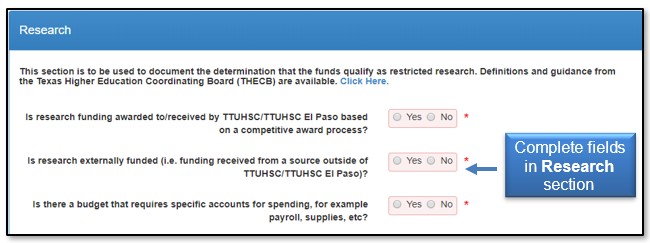
Required fields in the Research section include questions to determine if the fund qualifies as restricted research as defined by the Texas Higher Education Coordinating Board (THECB), Research Activity Type, Research Field, and Areas of Special Interest.
Research must be classified into one of these three activities (as defined by the National Science Foundation (NSF) Research Report):
- Applied Research - Original investigation undertaken to acquire new knowledge, and directed primarily towards a specific, practical aim or objective.
- Basic Research - Experimental or theoretical work undertaken primarily to acquire new knowledge of the underlying foundations of phenomena and observable facts, without any particular application or use in view.
- Developmental Research - Systematic work, drawing on knowledge gained from research and practical experience and producing additional knowledge, which is directed to producing new products or processes or to improving existing products and processes.

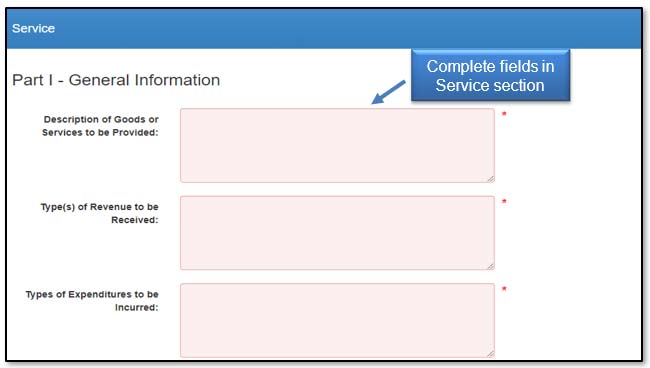
Required fields in the Service section include Part I - General Information, Part II - Contact Information, Part III - Billing Information, and Part IV - External Sales. Recommended reference for this section is HSC OP 50.17 - Establishment and Operation of Service Departments.
Save and Submit
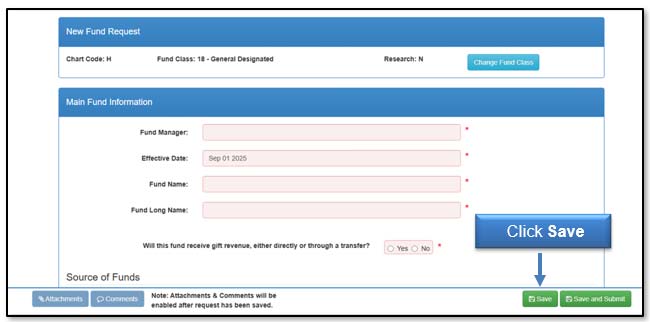
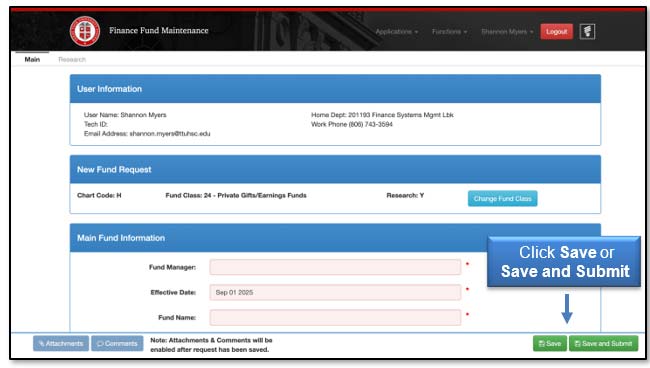
After all sections are complete, click the Save button on the bottom right of the Main Fund Information to save your work and send the request for approval at a later time, or click Save and Submit to send the New Fund Request to the approval process.
All required fields must be completed before selecting Save and Submit.
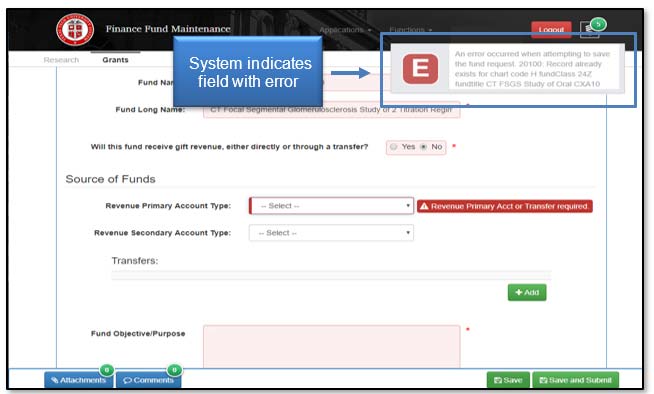
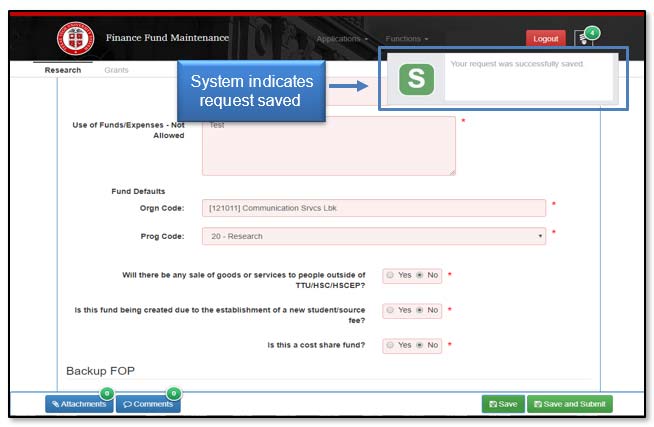
When the Save button is clicked, a system notification in the top right corner will indicate that the request was successfully saved. You will remain on the same screen. If any required fields are incomplete or have errors, the Fund Maintenance system will save your work and indicate which fields need to be completed or fixed before submitting the New Fund Request for approval.
When the Save and Submit button is clicked, a system notification in the top right corner will indicate that the request was successfully submitted. You will be redirected to the Search table. If any required fields are incomplete, the system will remain on the same page and will not submit the New Fund Request for approval.
When the New Fund Request is submitted, the request will first be routed to the Orgn Manager for approval. An email will go to the Orgn Manager notifying them that a New Fund Request is waiting for their approval. A link to the request will be provided in the email.
My Requests
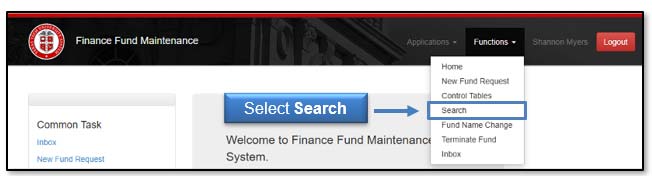
To view your New Fund Requests, click Search in the drop-down list under Functions at the top of the page.
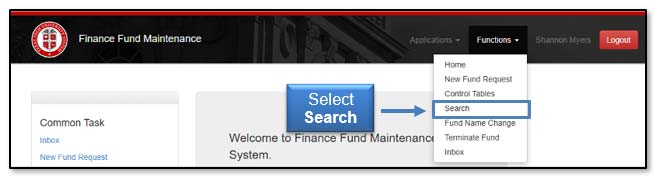
Search will direct you to My Requests, which is a list of items you have initiated and saved or routed to approvals. Each new fund request will provide the Request Number, Submitter, Request Type, Activity Date, Chart, Fund Class, Fund Code, Fund Name, and Status.
If the request needs to be submitted for approval, the Status will indicate In Process. Click Review to view the New Fund Request form. Then click Save and Submit to begin the approval process.
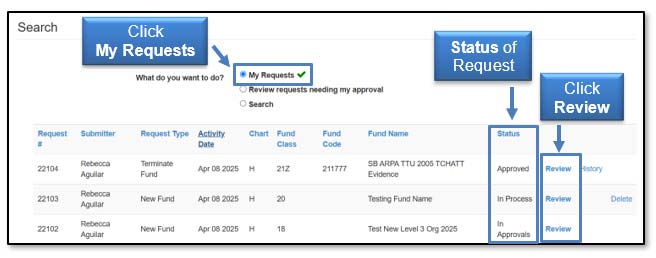
When the Status on a request indicates In Approvals, the form can be reviewed but no changes can be made.
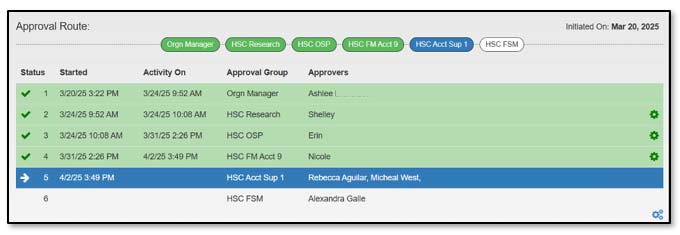
Users can view the approval route of the request by scrolling to the bottom of the request form. A New Fund Request is routed based on the Orgn code entered in the request and the selected Fund Class from the initial New Fund Request page.
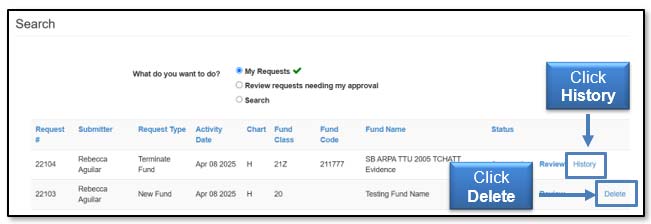
Users can delete a request that is In Process or Rejected. Click Delete to remove the request.
Users can view the History of an Approved request. Click History to view the report.
Review Requests Needing Approval
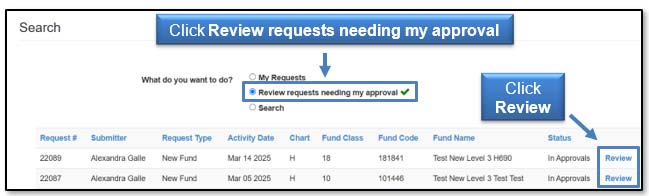
To look for documents that require your approval, click Search in the drop-down list under Functions at the top of the page.
Select Review requests needing my approval. Requests will be sorted by Request Number. Users may view a request by selecting Review.
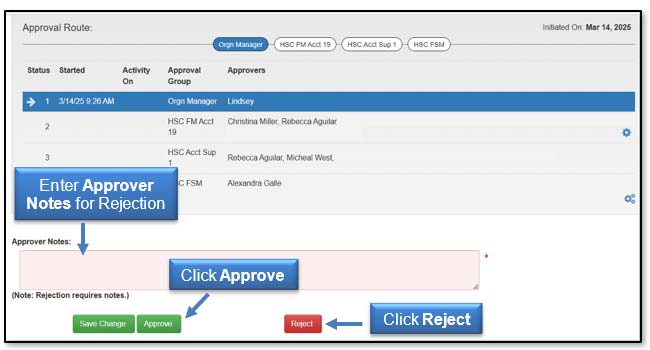
After reviewing the New Fund Request, either click Approve or Reject. If Reject is selected, a reason must be entered in the Approver Notes before processing the rejection.
Search
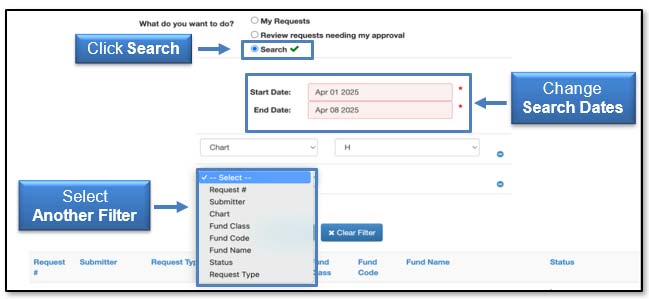
By selecting the Search button, all Fund Maintenance System Requests for the past two months will appear. The required search dates may be changed by entering new information in the Start Date field or End Date field.
If the search needs to be narrowed beyond the dates, select Another Filter. A drop-down menu will appear allowing the search to be filtered by Request Number, Submitter, Chart, Fund Class, Fund Code, Fund Name, Status, or Request Type.
Once a filter has been selected for a search, click Apply Filter. To remove a filter from a search, click Clear Filter.
Assign Additional Approver
An Orgn Manager can assign Alternate Approvers for a New Fund Request through the TEAM application. The TEAM application can be accessed from the WebRaider portal, F&A Work Tools tab, Finance portlet, under Finance Systems Management.
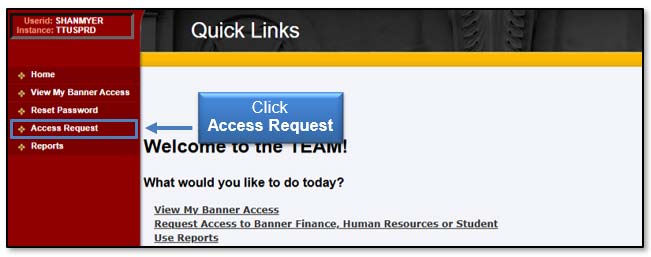
Select Access Request from the menu on the left side of the TEAM application home page.
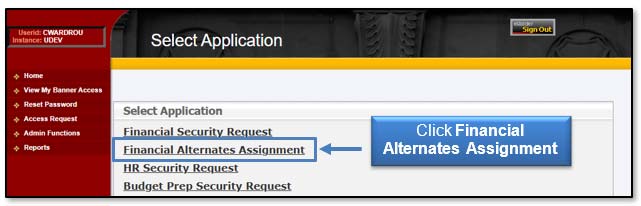
Select Financial Alternates Assignment under the Select Application section to begin the alternate assignment process.
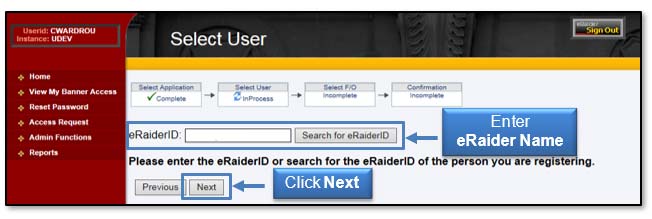
Enter the eRaider ID for the alternate approver. To search for the person's eRaider ID, click Search for eRaiderID. Enter at least the last name of the person and then click the Search button. Click the Select button beside the person's name to be added as an alternate approver.
After the correct eRaider ID is populated in the eRaiderID field, click the Next button.
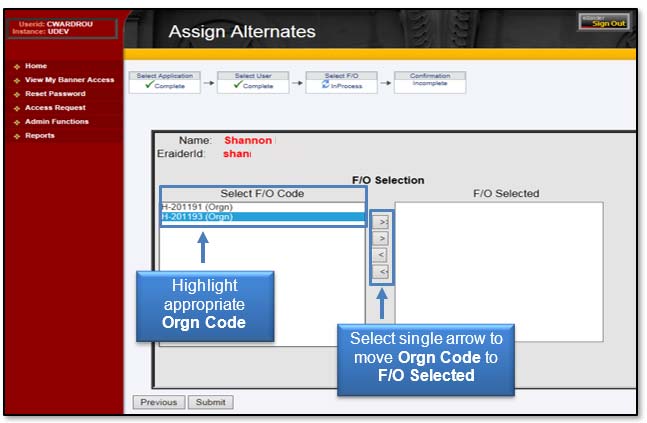
A list of Orgn Codes will display in the box on the left side of the screen. Highlight the Orgn Code from the list on the left side that you wish to assign to the alternate and click the single arrow button that points to the space to the right, Fund/Orgn Selected.
If you select more than one Orgn Code, click the double arrow button that points to the right and all selected Orgn Codes will be added to the space on the right.
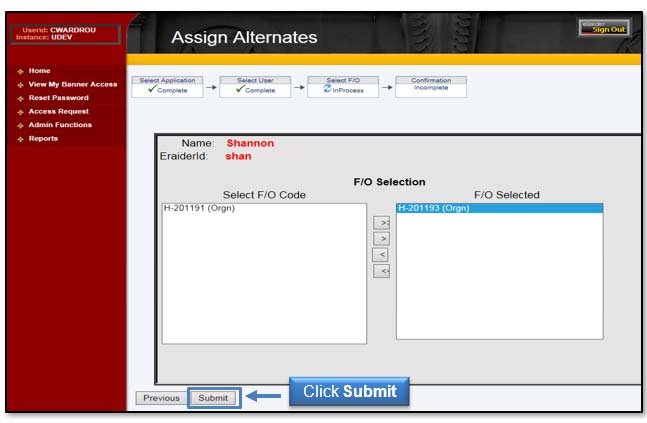
After the Orgn Codes have been selected, click the Submit button.
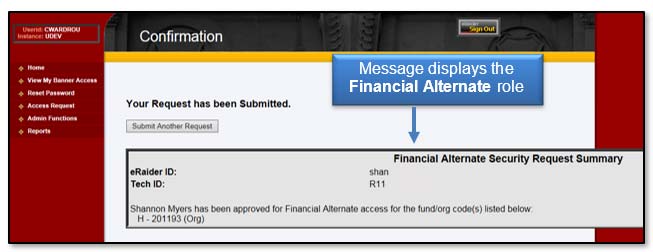
When the request to add an alternate approver is complete, a message will display the name of the person granted the Financial Alternate role and the associated Orgn Codes.
When the request has been sent to Banner, the original submitter, and all the request's approval chain members will receive a confirmation email.
Control Tables
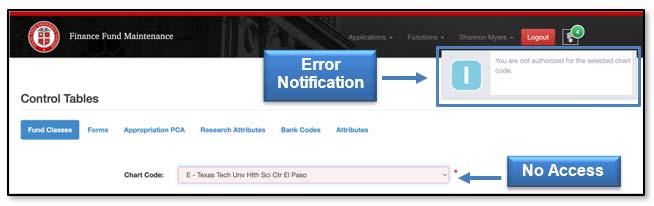
The Control Tables section is found under the Functions menu. Most users can view parts of the Control Tables, but are not authorized to view the details of the Control Tables or make changes to the functionality of this section. The Fund Maintenance system will send an Error Notification to alert users if they try accessing these sections.
If you have additional questions, please contact Accounting Services at hscacc@ttuhsc.edu
Appendix A
Fund Class Definitions
Selecting the proper fund class on a New Fund Request assures the completion of the appropriate forms and approval routing. Selection of the fund class requires some general knowledge about fund classes. The source of funds (where is the funding coming from) is the main driver in identifying the appropriate fund class, followed with identifying if the funding is restricted or has other designations. This list provides basic information about each fund class to help determine the proper class to select:
10 - Educational and General
- State Appropriated Funds
- General revenue appropriations provided by the Legislature to support general education operations
10Z - Educational and General MY
- Projects or grants held in the state treasury that have a specified performance period (may cross fiscal years)
11 - HEAF Unallocated
- Appropriations provide by the legislature for capital expenditures for land, construction, major repair and rehabilitation of buildings, capital equipment, and library materials and does not cross fiscal years (in perpetuity)
11Z - HEAF
- Appropriations provide by the legislature for capital expenditures for land, construction, major repair and rehabilitation of buildings, capital equipment, and library materials (may cross fiscal years)
12 - Permanent Health Funds
- Programs funded from Permanent Health Funds (Tobacco funds) that benefit medical research, health education, or treatment programs
12Z - Permanent Health Funds Seed Grants
- Seed grants funded from Permanent Health Funds
13 - Medical Practice Income Plan - MPIP
- Revenue and expenditures related to patient care or other activities of the practice plan
14 - Strategic Initiative Practice Income Plan
- Revenue and expenditures related to the managed care private enterprise.
14Z - Strategic Initiative Practice Income Plan
- Revenue and expenditures related to the managed care private enterprise that has a grant term.
15 - Nursing Income Plan - NIP
- Revenues and expenditures related to patient care or other activities of the practice plan
16 - Allied Health Income Plan - AHIP
- Revenues and expenditures related to patient care or other activities of the practice plan
17 - Pharmacy Income Plan - PIP
- Revenue and expenditures related to patient care or other activities of the practice plan
18 - General Designated
- Resources internally allocated by the governing board or management
- Student fee funds
- Facility and Administrative (Indirect Cost) recovery from sponsored program funds
18Z - General Designated Seed Grants
- Seed grants from unrestricted funds
19 - Service Departments
- Ongoing operations that sell products and provide specific services to other TTUHSC departments
- Lab services
- Facility use fees
1L - Graduate Tuition
- Statutory tuition as authorized by the Texas Education Code section 54.051
- Support general educational operations
1M - Coordinating Board
- Texas Higher Education Coordinating Board grants that have a specified performance period and does not cross FYs (in perpetuity)
- Funded through appropriations in the state Treasury
1MZ - Coordinating Board MY
- Texas Higher Education Coordinating Board grants that have a specified performance period (may cross fiscal years)
- Funded through appropriations in the state Treasury
1T - Student Fees
- Designated tuition and fees as authorized by the Texas Education Code and the TTUS Board of Regents
- Tuition funds support general education operations
- Student fee funds support the approved purpose of the fee and should not be used for discretionary purposes
1TZ - Student Fees MY
- Student fee funds (may cross fiscal years)
20 - Non-Federal Scholarships
- Scholarships funded from gifts from external sources (including endowment earnings)
- Use is restricted to scholarship expense
20Z - Federal Scholarships
- Pell
- SEOG
21Z - Federal Govt Grants/Contracts
- Includes direct program grants and Federal funds passed to TTUHSC from other agencies
- Use is restricted to conditions agreed upon in the grant/contract
22 - State Grants
- TDCJ Contracts
22Z - State Govt Grants/Contracts
- Grants or contracts from other State of Texas entities, including state funds passed to TTUHSC from other agencies
- Use is restricted to conditions agreed upon in the grant/contract
23 - Local Govt Gifts/Earnings Funds
- Gifts or endowment earnings from local government agencies
- Use is restricted to conditions agreed upon in donor correspondence
23Z - Local Govt Grants/Contracts
- Grants or contracts with local government agencies
- Use is restricted to conditions agreed upon in the grant/contract
24 - Private Gifts/Earnings Funds
- Gifts from private agencies, foundations or individuals
- Non-scholarship earnings from endowments
- Use is restricted to conditions agreed upon in donor correspondence
24Z - Private Grants/Contracts
- Grants or contracts with private entities
- Use is restricted to conditions agreed upon in the grant/contract
2L - Managed Health Care
30 - Auxiliary Enterprises
- Entity that exists predominantly to furnish goods and services to students, faculty or staff outside the research and education functions
- Charges a fee directly related to the cost of goods and services
- Traffic and Parking
- Bookstore
40 - Federal Loans
- Federally Funded Loan
- Funds available for loans to students
41 - Institutional Loans
- Non-Federal Loans
- Funds available for loans to students
- Funding provided from internal sources or from private donations
50 - Quasi-Endowments Unrestricted
- Quasi-endowments are funds functioning as endowments that are established by the Board from institutional funds. The original source of quasi-endowment funds may be unrestricted or restricted.
51 - Quasi-Endowments Restricted Expendable
- Endowments funded with expendable donor restricted resources that TTUHSC has obtained Board of Regents' approval to retain and manage lie an endowment
- Purpose of endowment must meet the same purpose restrictions as the donor restricted resources used to fund the endowment
- Endowment corpus must be utilized only for the purpose specified by the donor
- Earnings from the endowment corpus may be utilized at the discretion of TTUHSC
52 - Quasi-Endowments Restricted Non-Expendable Match
- Endowments funded with internal resources that TTUHSC has obtained Board of Regents' or TTUS CFO's approval to retain and manage like an endowment in order to satisfy matching requirements of a donor endowment
- Corpus must remain intact
- Earnings from endowment corpus can be expended or reinvested as stipulated on the matching donor endowment agreement
60 - Permanent Endowments
- External resources that a donor has determined are to be maintained in perpetuity
- Corpus must remain intact
- Earnings from endowment corpus can be expended or reinvested with the original gift as stipulated by the donor
80 - Student and Other Agency Funds
- Resources held on behalf of external parties
- Used to report resources held by TTUHSC in a purely custodial capacity
81 - TTFI Earnings Funds
- Earnings from Texas Tech Foundation, Inc (TTFI) endowments
- No longer in use, all earnings are in HSC funds
82 - TTFI Scholarships
- Gifts from external donors designated to be used for scholarships, gift to TTFI
- No longer in use, all scholarships are in HSC funds
83 - TTFI Restricted Funds
- Funding is restricted for specific purposes
- Currently only for non-cash investments and TTFI holding funds
84 - TTFI Unrestricted
- Funding that is not restricted for specific purposes, discretionary funds
- Currently only a handful of specific gifts funds from TTFI
85 - TTFI Permanent Endowments
- External resources gifted to TTFI that a donor has determined are to be maintained in perpetuity
- Corpus must remain intact
- Earnings from endowment corpus can be expended or reinvested with the original gift as stipulated by the donor
88 - Texas Tech Physicians Associated - TTPA
8A - TTFI Fnds Functioning as Endowments
- Endowments funded with expendable donor restricted resources that TTFI has obtained Board of Regents' approval to retain and manage lie an endowment
9EZ - Unexpended Plant - Perm Hlth Funds
- Used to record expenditures for a project until completion
- Funded from Permanent Health Funds (Tobacco funds)
9FZ - Unexpended Plant - HEAF
- Used to record expenditures for a project until completion
- Funded from HEAF funds
9GZ - Unexpended Plant - Tuition Rev Bonds
- Used to record expenditures for a project until completion
- Funded from Tuition Revenue Bond proceeds
9HZ - Unexpended Plant - Local Funds
- Used to record expenditures for a project until completion
- Funded from internal local funds such as MPIP funds or restricted funds
9JZ - Unexpended Plant - CCAP
- Used to record expenditures for a project until completion
- Funded from CCAP (Capital Construction Assistance Projects) proceeds
If you cannot determine the appropriate fund class to select, please contact Accounting Services at hscacc@ttuhsc.edu.
Contact
Finance Systems Management
-
Address:
3601 4th Street STOP 6209 | Lubbock, Texas 79430-6209 -
Email:
fsm@ttuhsc.edu