
Merchant Account Application Help
Merchant Account Application
Departments at TTUHSC have the ability to accept credit card payments by obtaining a merchant for ecommerce, terminal and/or mobile solutions. To obtain a new merchant or add additional merchants, submit a request through the Merchant Account Application.
Request Submission
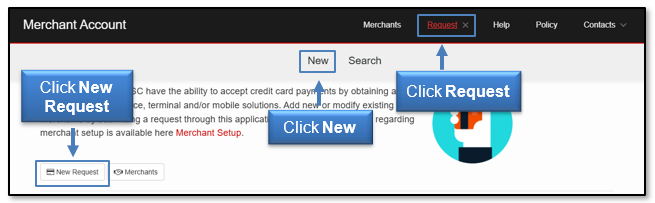
To request a new merchant, either click the New Request button on the main page, or select Request from the navigation bar and then click New.
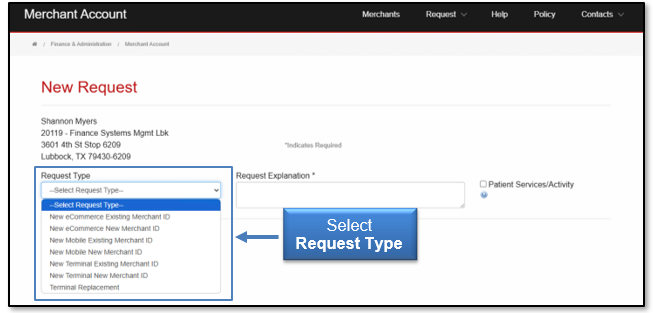
Select a Request Type from the drop-down menu.
Fill in the required fields* for the Request Type and provide a Request Explanation of intended merchant use and business need. If the request involves activity or information related to patients, checkmark Patient Services/Activity. Click Submit.
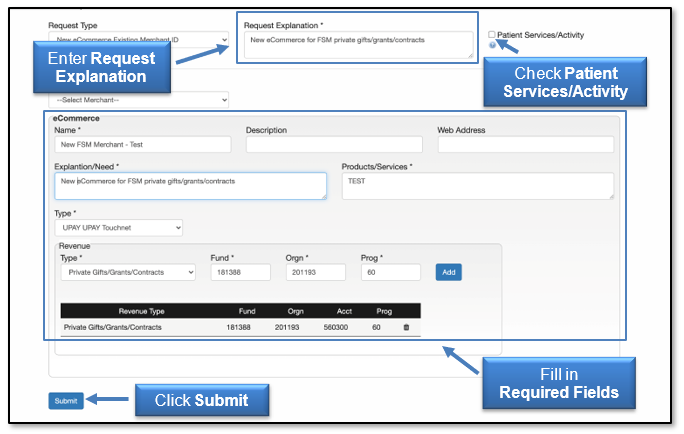
Required fields* are different depending on the request type. While many of the required fields* are self-explanatory, below are some tips regarding the fields that might require further explanation.
- Merchant Name - include a short name limited to 16 characters including spaces. This short name should identify the department and/or intended use of the merchant. For example, General Services department might enter a merchant name of “General Services”. Or General Services might enter a merchant name of “Gen Svc Mail Svc” and “Gen Svc Surplus” when using more than one merchant within the department.
- Merchant Description - provides more information related to the merchant. The Merchant Name can be expanded to provide a more detailed name. Or a description of the related activity can be entered. For example, merchant short name “Gen Svc Surplus” can be expanded to “General Services Surplus” or a description such as “Sale of surplus property” can be entered.
- Terminal/eCommerce/Mobile Name - reenter the Merchant Name and add identifying information associated with that Merchant. For example, a terminal might be named “Gen Svc Surplus 1”.
A notification will appear at the bottom of the screen once the request is submitted.

Depending on the type of request, it may be processed through several authorized approvers. An email will be sent upon final approval.
If a request is rejected during the approval process, an email will be sent with the reason why an authorized approver rejected the request.
Request Search
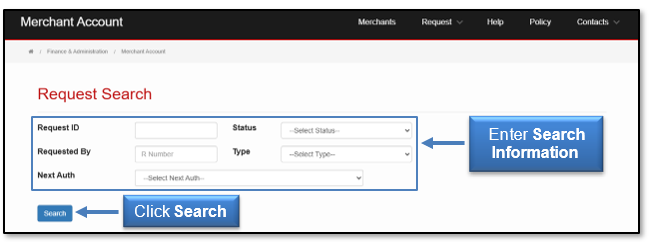
To Search for requests, navigate to the Requests section in the navigation bar and click Search.

Several search options are available:
- Request ID - Allows to enter specific Request ID number.
- Requested By - Requires R number of the requestor.
- Next Auth - Drop-down menu lists eight approvers available for requests. Not all authorized approvers are required for every request.
- Status - Drop-down menu sorts by approved, cancelled, rejected or requested.
- Type - Drop-down menu searches by request types.
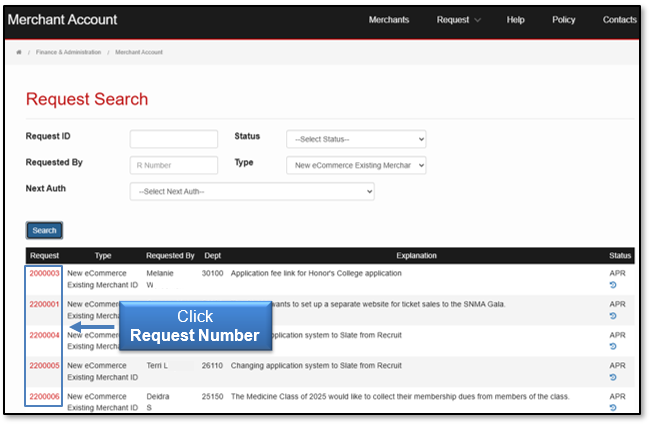
Enter the information for one or more of the search fields, and click Search.
Click a Request Number to view more details.
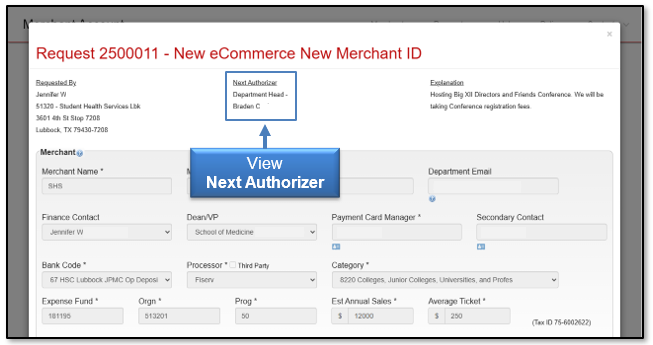
The request will provide details about the submission. If the status is Requested, information will be displayed about the Next Authorizer.
Navigation within the Application
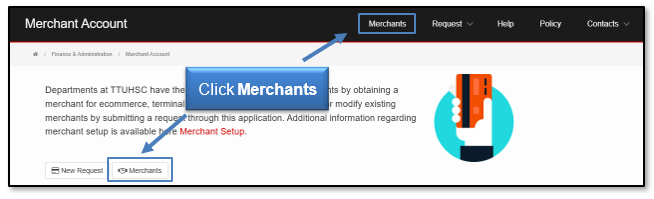
All employees will be able to view information for merchants within their home org in read only view. To view merchant information, click the Merchants button or select Merchants in the navigation bar.
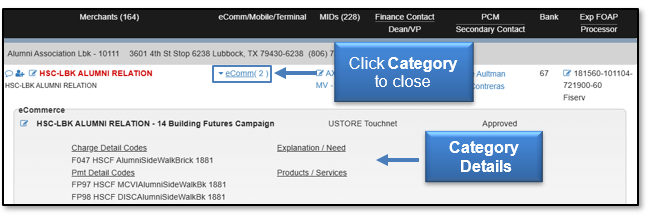
When viewing merchant information, if selecting a category with a drop-down arrow, more details will be displayed.
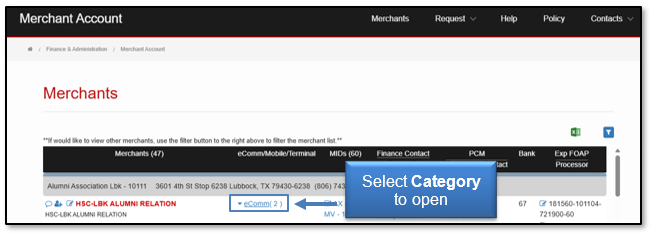
After reviewing the information, click the category again to close it.
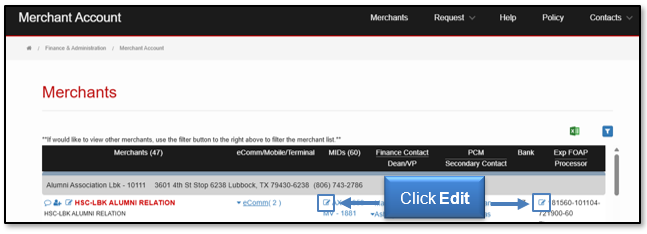
Clicking an Edit icon located next to a category allows you to view or make changes to the category information, depending on your role. Only users who are listed as a contact for a merchant will have the ability to edit merchant information.
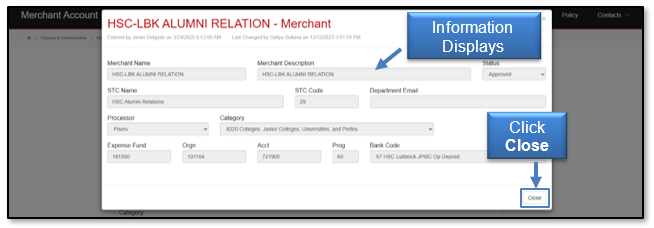
The information displayed will depend on the category selected. Authorized users must provide comments whenever modifications are made.
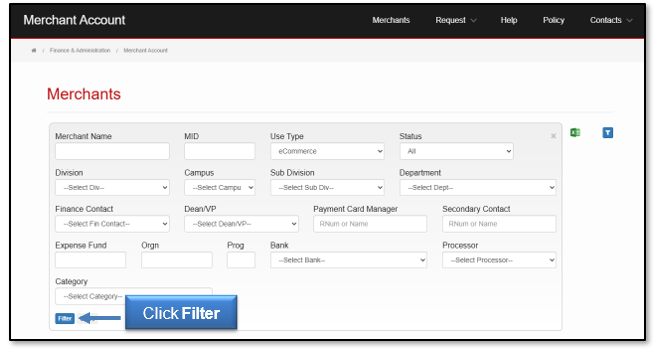
To sort through merchants, click the Filter Merchant List button.
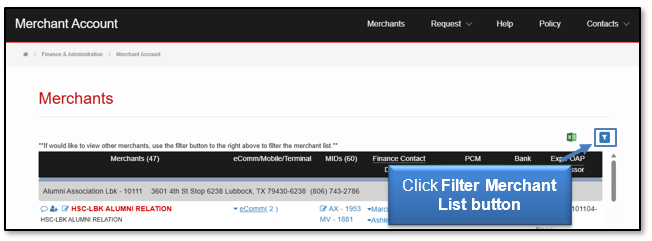
Merchants may be filtered by Name, MID, User Type, Status, Division, Campus, Subdivision, Department, Finance Contact, Dean/VP, Payment Card Manager, Primary/Secondary Admin, Primary/Secondary Contact, Expense FOP, Bank, Processor & Category. Once a selection(s) is made, click Filter.
Please contact Accounting Services at hscacc@ttuhsc.edu with questions or for additional guidance in using the Merchant Account Application.
Contact
Finance Systems Management
-
Address:
3601 4th Street STOP 6209 | Lubbock, Texas 79430-6209 -
Email:
fsm@ttuhsc.edu