
PaymentWorks - Check Vendor Status
Vendors from your PaymentWorks account go through various invitation and onboarding stages.
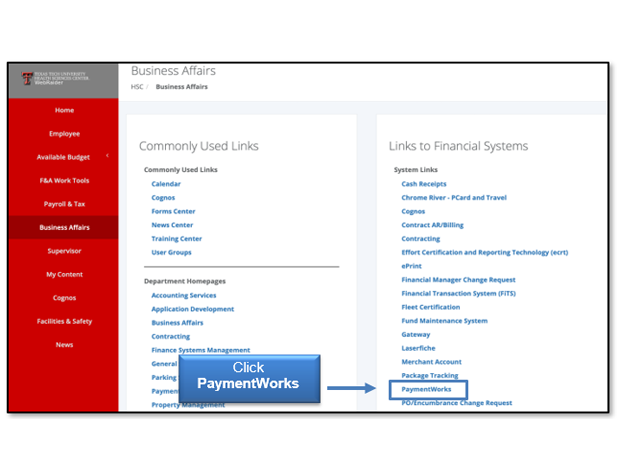
To check the progress of a vendor, access the system through:
- PaymentWorks
- WebRaider portal > Business Affairs tab > Links to Financial Systems > PaymentWorks
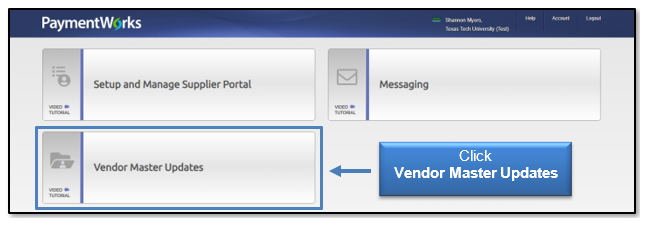
Click Vendor Master Updates.
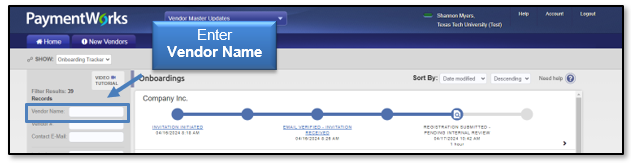
The New Vendors tab will display. Enter a Vendor Name to filter records. No wildcard is needed like in Banner.
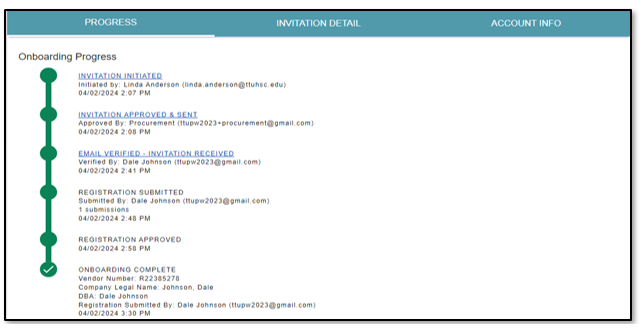
The status of your vendor will display. Click the arrow to view more details regarding the onboarding tracker process.
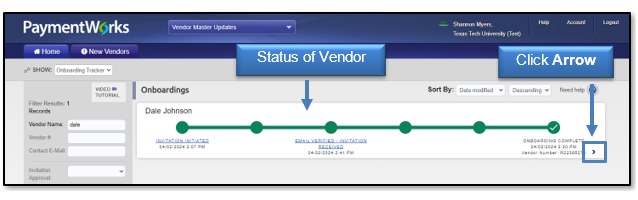
This example shows a completed and processed vendor registration.
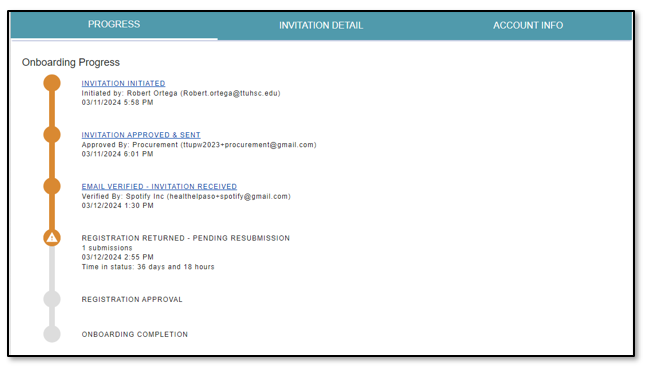
This is an example of a registration that has been Returned to the vendor as PaymentWorks needs more information from the vendor.
Vendor Registration Status Explanations
Vendor Account Statuses
- No Account - The vendor has not yet created an account on PaymentWorks.
- An invitation will need to be sent to a valid vendor email address (ensure the contact has access to corporate and banking info).
- Registered - The vendor has created an account on PaymentWorks.
- If a vendor is already setup (status = onboarding complete), it's possible you just need to send a request to have them update their record within their existing PaymentWorks account. The Vendor team would then be alerted to review the updated submission.
- Email Validated - The vendor has registered and verified their email address.
New Vendor Registration Statuses
- Not Started - The vendor has not started filling in the registration form.
- In Progress - The vendor has started filling in the registration form but has not completed it.
- Submitted Pending PaymentWorks Review - The vendor has completed and submitted the registration form. PaymentWorks is now in the process of reviewing the vendor's banking information.
- Submitted - Pending Internal Review - The vendor has completed and submitted the registration form. PaymentWorks has reviewed the bank account, and the registration is now waiting for internal review from the Vendor team.
- Returned - If more information is needed from the initiator or vendor. The vendor will be emailed directly with the requested correction. They will also receive a message in their “Messages” tab.
- Approved - The vendor registration has been approved.
- Rejected - The registration form for this vendor has been rejected.
- Processed - The registration has been processed and sent to your system of record.
- Complete - The vendor registration process is complete, the vendor record has been created, and the vendor number has been issued. The vendor number will appear under New Vendor Registration.
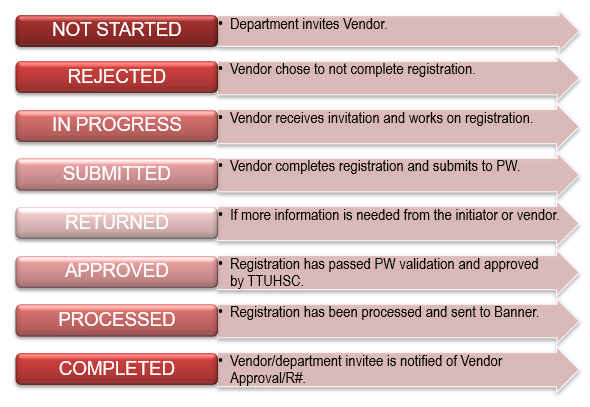
Workflow from Start to Finish
Completion Time
TTUHSC can only estimate the time from Approved to Completed. Once we approve the vendor, a connected file is sent to PaymentWorks. We send a connected file every business afternoon. The following business day, the vendor and department invitee should receive the automated email stating approval and vendor number. The other status conditions rely on the vendor and PaymentWorks.
If you have additional questions, please contact the Vendor team at vendorteam@ttuhsc.edu.
Visit the Help Center within PaymentWorks for training videos and additional help documentation. To manage the type of email notifications you receive during the onboarding process, refer to this PaymentWorks Help article.
Contact
Finance Systems Management
-
Address:
3601 4th Street STOP 6209 | Lubbock, Texas 79430-6209 -
Email:
fsm@ttuhsc.edu