
PaymentWorks - Vendor Invitations Quick Start Guide
PaymentWorks invitations should only be sent to vendors when a TechBuy requisition would be entered for payment. This does not include students, employees and prospective employees. Please verify if the vendor is in TechBuy. If they are not set up, send a PaymentWorks invitation.
Before engaging with PaymentWorks, be sure you have created and submitted your TechBuy requisition so Vendor Team can verify the vendor information prior to approving the invitation. You will also be asked to provide your requisition number on the PaymentWorks invitation.
The system can be accessed from:
- PaymentWorks
- WebRaider portal > Business Affairs tab > Links to Financial Systems > PaymentWorks
Invitation Workflow
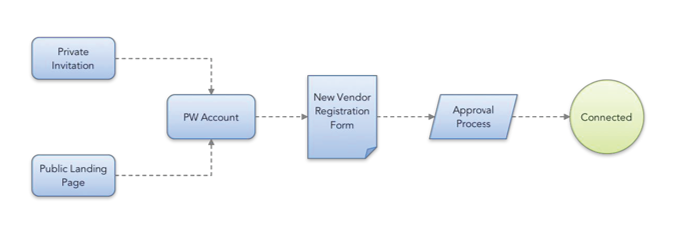
Steps to Send
- Log into the PaymentWorks system.
- Click the Vendor Master Updates.
- Click the New Vendors tab.
- Search by the "Vendor Name" on the Onboarding Tracker View or by the "Supplier Name" on the Requests View to ensure the vendor has not already been invited or setup.
- Click the Send Invitation button at the bottom of the left sidebar.
- Enter information on the invite. Under personalized message, please use our template:
- TTUHSC has partnered with PaymentWorks for our online vendor solution which is free to you. It adds fraud protection, invoice payment status, and ease of vendor information management. “Insert Department contact name” from “Insert Department name” invites you to register.
- Select Send.
- Log into the TechBuy system.
- In the comment tab of the requisition associated with the vendor submitted, add a comment such as PaymentWorks invite sent to Vendor.
Steps to Track
- Click a link in the Invitation Column to expand the desired invitation and view details.
Note: Vendors must create a PaymentWorks account in addition to submitting a New Vendor Registration to complete the onboarding process. Creating an account does not mean the vendor is finished with the new vendor registration process.
Invitation Status Descriptions
- Invitation Sent - An acknowledgement the invitation successfully sent.
- If the date is more than a day old, the email may not have been successful. In these cases, you may need to check that the email address is correct.
- Invitation Delivered - The invitation has been sent to the vendor's email server, but it has not yet been opened.
- If it remains in this status for long, the vendor may need to check their Spam/Junk folder.
- Invitation Not Deliverable - The vendor's email server rejected the invitation (rare).
- In this situation, it is recommended to try a different email address or request the vendor’s IT department to “white list” PaymentWorks.com (i.e. allow the PaymentWorks email address to go through their server).
- Invitation Opened by Recipient - The vendor has opened the email, but has not yet clicked the link to begin the onboarding.
- Invitation Link Clicked - The vendor followed the link to PaymentWorks. Once a vendor clicks an invitation, it can no longer be re-sent.
- This status should not appear for long, because the vendor should begin creating their PaymentWorks account.
New Vendor Registration Descriptions
- New Vendor Registration Submitted - The vendor submitted the form but it has not been processed.
- These New Vendor Requests will appear as Pending.
- New Vendor Registration Approved - The Vendor Team has approved the form.
- This is redundant with Approvals shown under New Vendor Requests.
- New Vendor Registration Processed - The form has been processed and sent to Banner.
- This is redundant with Approvals shown under New Vendor Requests.
- New Vendor Registration Complete - The form has been received and the vendor connection made. This is the same as status = Connected under New Vendor Requests.
- If the vendor is still asking for next steps, you may suggest they login to PaymentWorks and check their Invoices Tab.
- New Vendor Registration Rejected - The Vendor Team has rejected the submitted form.
- This is redundant with Rejected shown under New Vendor Requests.
- Invitation/Reminders Cancelled - If your Vendor is no longer required to complete the New Vendor process, you may cancel reminder emails to your vendor, so they no longer receive emails asking them to register.
If you have additional questions, please contact the Vendor Team at vendorteam@ttuhsc.edu.
Visit the Help Center within PaymentWorks for training videos and additional help docs related to the Vendor Invitation and Status topic.
To manage the type of email notifications you receive during the onboarding process, refer to this PaymentWorks Help article.
Contact
Finance Systems Management
-
Address:
3601 4th Street STOP 6209 | Lubbock, Texas 79430-6209 -
Email:
fsm@ttuhsc.edu