
Scanning Procedures for Annual Certification
Scanning Procedures for Annual Certification
Scanning must be utilized to complete the Annual Certification of Departmental Inventory. There are two methods: scanning using a scanner under the storage mode setting, and scanning using a device with a camera or a scanner.
The scanning functionality allows off-site workers to scan the barcode on their equipment and eliminates the need for them to bring the asset to the authorized location or to provide a photo of the inventory tag to the property custodian for verification.
If you are unable to scan an item, contact Property Management, and we will send you a new tag.
Scanning Procedure Using a Scanner Under Storage Mode Setting
(Instructions for NADAMOO Model Bur 3076 Wireless Barcode Scanner)
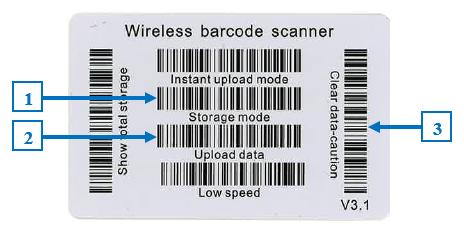
To set the scanner to storage mode, scan the Storage Mode barcode from the User Manual or the Wireless Barcode Scanner card (See 1 below). Under the storage mode setting, all scanned tags are stored in the scanner's memory. Internal storage supports up to 100,000 barcodes.
When you have completed scanning tags, connect the scanner to your device either by using the USB cable provided with the scanner or through Bluetooth.
- Sign in to the Property Inventory System on your device. You will see the Annual Certification Scan box in the upper right corner of the page. Click the blue Scan with Barcode Scanner box and place the cursor in the blank drop-down box.
- To upload the data from the scanner, scan the Upload Data barcode from the User Manual or the Wireless Barcode Scanner card (See 2 below). All of the stored barcodes will upload. A green barcode icon will appear for all scanned tags just below the note icon for the asset on the inventory listing page.
- When you determine all tags have been marked as scanned, scan the Clear Data - Caution barcode (See 3 below).
- A column titled Certified is included in the downloaded Excel spreadsheet. A value of True indicates that the item was successfully scanned, and a value of False indicates the item has not been scanned.
Scanning Procedure Using a Device with a Camera or a Scanner
You can use a phone, iPad, or another device that can connect to the internet and also has a camera. Or you can use a handheld scanner that can connect to your device.
Sign in to the Property Inventory System from your device. You will see the Annual Certification Scan box in the upper right corner of the page.
- Click the appropriate blue box based on the type of device you are using. If you're using a camera, allow the system to access the camera on your device. If you are using a scanner, make sure the scanner is connected to your device and place the cursor in the blank drop-down box.
- *New Feature* - Edit Asset on Scan: Click the check box to activate this feature. This allows you to verify/edit the condition, serial number, and the building and room location of the asset. Uncheck the box to turn this feature off.
- Use your camera or scanner to scan the barcode on the inventory tag.
- If the scan is successful, you will receive a notification that the item has been scanned.
- If the scan is not successful, you will receive a notification with additional information:
- If the item is in the inventory listing for a department/organization that you do not have authority to view, you will receive a message: "You can’t certify that asset because you don’t have access to its ORGN." Search for the tag number (Search, Inventory) to determine which departmental listing includes the item. That department can transfer the item to your departmental listing, allowing you to scan the item.
- If the asset has been previously deleted or is identified as Missing, follow the instructions on the message received: "The scanned asset is marked as missing, lost, or deleted. If missing, create a missing property return removal/status change. If lost or deleted, contact the property management office."
- If you have already successfully scanned an item, you will receive an Alert: "Asset has already been certified."
- When an item has been successfully scanned, a green barcode icon will appear just below the note icon for the asset on the inventory listing page. A column titled Certified is included in the downloaded Excel spreadsheet. A value of True indicates that the item was successfully scanned, and a value of False indicates the item has not been scanned.
Contact
Finance Systems Management
-
Address:
3601 4th Street STOP 6209 | Lubbock, Texas 79430-6209 -
Email:
fsm@ttuhsc.edu