
PO/Encumbrance Change Request Help
The online PO and Encumbrance Change Request application is for all Purchase Order and Encumbrance closes, FOAP additions, amount modifications, and Purchase Order re-open requests.
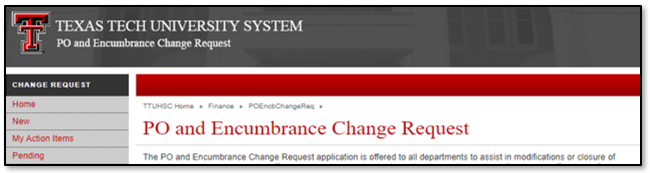
The system for the PO and Encumbrance Change Request application can be accessed from:
- PO/Encumbrance Change Request
- WebRaider portal > Business Affairs Tab > Links to Financial Systems portlet > Systems links > PO/Encumbrance Change Request.
Reports that will help you manage departmental POs and General Encumbrances are available in Cognos at the following path: Public Folders > HSC Finance > Encumbrances, Invoices, and Checks. Please review these reports regularly.
The reports are:
- Encumbrance Detail - Enter an encumbrance number (P0#) to see the item and sequence detail of any encumbrance opened or closed for any fiscal period.
- Open Encumbrances Outstanding - Select any combination of parameters and run this report to see all open POs and General Encumbrances that meet the parameters entered. This is a good report to see all open encumbrances for your department or a particular fund and provides encumbrance item and sequence detail information
- Encumbrances Closed - Select any combination of parameters and run this report to see all closed POs that meet the parameters entered. This report provides encumbrance item and sequence detail information.
The following table outlines the options available for a Purchase Order.

Upon submittal of a change request, the Financial Manager for the Fund will receive an email notifying them of the submission.
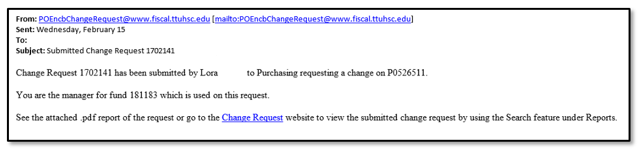
This is the financial manager's opportunity to review the request. If they do not approve of the request, they can instruct Purchasing to reject the change request. When a change request has been modified or rejected by Purchasing, an email notification will be sent regarding the action taken.
Note: The PO information you see in the application is as of the close of business yesterday. Because this information is updated nightly, you can submit only one PO or Encumbrance Change Request per day for a PO.
Process Outline
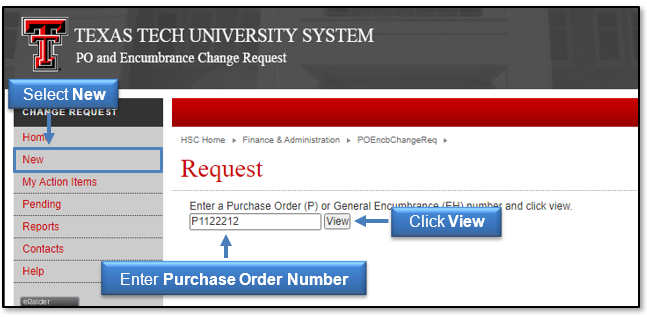
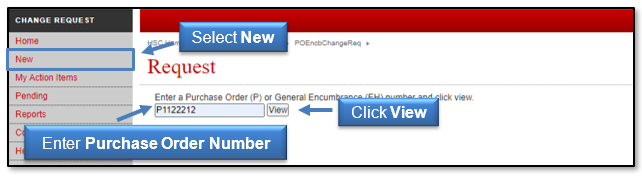
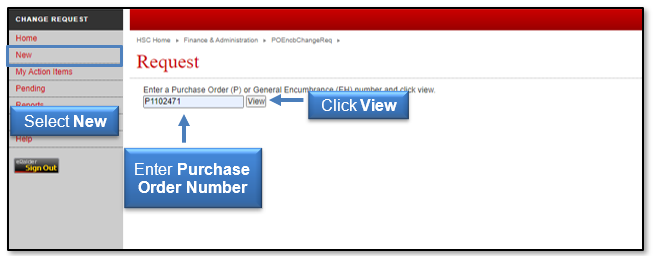
To begin the PO and Encumbrance change request, select New from the menu on the left side of the PO and Encumbrance Change Request application webpage.
Enter a Purchase Order (P) or General Encumbrance (EH) number and click View.
Close Individual Lines
Enter an explanation in the Comments section below the encumbrance information. Click Close in the Action column for the PO/Encb line that you want to close.
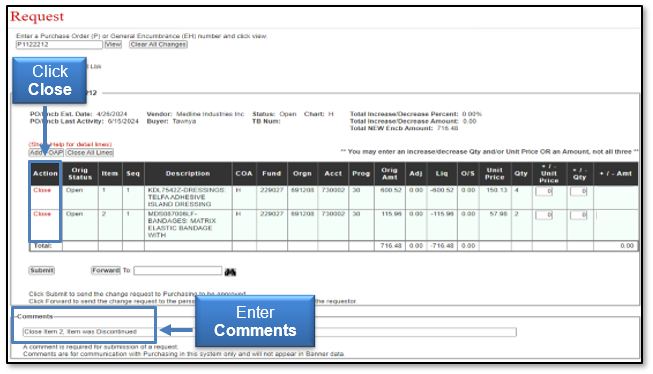
Note: To close an individual line, it is not necessary or possible to modify the line item to a zero-dollar amount.
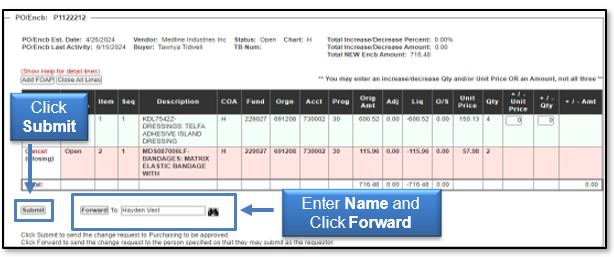
Review the request to make sure the item/line selected is the correct line to close. Enter a name to forward a change request to that specified person so that person may submit as the requestor, otherwise, click Submit.
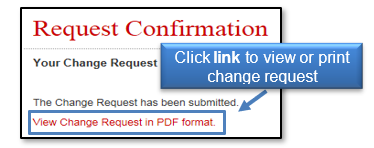
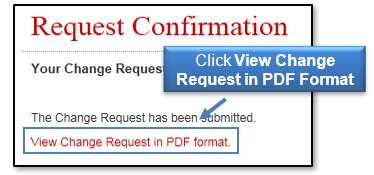
To view or print the Change Request, click View Change Request in PDF Format.
Close All Lines
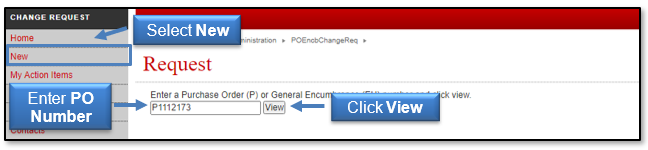
To close items or lines in a PO select New from the menu on the left side of the webpage. Enter a Purchase Order (P) or General Encumbrance (EH) number and click View.
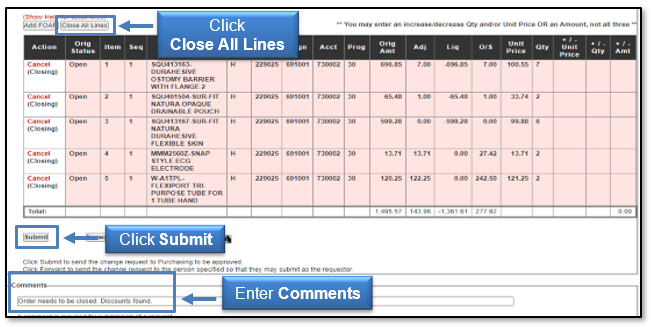
Enter the reason for closing all lines of the PO and Encumbrance Change Request in the Comments box, and then click Close All Lines. Review the lines closed to make sure that you want to close all lines, and then click Submit.
To view or print a copy of the Change Request, click the link View Change Request in PDF Format.
Add a FOAP(s)
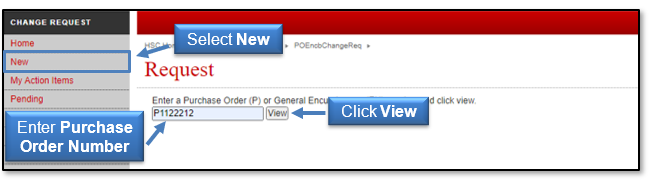
To add a new FOAP line or lines to a PO select New from the menu on the left side of the webpage. Enter a Purchase Order (P) or General Encumbrance (EH) number and click View.
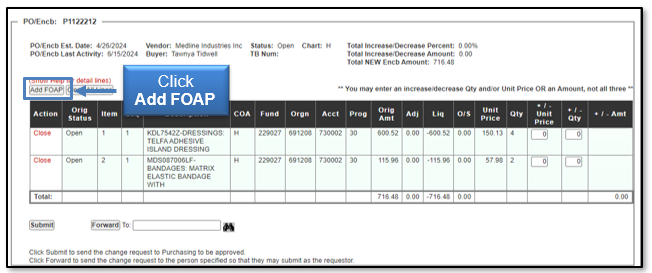
Review the encumbrance information to make sure the correct PO number has been entered, and then click Add FOAP.
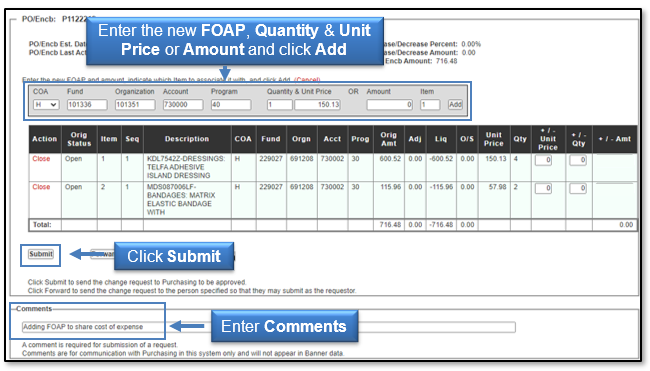
Add the new FOAP information and either the Quantity and Unit Price or Amount. Enter the Item number to indicate which item to associate the FOAP with, and then click Add. Enter a reason for adding a FOAP in the Comments section.
Review the request, and click Submit.
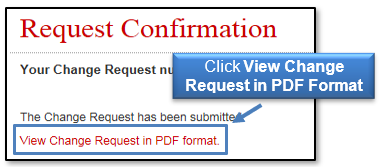
To view or print a copy of the Change Request, click the link View Change Request in PDF Format.
Increase/Decrease
To increase or decrease lines/items on a PO select New from the menu on the left side of the webpage. Enter a Purchase Order (P) or General Encumbrance (EH) number and click View.
Enter an Increase/Decrease in either the Unit Price, Quantity, or Amount column of the PO based on the need for the change. Only one column is required to be changed per line, not all three. The + / - Amt text box will not appear if the line has a quantity greater than 1.
(Ex: Unit Price would be increased/decreased in the event that there are price changes for a particular item. Qty would be increased/decreased in the event that extra/fewer items are received. Amt would be increased on LO orders such as a standing order.)
Enter an explanation in the Comments box, then click Submit.
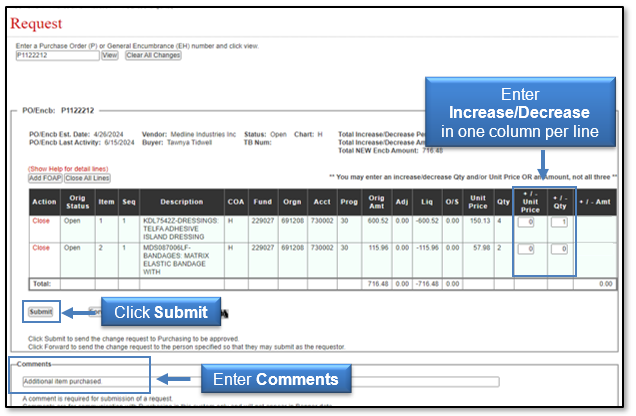
Note: You cannot modify a line item to a zero-dollar amount.
The total Increase/Decrease percent and amount will appear on the change request.
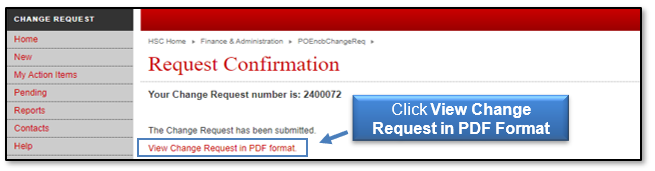
To view or print a copy of the Change Request, click the link View Change Request in PDF Format.
Re-Open a PO Item(s)
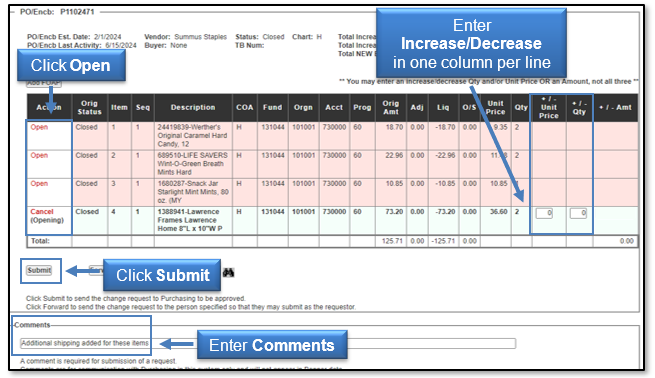
To re-open lines/items on a PO, select New from the menu on the left side of the webpage. Enter a Purchase Order (P) or General Encumbrance (EH) number, and click View.
Select the line(s) of the PO to re-open by clicking Open. Enter the amount for the line(s) you are opening.
Enter an Increase/Decrease in either the Unit Price, Quantity, or Amount column of the PO based on the need for the change. Only one column is required to be changed per line, not all three. The + / - Amt text box will not appear if the line has a quantity greater than 1.
Enter an explanation in the Comments box. Review the line(s) opened, and click Submit.
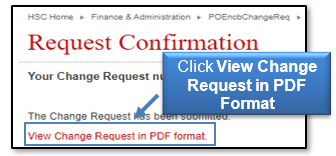
To view or print a copy of the Change Request, click the link View Change Request in PDF Format.
Forward a PO and Encumbrance Change Request
The PO and Encumbrance Change Request has the option to Forward a Change Request to someone else in the department for review. If the Change Request is forwarded to another person, that person must submit the request after their review. The final person to review the request will show up as the Requester when the transaction processes to Purchasing.
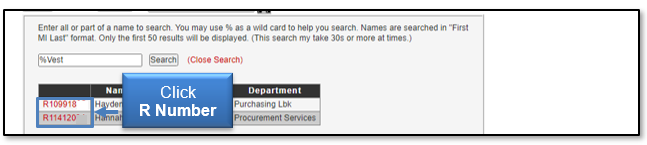
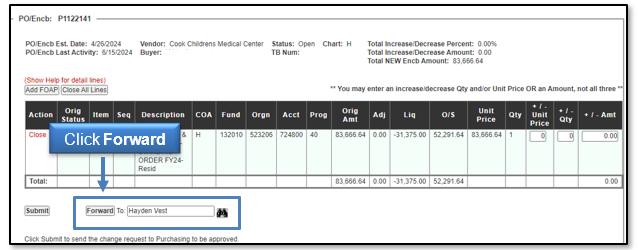
The process to forward a Change Request may begin after the necessary steps to modify the Change Request are complete and an explanation in the Comments box is entered. First, click the binoculars beside the empty Forward to field. A pop-up box will appear to search for the person to receive the forwarded change request. Use % as a wild card in front of and behind the last name of the recipient. Then, click Search.
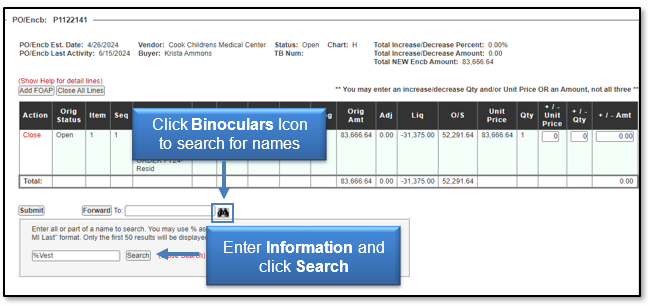
A list of choices will be displayed. Select the recipient of the forwarded request by clicking the red hyperlinked “R” number of the individual.
The person's name will populate in the Forward To field. After a review for correctness, click Forward. The request will be forwarded to the selected person.
An email notification will go to that person to let them know that they need to review and submit the request.
My Action Items
Select My Action Items from the menu on the left side of the PO and Encumbrance Change Request application webpage to view Change Requests, then click the ID number in red.
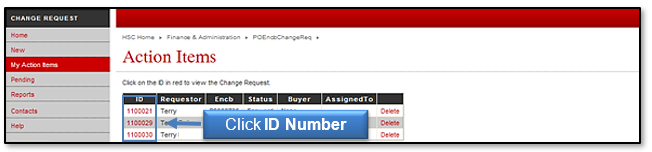
Change Requests received in My Action Items include:
- Forward - a Change Request is sent to someone else in the department for review or approval
- Return - a Change Request is returned to be modified or because of an error.
Review the Comments section to determine the appropriate action that is needed. An email notification will also be received regarding the Change Request.
Pending
To view Change Requests that are pending, select Pending from the menu on the left side of the PO and Encumbrance Change Request application webpage. Click the ID in red to view the Change Request that is pending.
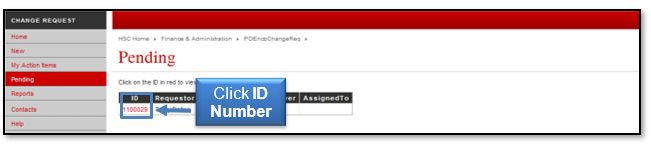
The Pending Change Requests are requests that have been submitted and are waiting to be assigned to a Buyer for review and processing.
Reports
The Reports menu allows the user to select from three tabs: Search, Status History, and Assign History.
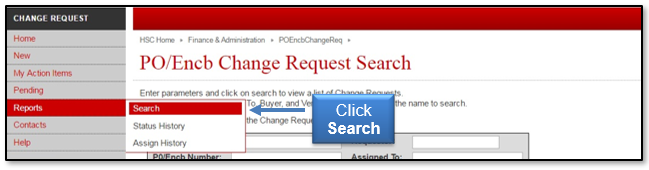
Search: To access the Search tab, select Reports from the menu on the left side of the PO and Encumbrance Change Request application webpage, and click the Search tab.
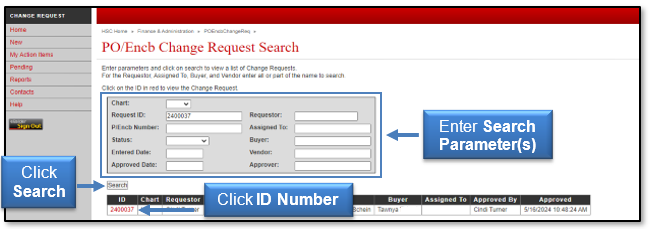
Enter the parameter(s) for the results to search, and click Search to view a list of the Change Requests. Click the ID in red to view the Change Request.
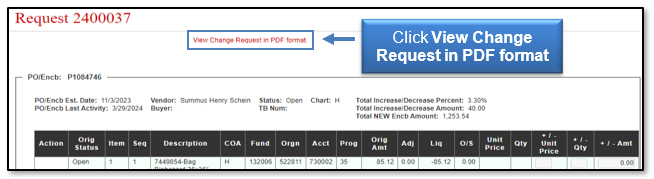
You can view or print the request in a PDF format by clicking the View Change Request in PDF format link at the top of the request webpage.
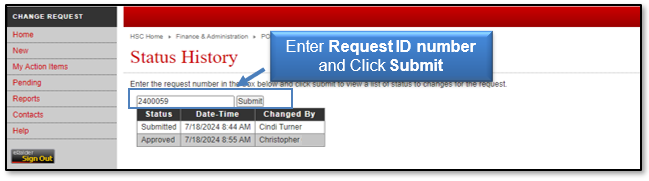
Status History: To access the Status History tab, select Reports from the menu on the left side of the PO and Encumbrance Change Request application webpage, and click the Status History tab.
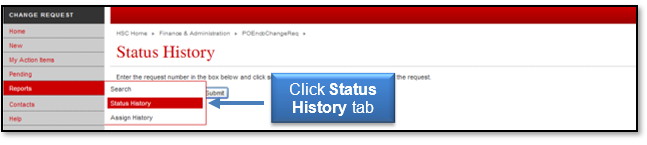
To view the status of changes for the request, enter the Request ID number in the box provided and click Submit. The list will display the Changed By person and the Status of the request.
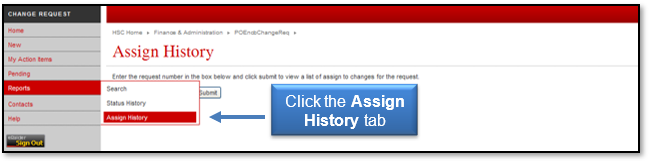
Assign History: To access the Assign History tab, select Reports from the menu on the left side of the PO and Encumbrance Change Request application webpage, and click the Assign History tab.
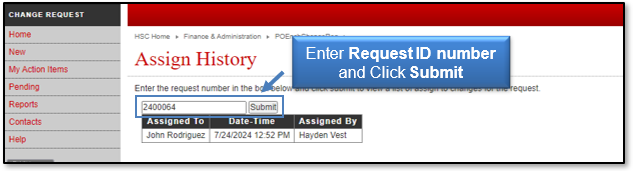
To view a list of Assign To changes for the request, enter the Request ID number in the box provided and click Submit. The list will display the Assigned To and the Assigned By person(s).
For additional information, please email purchasing@ttuhsc.edu.
Contact
Finance Systems Management
-
Address:
3601 4th Street STOP 6209 | Lubbock, Texas 79430-6209 -
Email:
fsm@ttuhsc.edu