
WebRaider - Available Budget Tab
The information in the Available Budget tab comes directly from the BAVL table in Banner Finance and is updated in summary during the day as transactions affect your Budgets. BAVL is a reflection of your Expense Budget so only expense and encumbrance transactions affect the balances. Keep in mind the information you see here could differ from the information in Cognos reports as Cognos only updates nightly.
To view the live Budget status of your Banner Funds, click the Available Budget tab on the WebRaider Portal.
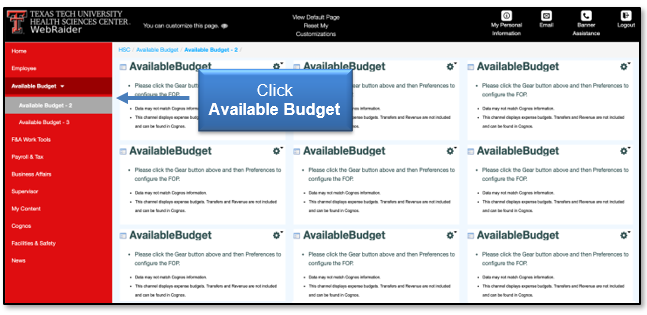
Add Available Budget Information
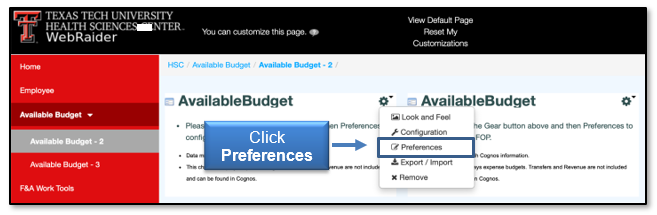
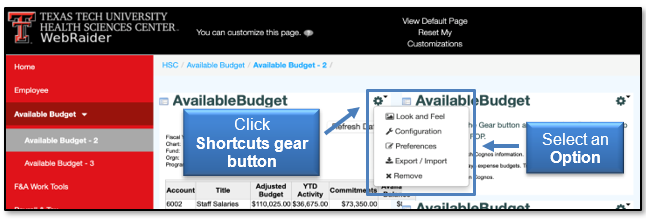
To add Banner Funds and their related available budget information, click the gear button in the right-hand corner of the first Available Budget portlet. In the drop-down menu, click Preferences.
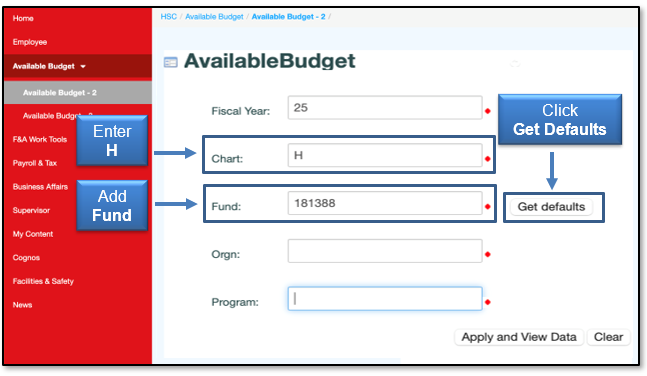
The Fiscal Year will automatically default to the current year, but you can manually change the year. Enter H into the Chart field for HSC and then add the Fund that you wish to view and click Get Defaults. If your Fund has the Orgn and Program Codes defaulted, the Orgn and Program Codes will appear.
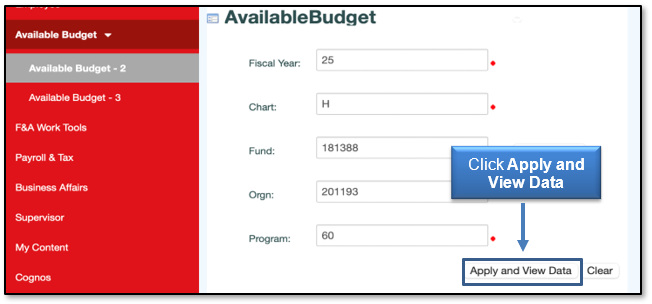
If they are not defaulted, you must manually add them. After you add the Current Fiscal Year, Chart, Fund, Orgn and Program codes, click Apply and View Data. If you have entered information in error, click Clear to remove the values from the fields.
You will see displayed a current live view of your available budget for the Fiscal Year, Fund, Orgn and Program code combination that you entered.
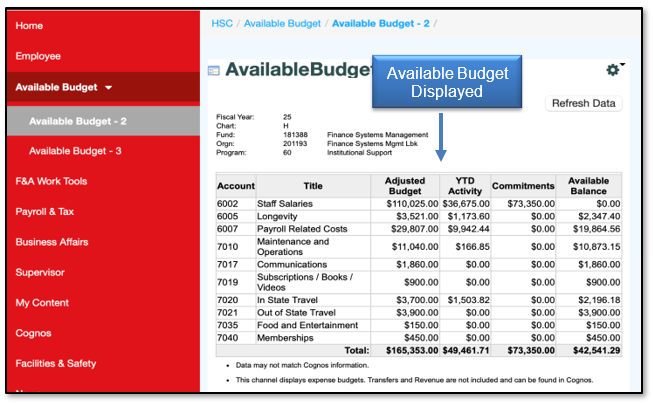
This budget is for a Fund that is budgeted at the Fund / Orgn / Budget Account Pool level and contains the following information:
- Account - Budget account pools where codes in the 6000 range are salary expenses and codes in the 7000 range are non-salary related expenses
- Title - Title of the budget account pools
- Adjusted Budget - Summary amount of beginning budget for the year, plus or minus any budget adjustments
- YTD Activity - Summary amount of all year-to-date expenses
- Commitments - Summary amount of all open encumbrances (POs, general encumbrances, or salary encumbrances)
- Available Balance - Summary amount of current adjusted budget, minus YTD activity, minus commitments
Note: BAVL includes transactions that are in suspense and have not posted to the ledgers.
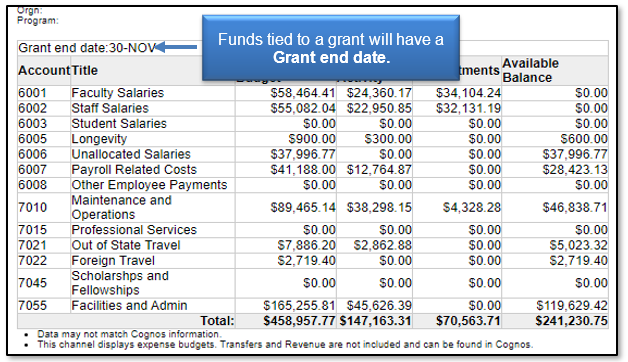
Grant Funds
If the fund is tied to a grant, you will see an additional field called Grant end date. This field designates the date the grant will end. Keep in mind that grants can spread across multiple years and to get an accurate picture of total expenditures for the grant, you will need to look at all the fiscal years that the grant has been in existence and add them together. If you want to only look at this year's activity, this is accurate.
Manage Available Budget Portlets
Five options are available on each Available Budget from the gear button.
- Look and Feel: Adjust text, background, and border style customization, along with other advanced styling and configuration for the each portlet.
- Configuration: Share and save My Shortcuts with other platforms and people.
- Preferences: Add or change Fund, Orgn, Account or Program Codes.
- Export/Import: Export or import data to an Available Budget portlet.
- Remove: Permanently removes the Available Budget portlet from your layout.
Access Additional Available Budget Portlets
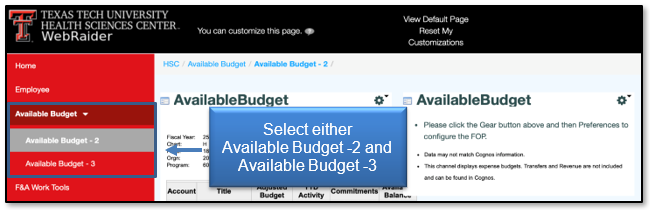
To access additional Available Budget portlets, go to the Available Budget tab. Click Available Budget - 2 or Available Budget - 3. These tabs provide extra portlets to display expense budgets.
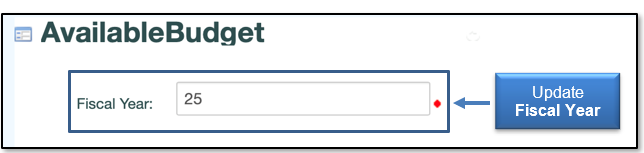
Remember that on September 1 of every year we start a new fiscal year, so you must edit each portlet to update the fiscal year to keep it current.
If you have additional questions, please contact Finance Systems Management at fsm@ttuhsc.edu.
Contact
Finance Systems Management
-
Address:
3601 4th Street STOP 6209 | Lubbock, Texas 79430-6209 -
Email:
fsm@ttuhsc.edu