
WebRaider - My Content Tab
You can set up custom content on the My Content tab that can be accessed from the WebRaider Portal.
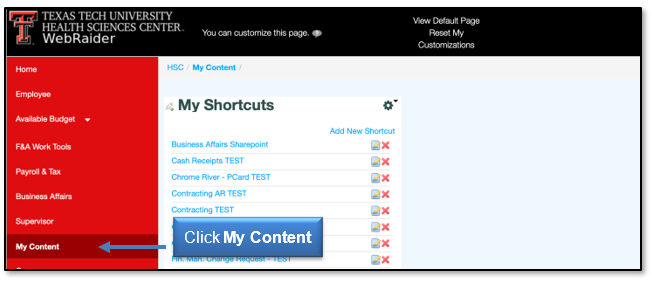
Add New Shortcuts
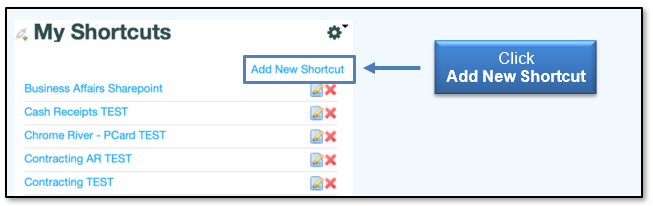
To add shortcuts of your favorite links, click Add New Shortcut in the My Shortcuts portlet.
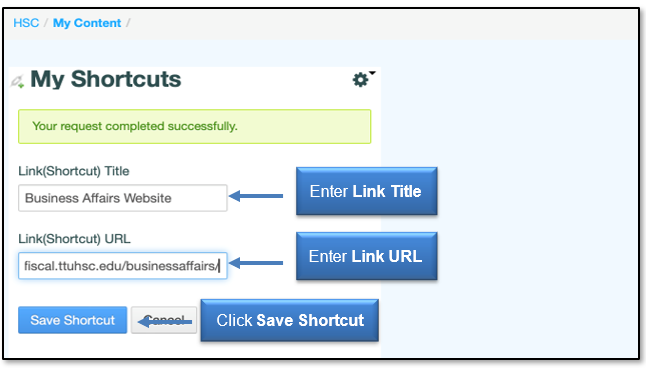
In the Link (Shortcut) Title field, enter the website name. In the Link (Shortcut) URL field, enter the website URL. Then click Save Shortcut. To clear the values from the fields, click Cancel.
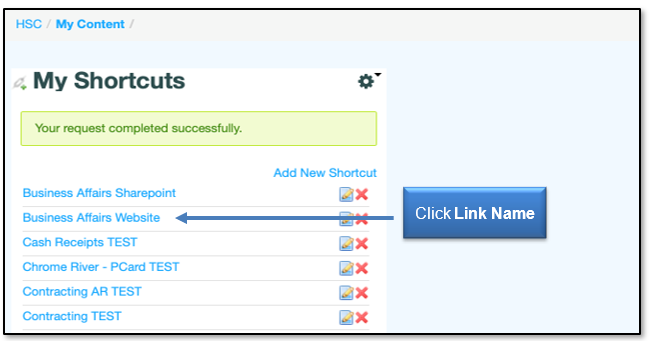
Once your request is completed successfully, your link shortcut will be added to your list of shortcuts. To access the website, click the Link Name.
Manage My Shortcuts Portlet
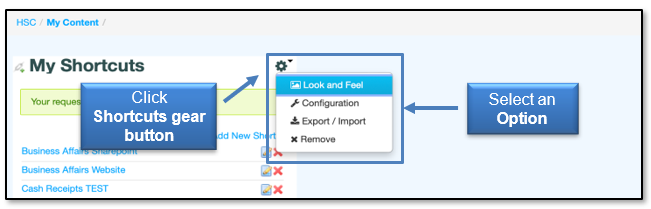
Four options are available from the Shortcuts gear button. These options provide the following functions for Shortcuts:
- Look and Feel: Adjust text, background, and border style customization, along with other advanced styling and configuration for each portlet.
- Configuration: Share and save My Shortcuts with other platforms and people.
- Export/Import: Export the My Shortcuts links list.
- Remove: Permanently removes the My Shortcuts list.
Manage My Links
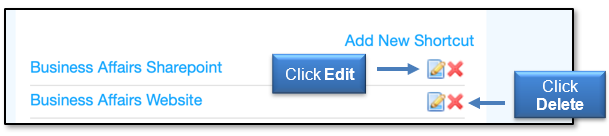
Two options are available for each link:
- Edit: Allows you to change or update the Link (Shortcut) Title and the Link (Shortcut) URL.
- Delete: Allows you to remove the website from the My Shortcuts portlet.
If you have additional questions, contact Finance Systems Management at fsm@ttuhsc.edu.
Contact
Finance Systems Management
-
Address:
3601 4th Street STOP 6209 | Lubbock, Texas 79430-6209 -
Email:
fsm@ttuhsc.edu