
Annual Property Certification Help
Before submitting your Annual Certification, complete any necessary edits and transfers and review all reports (review the Annual Property Certification Checklist for guidance).
The system can be accessed from:
- Property Inventory System
- WebRaider portal > Business Affairs tab > Links to Financial Systems > Property Inventory

Step 1 - Submitting the Annual Certification
The certification can be submitted by the Property Custodian, a Delegate, or a designee of the Property Custodian who has access to the inventory reports of the department.
- Select Annual Certification from the Property Inventory page
- Click Submit
- Verify Reports
- If reports are not correct, click Cancel.
- If reports are correct, click the checkbox, I have read and agree to the statement above, and then click Submit.
Step 2 - Approving the Annual Certification
The certification must be approved by the Property Custodian or a Delegate.
- Select Annual Certification from the Property Inventory page
- Verify Reports
- If reports are not correct, click Deny and then click Yes
- If reports are correct, click Approve, click the checkbox I have read and agree to the statement above, and then click Approve
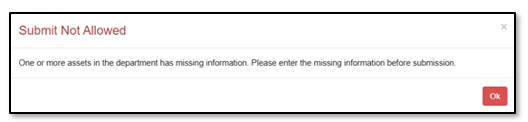
The system will not allow you to submit the Annual Inventory Certification with assets on the Items Missing Information report. The error below will display.
Policy questions regarding the Annual Certification process can be directed to Property Management at PropertyManagement@ttuhsc.edu.
Training questions about the Annual Certification process can be directed to Finance Systems Management at fsm@ttuhsc.edu.
Contact
Finance Systems Management
-
Address:
3601 4th Street STOP 6209 | Lubbock, Texas 79430-6209 -
Email:
fsm@ttuhsc.edu