
TechBuy - Adding Catalog Items to a Cart
TechBuy offers the capability to shop by hosted catalogs, non-catalog forms, and punching out to vendor websites. Users may add catalog items to their cart by using both punch-out and hosted catalogs. It is important to note that a supplier cannot have a hosted and a punch-out catalog.
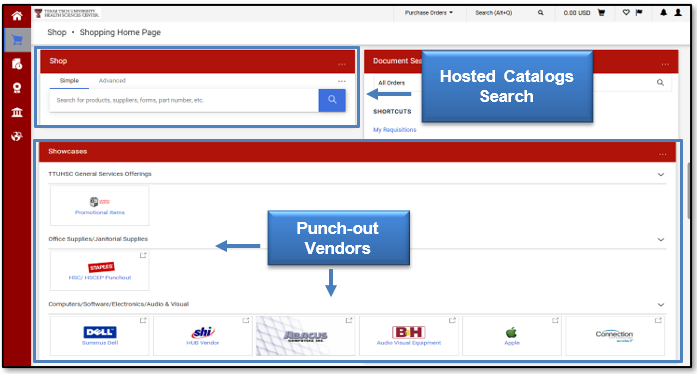
You may search for items you want to purchase from the TechBuy Shopping home page.
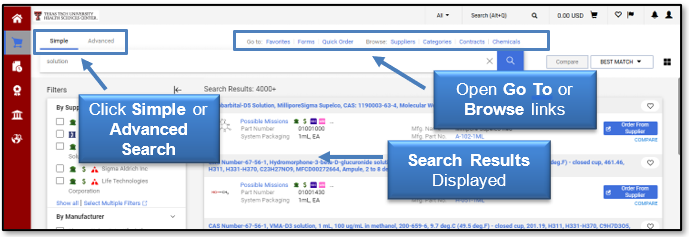
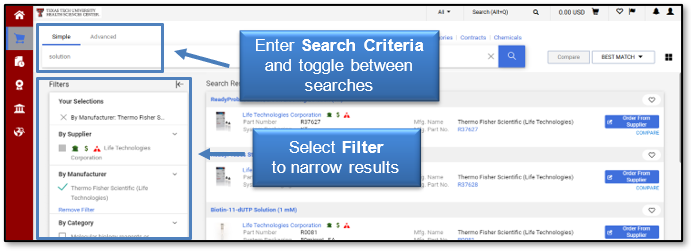
Your search results will be displayed and can be narrowed using the filters. The Simple and Advanced tabs along the top of the search field allow you to toggle between the simple and advanced search pages. The Go to and Browse shortcut links provide quick access to frequently used features such as favorites or forms.
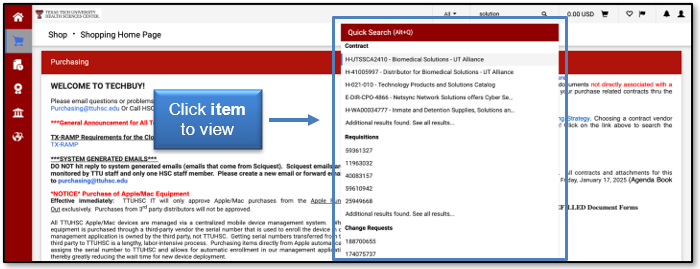
You can also enter a keyword or number for a Quick Search at the top of the Shopping home page.

The Quick Search Results will include any contracts, requisitions, change requests, purchase orders, invoices, or receipts that match the search data entered. Click any of the items to view.
Hosted Catalog Search
Hosted catalogs are essentially a supplier's catalog that contains TTUHSC contract pricing; however, it typically contains a smaller number of products than a supplier's full catalog. If you use the search capabilities within TechBuy, you are searching the hosted catalogs.
The Shopping home page allows you to perform a simple and advanced search. In the search field, enter keywords for items you want to purchase for a simple search. The advanced search allows you to perform a more detailed search by SKU number, supplier, manufacturer name, and more.
Recommended Search Items
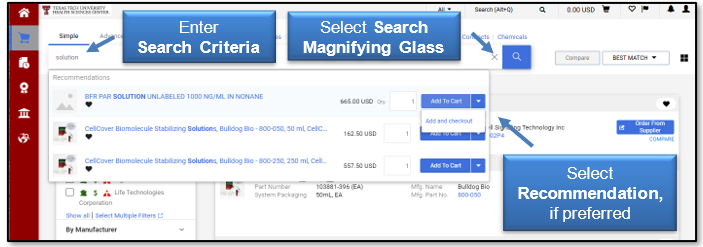
When you enter search criteria for a simple search, the product search field offers up to 10 recommended items based on your personal and shared favorites, and items that have been added to requisitions in the last 30 days.
A solid black heart icon indicates that an item is in your Personal Favorites folder. A person with a heart icon indicates that an item is in a Shared Favorites folder. A shopping cart icon indicates that an item has been added to a requisition in the last 30 days. The process of adding items to Favorites is explained in detail in the Adding Items to Favorites section of this training.
The Add To Cart button allows you to add an item or request directly to your cart. The Add and Checkout option on the drop-down menu will take you directly to the Checkout/Requisition page to purchase your items without going through the search results.
If there are no recommended items or you don't want any of the recommendations, select the Search Magnifying glass icon to generate the search results.
List and Grid Views
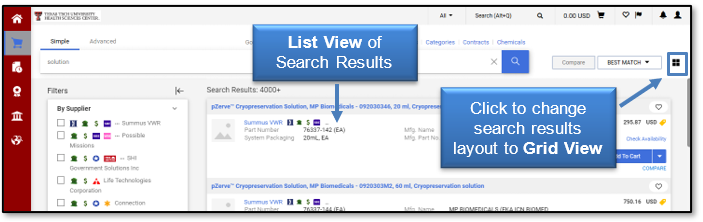
On the search results page, results will display by default in the list view. You may switch between the list view icon and the grid icon to view items as tiles in a sticker format. The grid view displays 1-6 columns of tiles, depending on the size of the screen.
Filter and Sort Preferences
The search results page allows you to refine and filter your search results in several ways.
Use the filters to narrow search results by selecting specific suppliers, categories, a unit of measure, or any combination of options. Filters may be easily added by checking the box next to a selection or removed by unchecking the box next to a selection.
Your filter selections will display at the top of the filter list. You may select the X next to any of your filter selections to change that filter section as well.
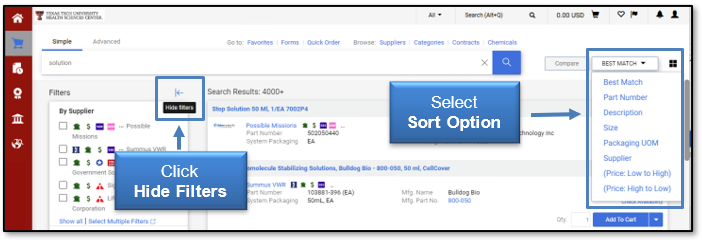
If you want to hide the filters, click the hide (left-pointing arrow) button. To return the filters to view, select the show (right-pointing arrow) button.
To organize the search results by preferences, you can sort by Best Match, Part Number, Size, Supplier, etc. Select a sort option from the BEST MATCH drop-down menu.
Details View
From the search results, cart, or checkout page, you may open a Details View of products and vendors.
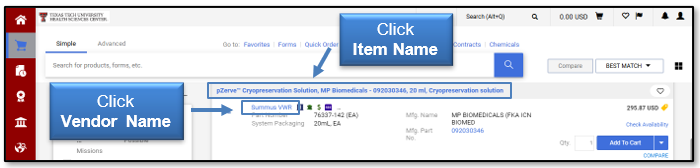
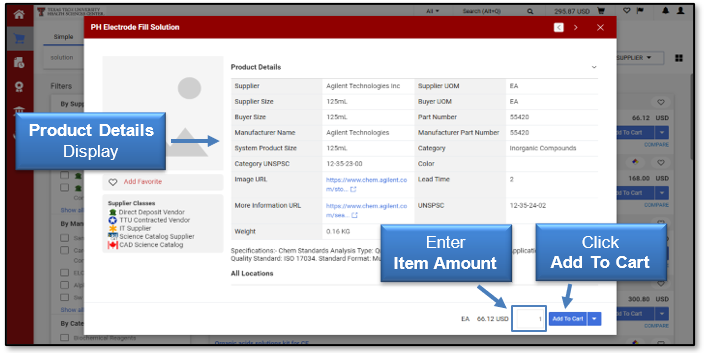
To learn more about the product vendor, select a Vendor Name below an item. If you want additional details about an item, click the Item Name to display the detailed item information.
The Detail View for an item will list supplier, size, category, etc. Information panels in the view may be expanded or collapsed. You may also change the number of items you want to order and add the item(s) to your cart from the Detail View.
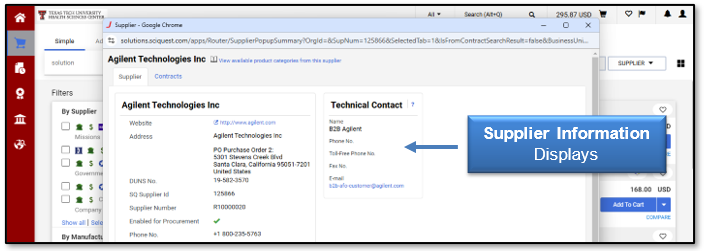
When you choose the Vendor Name, a new window will open with the Supplier information such as a business website link, business and technical contact information, and other TechBuy contracts.
Adding Items to Favorites
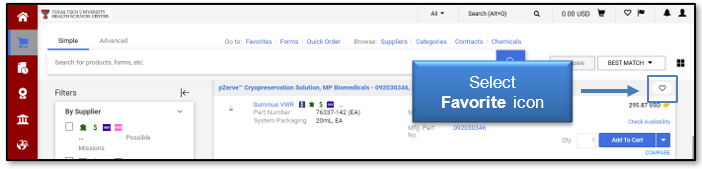
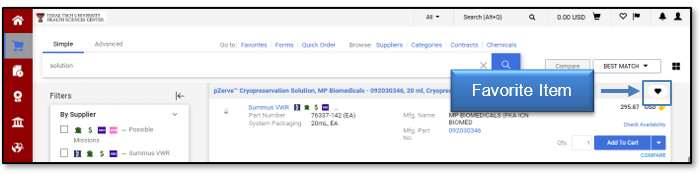
Items may be saved to your favorites by selecting the Favorite (heart outline) icon next to the Item Name.
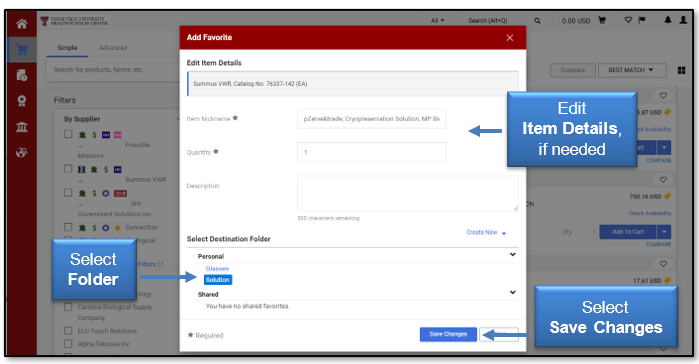
The Item Nickname and Quantity will automatically default into the required fields but may be changed. A Description may be added, if desired.
A Personal or Shared Folder is required to save a Favorite Item. You may need to create a new folder if one is not available. Once all information is entered, select Save Changes.
Favorites will now be more clearly identifiable on a search. The Favorite (solid black heart) icon will indicate the item has been saved to your favorites.
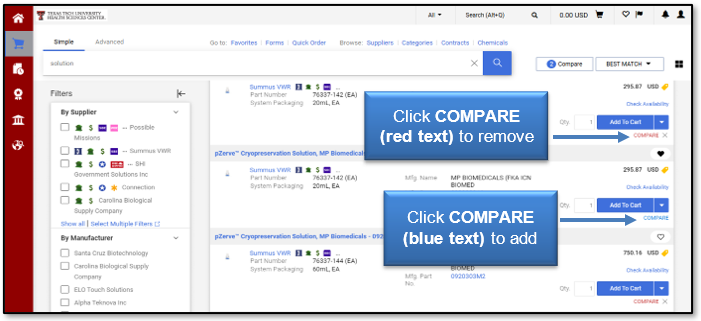
TechBuy provides the ability to compare multiple items. When no items have been selected for comparison, the Compare button will be grayed out. Click Compare (blue text) located within an item to add to the Compare list. The number of items added for comparison will appear within the button. You may select multiple products from numerous pages, but only a maximum of four items may be compared at one time.
The Compare (red text) indicates an item has been added to the Compare list. Click the Compare (red text) to remove the item from the list.
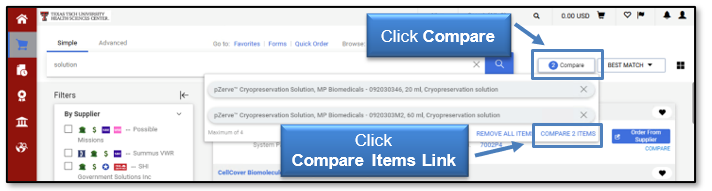
Hover over the Compare button  for a quick review of your comparison list. You may edit the list by deleting an item or removing all items for comparison. Once two or more items are selected to compare, click the Compare button and then the Compare Items
  link to generate a comparision.
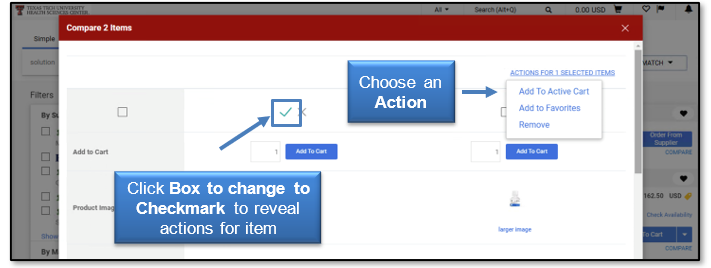
The comparison screen will provide details about the selected items for your review.
Click in the empty box above the item(s) to change to a check mark, which will reveal available actions for the selected item(s), such as Add to Active Cart, Add to Favorites, or Remove.
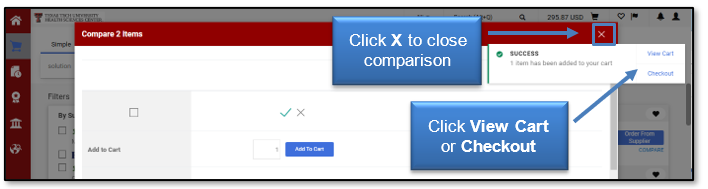
When item(s) are added to a cart from the comparison section, a pop-up message will indicate that the item(s) have been put in your cart, and provide page links to go directly to View Cart or Checkout.
If you decide to return to the search results, select the X button in the top right corner to close the comparison screen.
Add Products to Cart
You can continue to search and add additional products by utilizing Search. However, do not add items from different vendors to the same cart. You should create a new cart for each vendor.
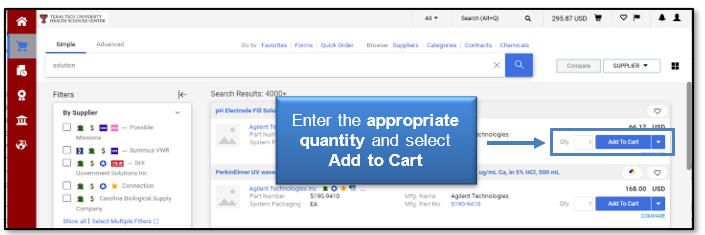
To add items from the search results page, locate the product you would like to order, and enter the appropriate quantity. Select Add to Cart.
Punch-out Vendors
Many suppliers provide access to their websites through TechBuy. These suppliers are termed punch-out vendors. When shopping from punch-out vendors, TechBuy redirects you to the vendor's website. The user is automatically authenticated to the supplier, and the supplier's website recognizes the user's organization to show the appropriate products and pricing. After shopping from the supplier's website, the items will be pulled into a TechBuy cart for completion within TechBuy.
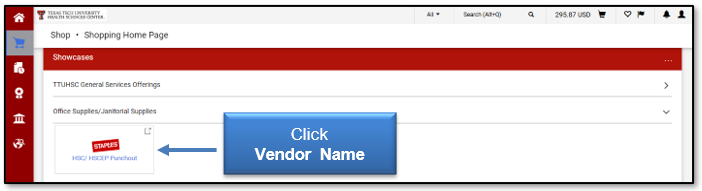
Punch-out vendors are shown with icons (typically company logos). They can be found on the TechBuy Shopping home page under Showcases.
To shop from a punch-out vendor, select a Punch-out Vendor icon.
The browser will redirect you to the supplier's website. The supplier's website will be framed within TechBuy.
Note: It is important to note that the functionality and usability of punch-out shopping vary between suppliers. These instructions will walk you through the TechBuy side of punch-out shopping, but will not instruct you on shopping each supplier's website.
Use the available resources within a supplier's site to find the desired products. When you have added all desired products, check out of the punch-out site. An order is not being placed with the supplier when checking out of their punch-out site. The purchasing process continues once the items are returned to the TechBuy cart.
We recommend having only one vendor per cart. Multiple vendors in a single cart can lead to delays in order processing and, in some cases, order failures. Once your cart is complete, refer to the Editing the Cart document for this procedure.
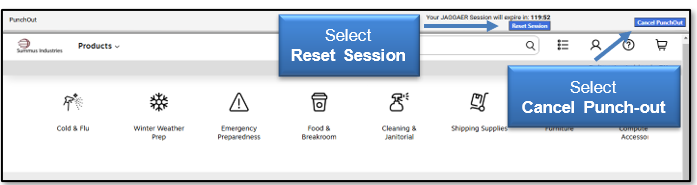
By default, punch-out sessions last two hours before expiring, but select the Reset Session button to extend the time. At any time during the session, you also may exit the session by selecting the Cancel Punch-out button at the top of the screen.
For questions, please contact Procurement Services at purchasing@ttuhsc.edu.
Contact
Finance Systems Management
-
Address:
3601 4th Street STOP 6209 | Lubbock, Texas 79430-6209 -
Email:
fsm@ttuhsc.edu