
TechBuy - Adding Non-Catalog Items to a Cart (Forms)
Four forms in TechBuy are used to purchase items that do not currently have contract pricing (commonly referred to as non-catalog items). The proper use of each form is explained in this document. It is important to select the correct form. If you have any questions, contact purchasing@ttuhsc.edu.
Forms are found on the TechBuy Shopping Home page in the Shop Search section. Click the Go to: drop-down menu and select Forms.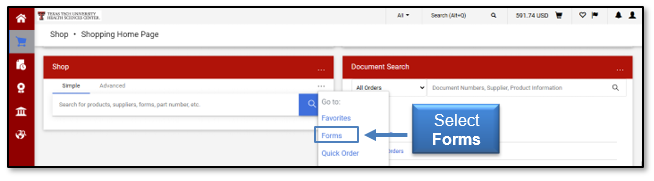
Forms can also be accessed from the home page in the Showcases section below the suppliers.
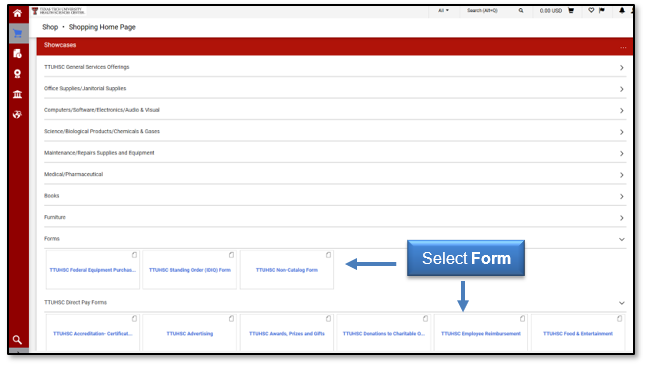
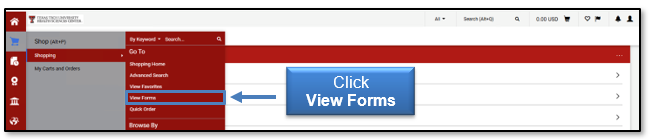
Another way to easily search for Forms is by navigating to the Shop icon and clicking View Forms.
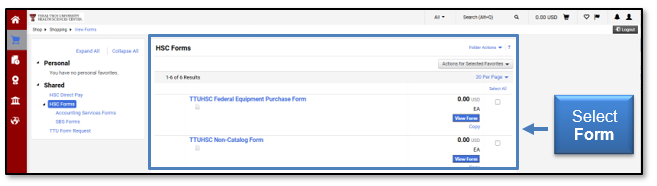
A list of HSC Forms will appear. Use the Shared folder on the left side to select other departmental folders.
HSC Non-Catalog Form
The HSC Non-Catalog Form is used to purchase products and services that do not fall under the defined purpose for the Standing Order form, Employee Expense Reimbursement form, or the Federal Equipment Purchase Order Form. The form is typically used for products or services with a fixed price. Non-Catalog form orders will be encumbered in Banner with a document prefix beginning with P (PXXXXXXX). This number will feed back into TechBuy and replace the temporarily assigned TechBuy TB (TBXXXXXX) number.
Required fields will have a star. The following section will walk through the form and the necessary information.
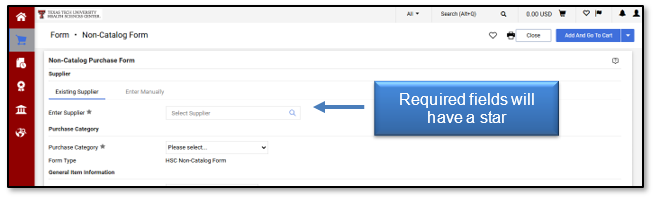
Supplier:
The Supplier field will provide a limited search feature as you type the supplier's name or the vendor number. If you can't find your supplier from the limited search feature, click the Search (magnifying glass) icon.
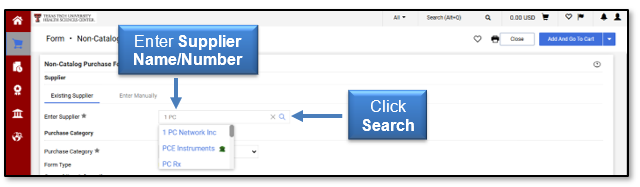
The Supplier Search window will open. Type the search criteria for the vendor in the Supplier field (e.g., Enter 1 PC to search for 1 PC Network Inc). Select the Search (magnifying glass) icon.
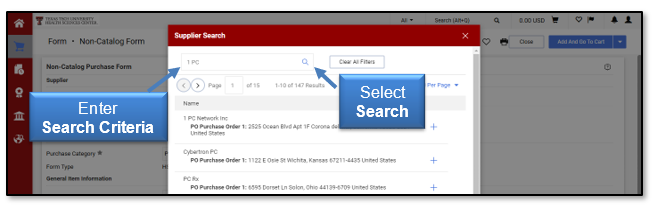
A list of the search results meeting your criteria will appear. If you see the desired vendor, click the Select button next to the address. This will bring the information back into the Non-Catalog form.
Fulfillment Address:
If a vendor is selected through the Supplier Search feature, the Fulfillment Address field will populate with one of the supplier's addresses. If the supplier has multiple addresses in the system, you can view the addresses by clicking Select Different Fulfillment Center.
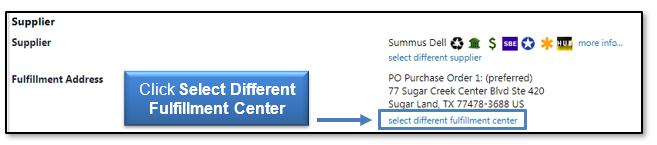
Select the appropriate address based on the vendor quote.

If you have an address that is not available in the system, you will need to enter the vendor information manually. If you do not have a specific address, use the default vendor address.
If the vendor is not listed in the Supplier Search or if the vendor does not have a purchase order address listed, click Enter Manually from the top tabs.
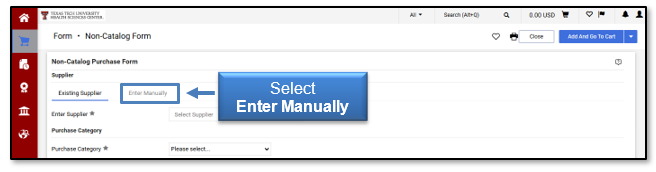
This will open additional fields allowing you to type the supplier information. Type in any information you have regarding the supplier.
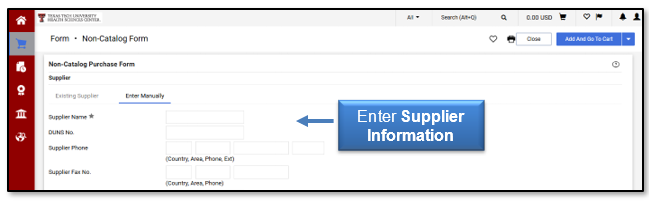
Note: The address you select must be a purchase order address. If you do not see a purchase order address, you must select Enter Manually and enter the correct PO address.
Distribution:
Once a supplier is selected, the Distribution method will display. If you need the order distributed to the supplier in a different manner or to a specific representative, click the box “Check this box to customize order distribution information”.
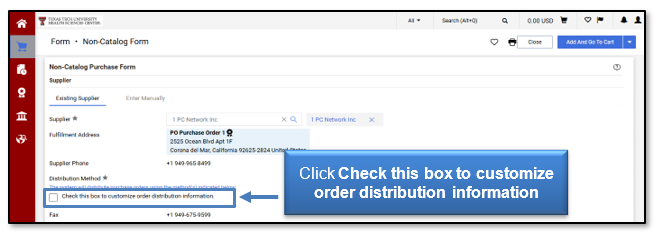
Select the desired distribution method and enter the appropriate information.
Purchase Category:
This field is required and will drive future workflow approvals. Select the category of the purchase from the drop-down options.
Catalog No:
Enter the catalog number if known for the item. This field is not required.
Quantity:
This field is required and should be the total quantity of the item you are ordering.
Packaging:
This field is required and has two parts. The first field is the numeric amount of the packaging, and the second field is the unit of measure. For ease of use, it is recommended to enter the quantity amount in the first packaging field.
Unit Price:
This field is required and should be the unit price of the item(s) you are purchasing.
Product Description and Specifications/Long Text:
The Product Description field is required, but the Specifications/Long Text is not required. The Product Description field only allows 255 characters, and the first 30 characters in this field will populate on the ledgers and the check remittance.
The Specifications/Long Text allows for 2000 characters and should be used if you run out of characters in the Product Description field. If you are submitting specifications that will not fit in these fields, you should provide a short description with an annotation that specifications are attached. You should then attach a document of the specifications to the internal attachment field. This field is not sent to the vendor.
Shipping Information:
This field is required, and you have two choices: Shipping Cost Included in Line Item and Shipping is Prepaid and Will Be Added to Invoice. This must be answered accurately based on the vendor's quote if it is not going to be competitively bid.
Prior Year PO Number:
This field is only required if the requisition is for services or products that are a continuation or renewal from a previous fiscal year.
Independent Contractor Questionnaire (ICQ) Required/Attached:
This field is required, and you have two choices: Yes or No. If the requisition requires an ICQ (services being completed by an individual), Yes will be selected, and an ICQ form will need to be attached in the internal notes. Forms with Yes selected will automatically route to Tax Compliance for approval. If an ICQ is not required, No will be selected.
Proprietary Purchase Justification (If Applicable):
Responses are required if the purchase is from a sole-source provider. This section is required by state and federal law and university policy when the specification requirement limits consideration to one manufacturer, one product, or one service provider, and the amount of the purchases exceeds $15,000. Review HSC OP 72.02, Guidelines for Proprietary Purchase, for procedures concerning proprietary sole source justification.
Additional Information:
Use this box to provide the purchaser or vendor with any additional information you feel would be helpful.
To add additional items to your cart for this vendor, select Add to Cart and Return from the Available Actions drop-down menu.
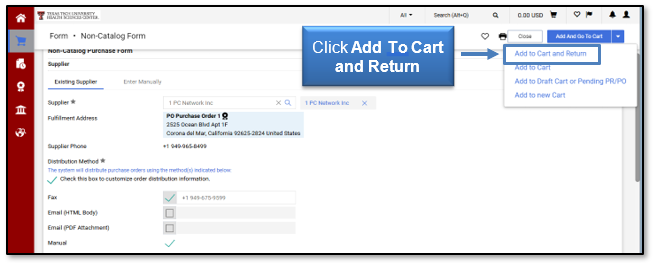
When you have completed the form, select Add and Go to Cart from the Available Actions list and select Go at the top right corner of the screen. This will place the document and the information into the requisition form.
Do not add additional forms for different vendors to the cart.
HSC Federal Equipment Form
The HSC Federal Equipment Form is required when purchasing capital equipment on federally sponsored projects as outlined in HSC OP 72.04, specifically any purchase over $5,000 on a federal grant fund (first two characters in fund are 21). This information will automatically route to the Sponsored Programs folder for approval. The HSC Federal Equipment form orders will be encumbered in Banner with a document prefix beginning with P (PXXXXXXX). This number will feed back into TechBuy and replace the temporarily assigned TechBuy TB (TBXXXXXX) number.
This form is similar to the Non-Catalog form. The following section will walk through the form and the necessary information.
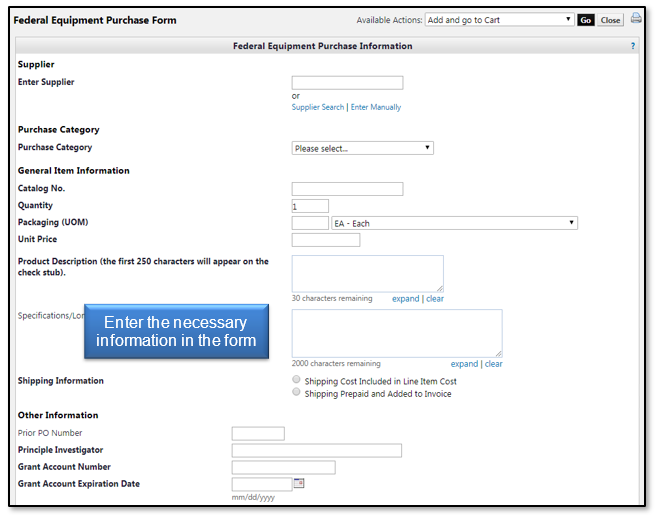
Supplier:
The Supplier field will provide a limited search feature as you type the supplier name or the vendor number. If you cannot locate your supplier from the limited search feature, select the Supplier Search option below the Supplier field.
The Supplier Search window will open.
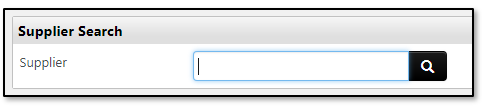
Type the search criteria for the vendor in the Supplier field. (Example: Enter 1 PC to search for 1 PC Network Inc). Select the Search (Magnifying Glass) button.
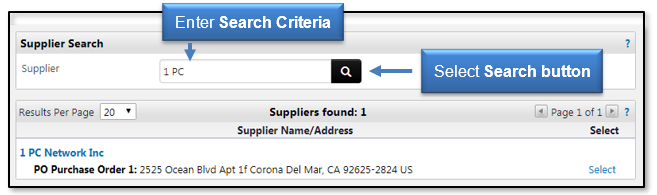
A list of the search results meeting your criteria will appear. If you see the desired vendor, click the red Select button next to the address. This will bring the information back into the form.
Fulfillment Address:
If a vendor is selected through the Supplier Search feature, the Fulfillment Address field will populate with one of the supplier's addresses. If the supplier has multiple addresses in the system, you can view the addresses by selecting Select Different Fulfillment Center.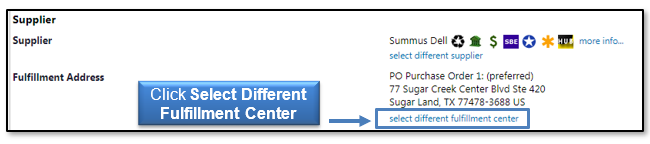
Select the appropriate address based on the vendor quote.

If you have an address that is not available in the system, you will need to enter the vendor information manually. If you do not have a specific address, use the defaulted vendor address.
If the vendor is not listed in the supplier search or if the vendor does not have a purchase order address listed, select Enter Manually below the Supplier field.
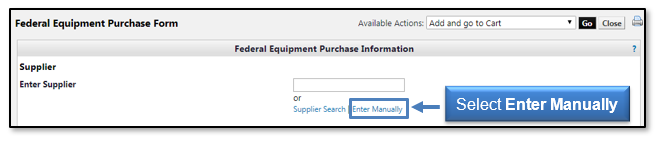
This will open additional fields allowing you to type the supplier information. Fill in any information you have regarding the supplier.
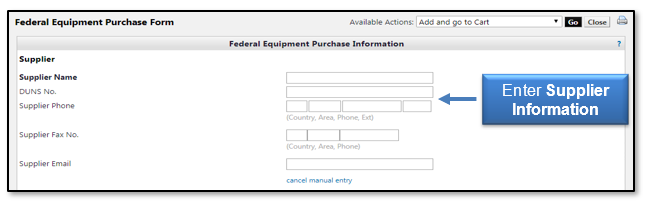
Note: The address you select must be a purchase order address. If you do not see a purchase order address, you must select Enter Manually and enter the correct PO address.
Distribution:
Once a supplier is selected, the distribution method will display. If you need the order distributed to the supplier in a different manner or to a specific representative, select the Check this box to customize order distribution information.
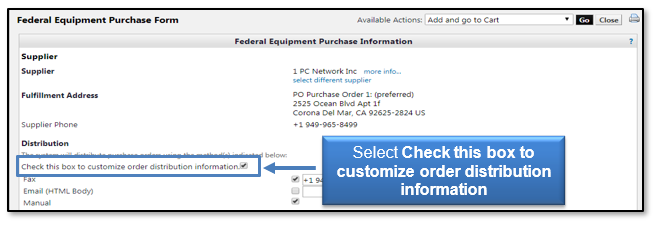
Select the desired distribution method and enter the appropriate information.
Purchase Category:
This field is required and will drive future workflow approvals. Select the category of the purchase from the drop-down options.
Catalog No:
Enter the catalog number if known for the item. This field is not required.
Quantity:
This field is required and should be the total quantity of the item you are ordering.
Packaging:
This field is required and has two parts. The first field is the numeric amount of the packaging, and the second field is the unit of measure. For ease of use, it is recommended to enter the quantity amount in the first packaging field.
Unit Price:
This field is required and should be the unit price of the item(s) you are purchasing.
Product Description:
This field is required and allows for 2000 characters. The first 30 characters in this field will populate on the ledgers and the check remittance. If you are submitting specifications that will not fit in this field, you should provide a short description with an annotation that specifications are attached. You should then attach a document of the specifications to the internal attachment field.
Shipping Information:
This field is required, and you have two choices: Shipping Cost Included in Line Item and Shipping is Prepaid and Will Be Added to Invoice. This must be answered accurately based on the vendor’s quote.
Prior Year PO Number:
This field is only required if the requisition is for services or products that are a continuation or renewal from a previous fiscal year.
Principal Investigator:
This field is required and you should enter the name of the Principal Investigator.
Grant Account Number:
This field is required. Enter the Grant that will be used to fund the purchase.
Grant Account Expiration Date:
This field is required. Enter the expiration date for the grant in mm/dd/yyyy format.
Research Project Name:
This field is required. Enter the research project name.
Authority to Procure Equipment in Final 60 Days of Grant:
This field is only required if the purchase is within 60 days of the grant expiration date. If there are more than 60 days remaining before the grant expires, this field is not required.
Ownership:
This is a required field. Select one of the following options:
- Federal
- Private
- State/ Other Agency
- TTU/HSC
Grant does not specifically authorize the purchase of equipment:
Provide documentation if a grant does not specifically authorize the purchase of federal equipment.
Authorization:
Mark the appropriate field: the Grant authorizes the purchase of equipment, or the Grant authorizes the fabrication of equipment.
Additional Information/Comments:
Enter any general information or additional comments that may be useful to the approval process.
Proprietary Purchase Justification (If Applicable):
Responses are required if the purchase is from a sole-source provider. This section is required by state and federal law and university policy when the specification requirement limits consideration to one manufacturer, one product, or one service provider, and the amount of the purchase exceeds $50,000. Review HSC OP 72.02, Guidelines for Proprietary Purchase, for procedures concerning proprietary sole source justification.
Additional Information:
Use this box to provide the purchaser or vendor with any additional information you feel would be helpful. When you have completed the form, select Add and go to Cart from the Available Actions list, and select Go at the top right corner of the screen. This will place the document and the information into the requisition form.
Do not add additional forms for different vendors to the requisition form.
HSC Standing (IDIQ) Order
This form is to establish a single purchase order for items or services that will be ordering indefinite delivery or indefinite quantity (IDIQ). TechBuy will assign a document prefix beginning with TB. It will be fed to Banner as a PO, and the TB number will be replaced within TechBuy.
The following section will walk through the form and the necessary information.
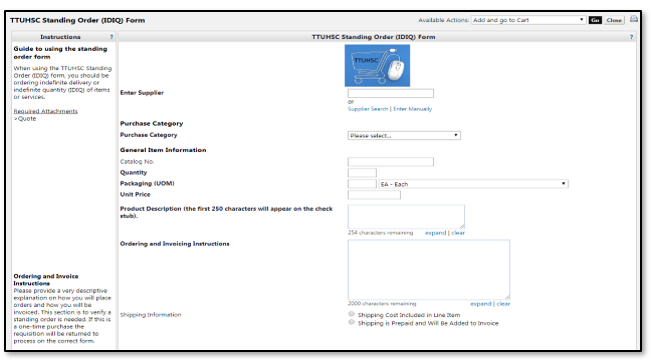
Supplier:
The Supplier field will provide a limited search feature as you type the supplier name or the vendor number. If you cannot locate your supplier from the limited search feature, select the Supplier Search option below the Supplier field.
The Supplier Search window will open.
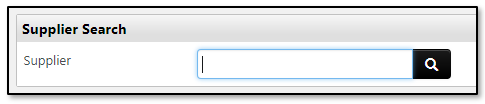
Type the search criteria for the Vendor in the Supplier field. (Example: Enter 1 PC to search for 1 PC Network Inc). Select the Search (Magnifying glass) button.

A list with the search results meeting your criteria will appear. If you see the desired vendor, click the Select button next to the address. This will bring the information back into the form.
If the vendor is not listed in the Supplier Search or if the vendor does not have a purchase order address listed, select Enter Manually below the Supplier field.
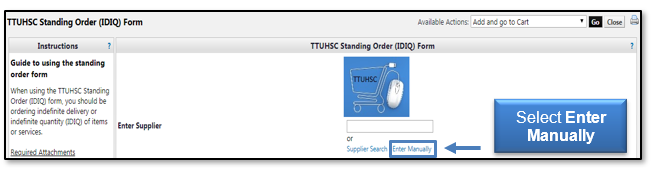
This will open additional fields allowing you to type the supplier information. Type in any information you have regarding the supplier.
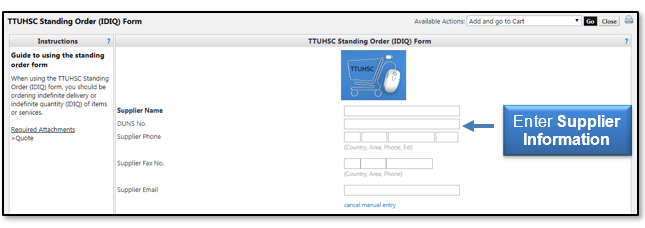
Note: The address you select must be a purchase order address. If you do not see a purchase order address, you must select Enter Manually and enter the correct PO address.
Fulfillment Address:
If a vendor is selected through the Supplier Search feature, the Fulfillment Address field will populate with one of the supplier’s addresses. If the supplier has multiple addresses in the system, you can view the addresses by clicking Select Different Fulfillment Center.
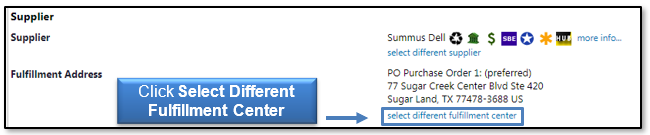
Select the appropriate address based on the vendor quote.

If you have an address that is not available in the system, you will need to enter the vendor information manually. If you do not have a specific address, use the default vendor address.
Distribution:
Once a supplier is selected, the Distribution method will display. If you need the order distributed to the supplier in a different manner or to a specific representative, select the Check this box to customize order distribution information.
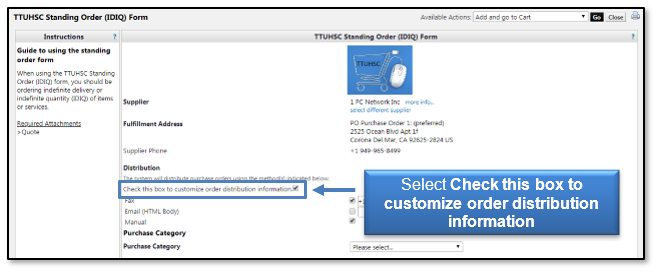
Select the desired distribution method and the appropriate information.
Purchase Category:
This field is required and will drive future workflow approvals. Select the category of the purchase from the drop-down options.
Catalog No:
Enter the catalog number if known for the item. This field is not required.
Quantity:
This field is required and should be the total quantity of the item you are ordering.
Packaging:
This field is required and has two parts. The first field is the numeric amount of the packaging, and the second field is the unit of measure. For ease of use, it is recommended to enter the quantity amount in the first packaging field.
Unit Price:
This field is required and should be the unit price of the item(s) you are purchasing.
Product Description:
This field is required and allows for 2000 characters. The first 30 characters in this field will populate on the ledgers and the check remittance. If you are submitting specifications that will not fit in this field, you should provide a short description with an annotation that specifications are attached. You should then attach a document of the specifications to the internal attachment field.
Ordering and Invoicing Instructions:
This field is required and allows for 2000 characters. Provide a very descriptive explanation of how you will place orders and how you will be invoiced. This section is to verify that a standing order is needed. If this is a one-time purchase, the requisition will be returned to process on the correct form.
Shipping Information:
This field is required, and you have two choices: Shipping Cost Included in Line Item and Shipping is Prepaid and Will Be Added to Invoice.This must be answered accurately based on the vendor's quote.
Prior Year PO Number:
This field is required if the requisition is for services or products that are a continuation or renewal from a previous fiscal year.
Proprietary Purchase Justification (If Applicable):
Responses are required if the purchase is from a sole-source provider. This section is required by state and federal law and university policy when the specification requirement limits consideration to one manufacturer, one product, or one service provider, and the amount of the purchase exceeds $50,000. Review HSC OP 72.02, Guidelines for Proprietary Purchase, for procedures concerning proprietary sole source justification.
Additional Information:
Use this box to provide the purchaser or vendor with any additional information you feel would be helpful.
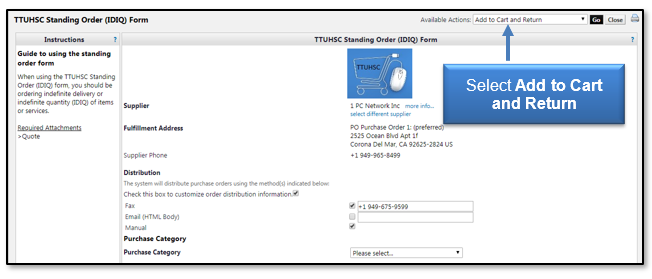
To add additional items to your cart for this vendor, select Add to Cart and Return from the Available Actions drop-down menu.
HSC Employee Reimbursement
Use the HSC Direct Pay Form - TTUHSC Employee Reimbursement. For questions or comments, contact Accounts Payable at Accounts.Payable@ttuhsc.edu.
Contact
Finance Systems Management
-
Address:
3601 4th Street STOP 6209 | Lubbock, Texas 79430-6209 -
Email:
fsm@ttuhsc.edu