
TechBuy - Cart Management
A cart is your virtual shopping cart that holds items selected for purchase. When the cart is submitted, it becomes a requisition. A user can have multiple carts. In the case of multiple carts, one cart will be listed as your active cart, and the other carts will be listed as draft carts. From the Shopping Home page, select Shop, My Carts and Orders, View Carts.
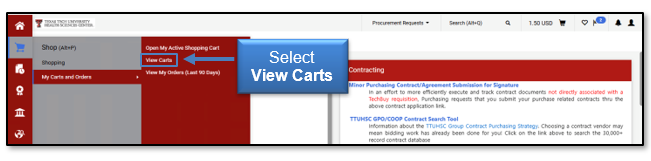
Creating a New Cart
Carts should be limited to items from one vendor; therefore, we suggest creating a new cart prior to shopping. This will ensure not only that the active cart contains only the desired items, but will also ensure that the cart's accounting date is current.
You can create a new cart by selecting Shop, My Carts and Orders, View Carts, and the Draft Carts tab. This will open the Cart Management screen. From the Cart Management screen, select Create Cart. This will place a new and empty cart as your Active Cart.
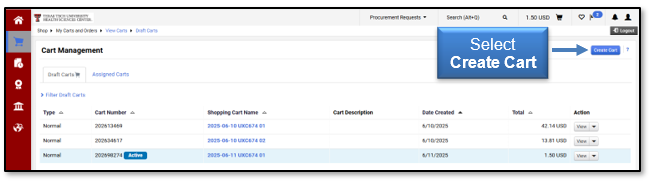
View Future Requisition Number for a Cart
You can view the future requisition number for your cart prior to the requisition actually being created. The Cart Number will eventually become the requisition number when the requisition is created and is shown on the Cart Management Page. The active cart will be highlighted and labeled Active. Orders assigned to you will appear in the Assigned Carts tab.
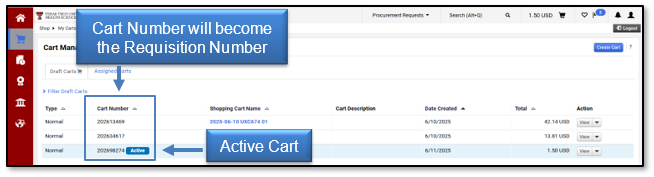
Having the Cart Number available in the Cart Management page gives you a reference number that can be used later when you are trying to find the cart. It also allows you to provide the Cart Number for reference so that others can find that particular draft or assigned cart.
Deleting your Draft Carts
The draft carts tab maintains a list of all carts that have not been submitted. This list could potentially include obsolete and invalid carts that will never need processing. This section will walk through the steps to delete any unnecessary draft carts. Select the Shop, My Carts and Orders, View Carts, and the Draft Carts tab.
The draft carts currently in your possession will populate. The My Drafts folder may contain carts that should be deleted. If you locate an obsolete cart, select the Arrow to the right of the view button and select Delete.
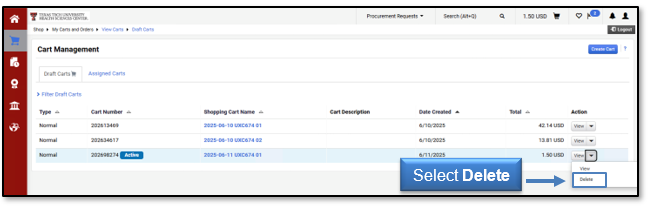
The draft cart will no longer appear on your list. Please note that once a draft cart is deleted, it cannot be recovered.
Contact
Finance Systems Management
-
Address:
3601 4th Street STOP 6209 | Lubbock, Texas 79430-6209 -
Email:
fsm@ttuhsc.edu