
TechBuy - Completing the Requisition
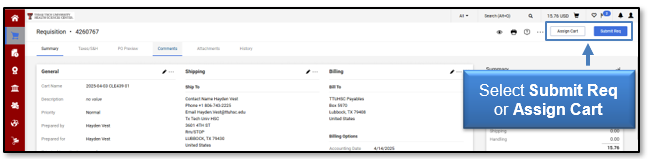
Once you have edited and reviewed your cart, it is ready for completion. Select either Submit Req or Assign Cart. Submitting the requisition begins the PR workflow processes. These workflow steps are discussed in the TechBuy Basics document. If you assign the cart, you are relinquishing your ability to submit. The user who receives the assigned cart will need to submit the requisition.
Submitting the Requisition
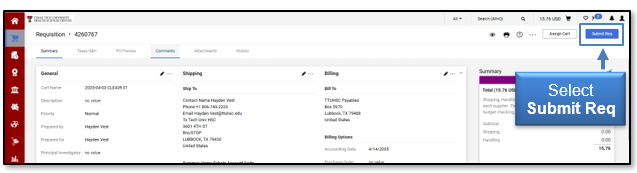
Once your cart is complete and accurate, select Submit Req.
You will receive a message that your requisition has been submitted.
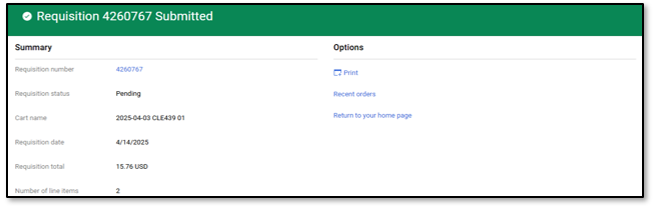
Make note of the requisition number. We suggest using the requisition number when searching History.
Assigning the Cart
A user may choose to assign their cart to another individual for review and/or submission. Prior to assigning the cart, verify the assignee has Banner fund authority for the fund(s) used on the order. Select Assign Cart.

The Assign Cart: User Search window will appear. Select Search.
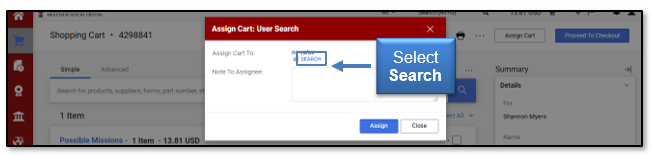
The User Search provides a way to look for a desired Assignee by first and last name, email, business unit name, department, position, and role. Enter the search criteria, then click Search.
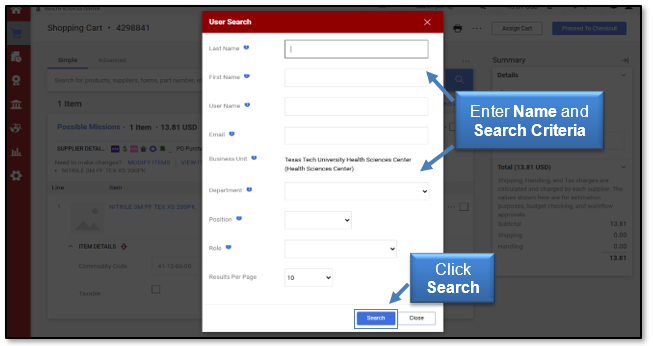
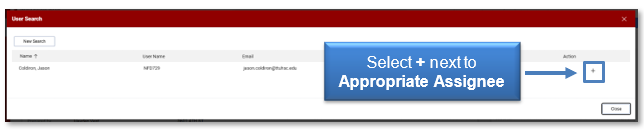
Select the + to the right of the appropriate name to add as the Assignee.
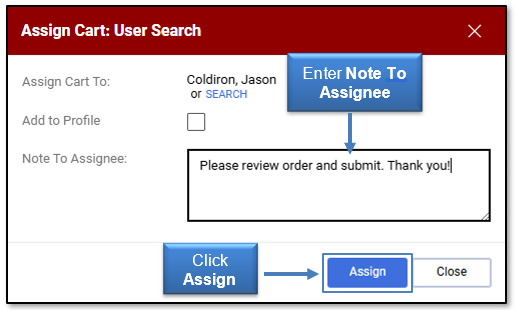
Enter a Note To Assignee, as required, and click the Assign button.
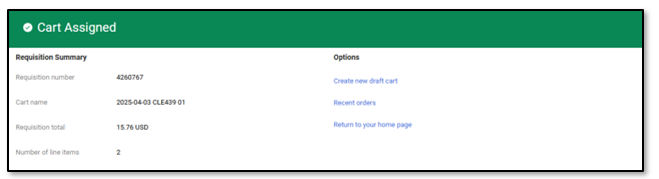
You and the Assignee will receive an email notification that your cart has been assigned.
Emails are sent at regularly scheduled intervals as a reminder about carts that have not been processed and require attention. The email reminders are based on the date the draft cart is assigned to the user. The initial email reminder will be sent three days after the cart assignment. Repeat email reminders will be sent daily until action is taken and the cart is processed. The email provides a link for the user to access TechBuy and view the assigned cart(s).
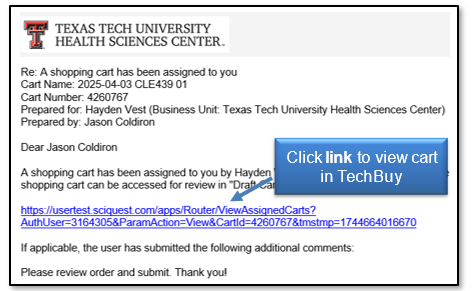
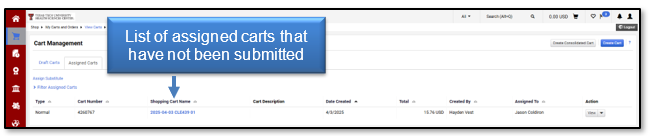
Once the cart has been assigned, it can be viewed from your Assigned Carts until the assignee has submitted the requisition. After the cart is submitted by the assignee, it can be viewed using Document Search.
The assigner retains the option to unassign the cart unless the assignee has submitted the order. To unassign the cart, select Unassign from the Action drop-down menu.
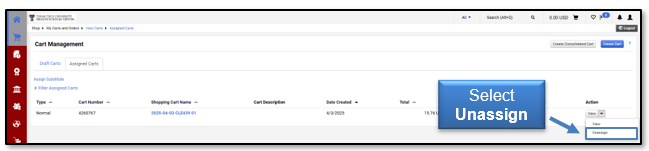
The cart will open, and you will again maintain control of the cart.
Returning an Unassigned Cart
Occasionally, a requisitioner will have a cart assigned to them by mistake, or the requisitioner may want the shopper to provide additional information or select a different account code. The requisitioner can return the cart to the shopper to allow the shopper to make any corrections to the cart or assign the cart to the appropriate person.
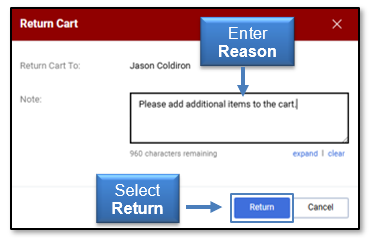
To return a cart to the shopper, select the Return Cart button.
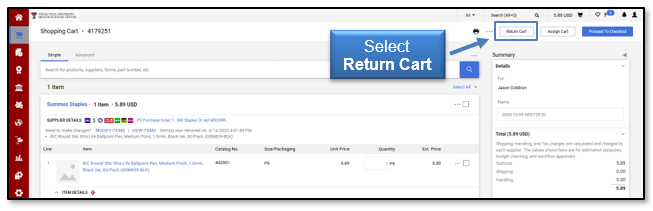
You will be presented with a Return Cart window that will allow you to enter a reason why the cart is being returned and then select Return.
You will receive a message that the cart has been returned.
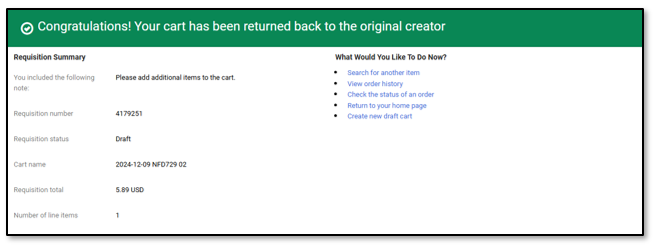
The returned cart will now appear in Cart Management under Draft Carts. The Type of cart will indicate it has been Returned.
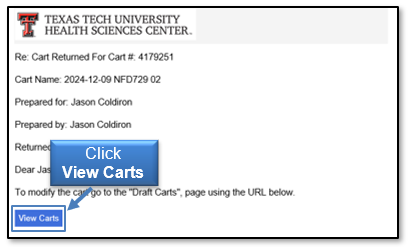
An email will also be sent to the shopper. The email will include the reason for the return from the note that was attached during the return. A View Carts link is also provided in the email that will take the shopper to the Draft Carts page to modify the cart.
Submitting an Assigned Cart
If a user has assigned a cart for your review, you should receive an email notification. If you do not receive an email notification, you will need to modify your email permissions in your profile. Review the TechBuy User Profile training document for additional information.
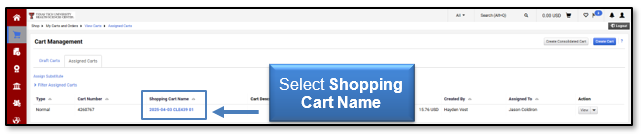
You can locate carts assigned to you under the Assigned Carts tab of Cart Management.
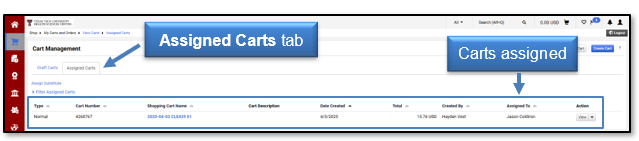
Select the Shopping Cart Name of the assigned cart to open the order.
The cart will open and allow you to edit and/or submit the requisition.
NOTE: When you review the cart, change the Prepared For field to your name. TechBuy sends the name of the person in the Prepared For field to Banner to check for fund security. For additional information about reviewing the cart, please review the Review the Cart document.
Once you have reviewed the cart and entered your name in the Prepared For field, follow the steps above to submit the requisition.
For additional questions about TechBuy, email purchasing@ttuhsc.edu.
Contact
Finance Systems Management
-
Address:
3601 4th Street STOP 6209 | Lubbock, Texas 79430-6209 -
Email:
fsm@ttuhsc.edu