
TechBuy - Editing the Cart
To edit a cart, select Shop, My Carts and Orders, and Open My Active Shopping Cart from the Shopping Home page.
Note: Active and draft carts are visible only to the user. If a cart has not been submitted or has been returned by an approver or Purchasing, only the user who created the cart can see, edit, review, submit, or delete the cart. No approver or administrator can see, edit, or delete the cart as long as it is an active or draft cart.

Removing Selected Items from the Cart
The option to remove only selected items from your cart should never be used for punch-out purchases, as it will cause an order failure when the PO is sent to the supplier.
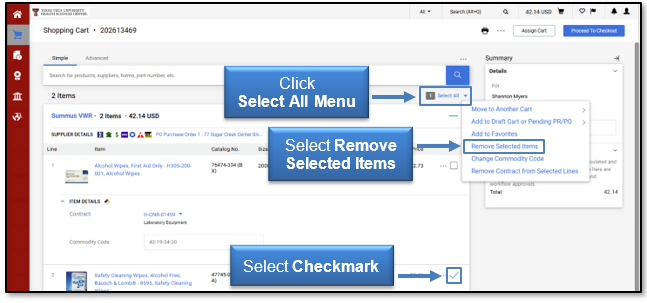
To remove only select items before proceeding to checkout, place a check in the checkbox in the row for each item you wish to remove. Once you have marked all the item(s) you wish to remove, click the Select All Actions drop-down menu and select Remove Selected Items.
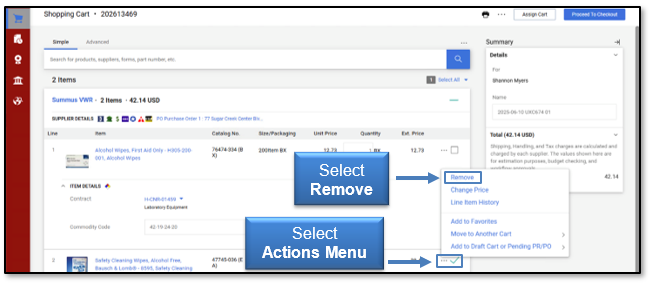
An individual item can also be removed by selecting the Actions menu located in the line item and choosing Remove from the drop-down menu.
Move Items to a New or Draft Cart
You may have items in an active cart that you need to separate to another cart. To move an item from one cart to another, select the checkbox next to the item(s) you wish to move.
Note: You cannot separate items from a punch-out order. You will need to move all items from a specific vendor's punch-out order to a new cart or remove all items from the cart.
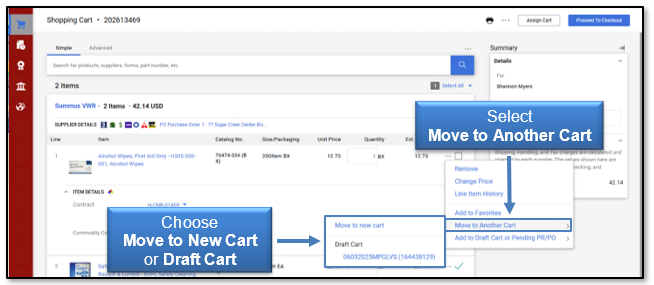
Once you have marked all the items you wish to move, click the Actions menu and select Move to Another Cart from the drop-down list. Choose from the options of Move to a new cart or an existing Draft Cart.
Your current Active Cart will now update with the change. You can access and complete either your active cart or your draft cart.
Modify a Non-Catalog Order (Forms)
If you have used one of the three TTUHSC forms to purchase non-catalog items, this section will walk through adding additional items to the order and modifying the current information in the forms.
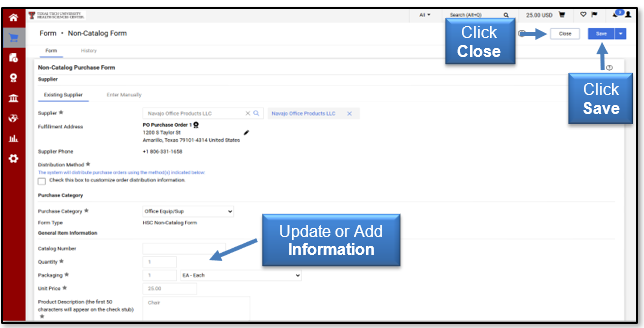
To update or add information to a form that is already in the cart, select the form by clicking the item or form description.
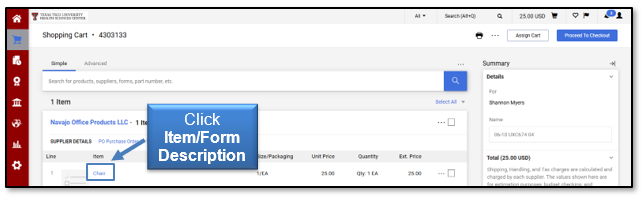
The form will open in a separate window. You can update or add any necessary information to the form. When the form is complete, click Save. The saved changes are now reflected in the cart. You can then select the Close button.
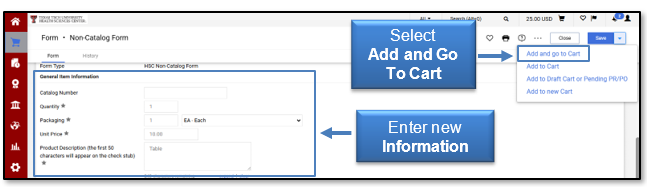
If you need to add an additional item to the cart, select a form by clicking the item or form description. The form will open in a separate window. You can add an additional item by entering new General Item Information into the fields. When the form is complete, select Add and Go to Cart from the Available Actions: drop-down button at the top right of the page.
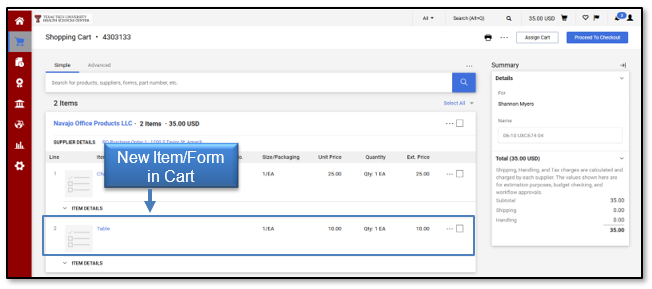
The new item/form will now appear in the cart.
Modify a Hosted or Science Catalog Order
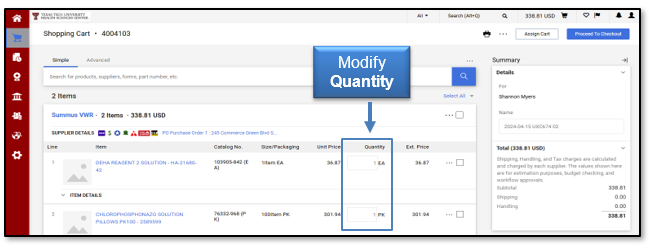
If your cart contains items from either hosted or science catalogs, TechBuy allows you to change the quantity of the items by entering the amount you want to order in the Quantity field.
To add additional hosted or science catalog items for this vendor to this cart, utilize the Shop from the Top feature on the Shopping Home page and select the appropriate items. They will populate in your Active Cart.
Modify a Punch-out Order
The ability to modify orders from punch-out catalogs varies by vendor. A few vendors, including Summus VWR, provide a link in the cart that will take you to the order on the vendor's website. This will allow you to make changes and bring them back into TechBuy. Select Modify Items to go to the order on the vendor's website.
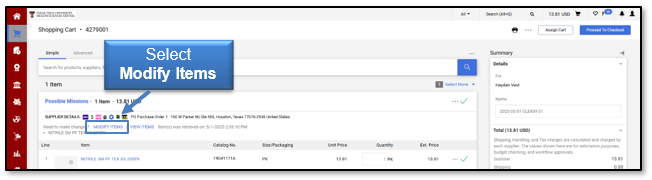
If a modification is required and the Modify Items option is not available, you should remove all items from the cart, punch out to the vendor, and start again.
Note: You cannot separate or remove individual items from a punch-out order. This could cause an order failure when the order is distributed to the vendor.
For additional questions about TechBuy, email purchasing@ttuhsc.edu.
Contact
Finance Systems Management
-
Address:
3601 4th Street STOP 6209 | Lubbock, Texas 79430-6209 -
Email:
fsm@ttuhsc.edu