
Henry Schein Purchases
Purchasing clinical supplies from Henry Schein requires a Medical/Surgical Supplier Account Code. You must complete the Henry Schein shopper form if you need a Medical/Surgical Supplier Account Code. The fund approver or fund manager should email purchasing@ttuhsc.edu to request the form. Email the completed form to purchasing@ttuhsc.edu. The information will be sent to the Henry Schein representative and that representative may contact you if they need additional information. If you need access to Cardinal Health pharmaceutical supplies, please contact Lee Easterday.
Once the Purchasing department receives the Medical/Surgical Supplier Account Code from Henry Schein, you must update your TechBuy profile with the Medical/Surgical Supplier Account Code prior to shopping.
Updating the User Profile
Henry Schein assigns each department ship to address a Medical/Surgical Supplier Account Code within their system. The code is assigned to an address where Henry Schein will ship all purchased products. This code must be added to all Henry Schein orders in TechBuy or the order will fail. This section will review steps to add this information to your User Profile so that it will automatically populate in your cart.
Please refer to theTechBuy User Profile training web page for additional information about fields that should be added to your profile.
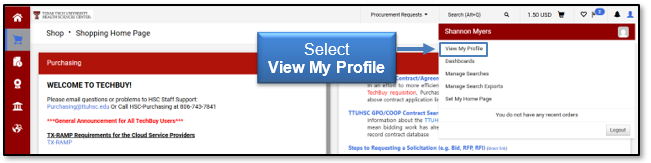
Select View My Profile from the top left corner of the screen.
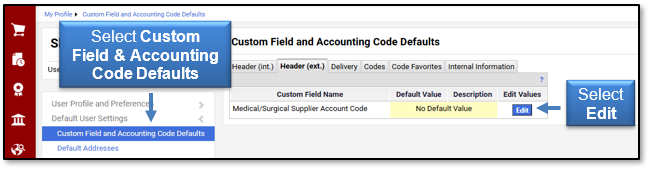
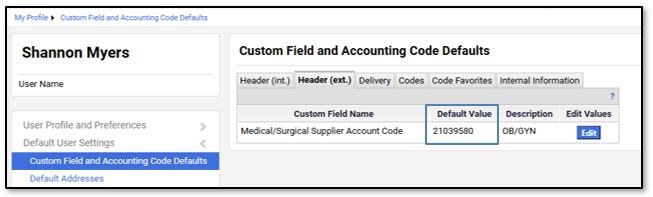
Locate the Medical/Surgical Supplier Account Code under Custom Field and Accounting Code Defaults > Header (Ext) sub-tab.
Select the Edit icon to the right of the Custom Field Name titled Medical/Surgical Supplier Account Code.
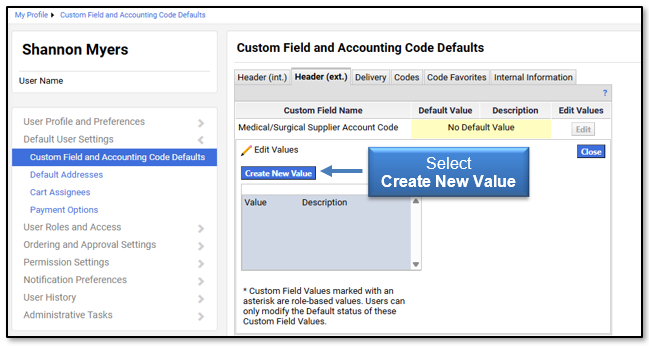
Select the Create New Value button.
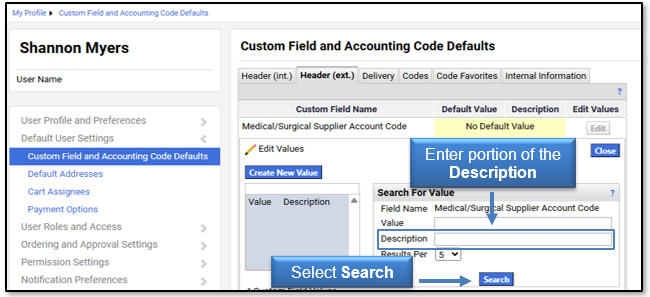
A Search For Value box will appear. If you know your Medical/Surgical Supplier Account Code, enter it in the Value field. You can also enter a portion of the Description and select Search.
Select the appropriate Medical/Surgical Supplier Account Code from the search results by selecting box(es) and clicking Add Values.
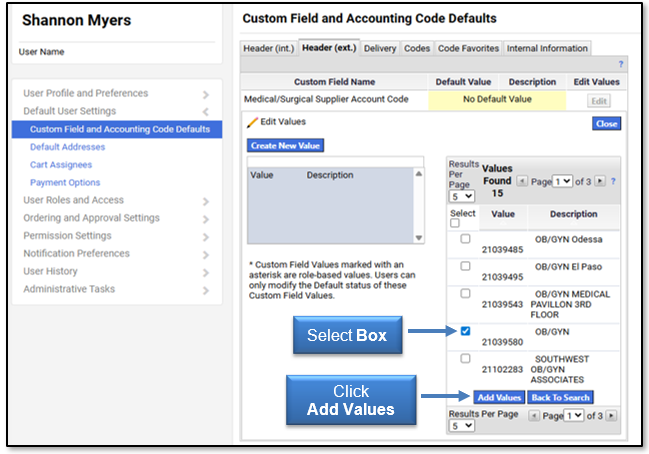
The value will display in the window to the left. If you are authorized to purchase on multiple Medical/Surgical Supplier Account Codes, continue to add the values to your profile.
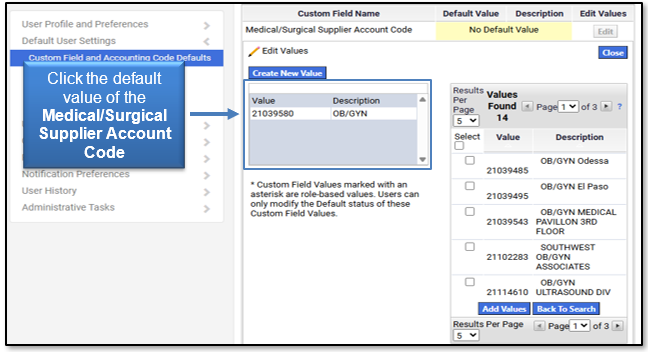
Click the value of the Medical/Surgical Supplier Account Code that should default into every order. This can be changed during the cart review process.
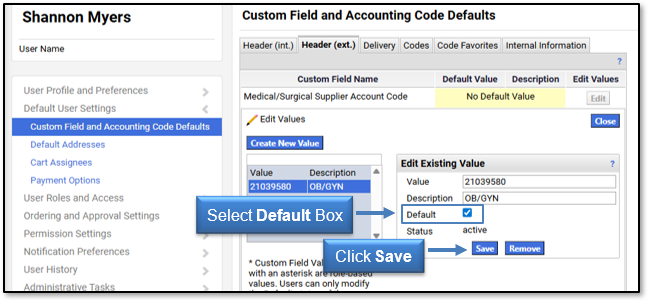
Select the Default box from the Edit Existing Value window and click Save.
The value will populate in the Default Value and Description fields in the top portion of the screen. Click Close.
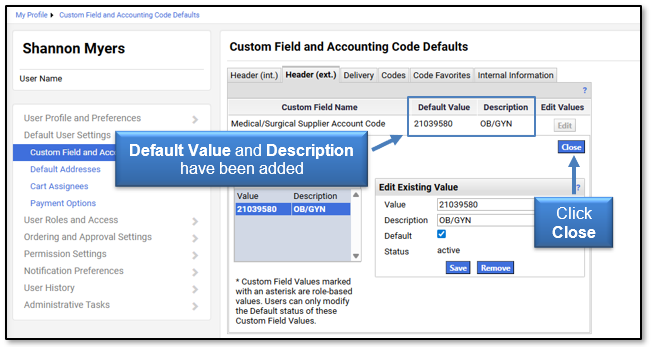
This value will default into every Henry Schein clinical supply order that you submit. The code can be edited during the cart review process.
For questions, contact Procurement Services at purchasing@ttuhsc.edu.
Contact
Finance Systems Management
-
Address:
3601 4th Street STOP 6209 | Lubbock, Texas 79430-6209 -
Email:
fsm@ttuhsc.edu