
TechBuy - Systematic Order Validation
TechBuy validates information entered on the requisition form against Banner prior to the creation of the purchase order. Banner reviews the data and returns the information into TechBuy. If TechBuy receives an error from Banner, the system will return the cart for resubmission.
This document addresses the top three systematic order errors received during the Banner validation process.
Error information is available in the History tab of a requisition.
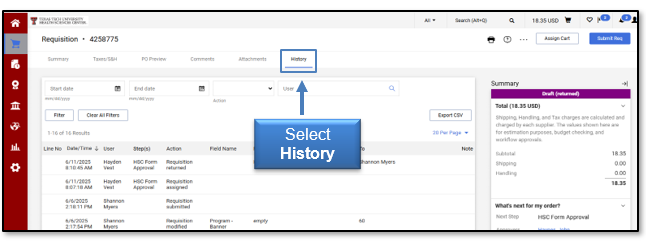
User Has No Authority to Post
This error occurs when the Fund Manager has not granted access to the user in the TEAM Application.

If a user receives this error, notify the Fund Manager. The Fund Manager can grant the appropriate access in the TEAM application. For additional information, review the TEAM Financial Registration Help document.
Insufficient Budget
This error occurs when there are not enough budgeted funds in Banner for the FOAP entered on the requisition.

If you receive this error, enter a different FOAP with enough available budget or enter a budget revision through the Budget Revision System.
Transaction Date is Not in an Open Accounting Period
If the accounting date entered on the requisition relates to a closed fiscal period in Banner, you will receive an error.

If you receive this error, change the accounting date on the requisition to the current date unless instructed otherwise by the Purchasing department. For more information about the accounting date, refer to the Reviewing the Cart document.
Locating the Returned Requisition
Once the requisition is returned for resubmission, make the necessary changes to the order and resubmit, or withdraw the order. It is important to remember that once the order is returned to you, no one else can touch the order until you resubmit. Once the order is resubmitted, it will maintain the same requisition number and will flow through the entire approval process.
There are three ways to locate a returned order:
- Click the My Returned Requisitions link under the Action Items icon in the top navigation.
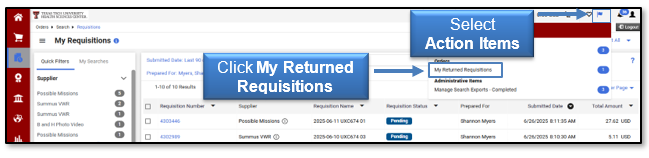
- Select Shop, My Carts and Orders, View Carts.

Choose the Draft Carts tab. The tab should default to open.
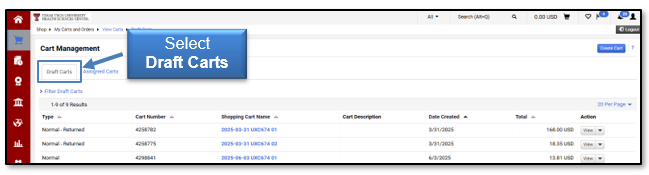
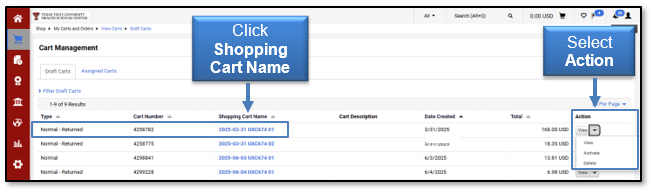
The Type column will indicate a returned requisition that is now back in draft cart status. From the Action drop-down menu, select View, Activate, or Delete. Select Activate to make updates to resubmit the requisition, then click the Shopping Cart Name.
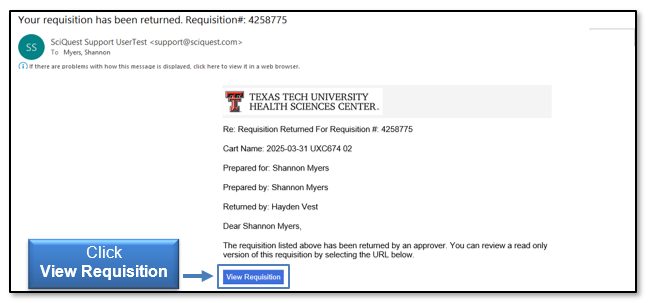
- Use the View Requisition link provided in the email you received when the order was returned. This link provides a read-only version of the requisition.
Contact
Finance Systems Management
-
Address:
3601 4th Street STOP 6209 | Lubbock, Texas 79430-6209 -
Email:
fsm@ttuhsc.edu