
Cash Receipts - Intermediate Approvers Help
Intermediate Approval Process
All Departments must use the Cash Receipts system to record receipt of cash, checks, wires and credit card payments. Cash receipts for revenue contracts will interface to the Contract Database and Contract AR system where you can track payment on those contracts.
The Cash Receipts system has an electronic approval process that will consist of approvals by Intermediate Approvers and Student Business Services.
The Cash Receipts system allows for departmental deposit information entry, electronic routing and approval. The system also has the capability of returning a cash receipt for correction. Reports are available to help you monitor the cash receipting process.
The system can be accessed from:
- CashReceipts
- WebRaider portal > Business Affairs tab > Links to Financial Systems > Cash Receipts
The Cash Receipts system is also available from the Contracting website by using Contract AR/Billing via the External Links at the top of the banner page.
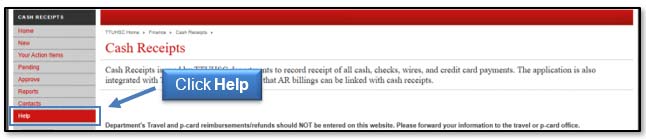
Documents, containing details about the Cash Receipts system and the Intermediate Approval process, are available by clicking Help from the menu bar on the left side of the Cash Receipts page.
Process Outline
Locate and Review Cash Receipts Pending Approval
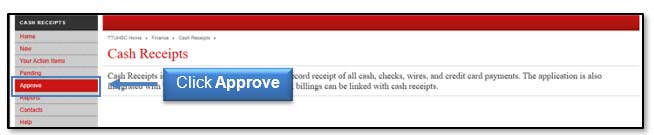
If you are designated as an Intermediate Approver, click Approve from the menu bar on the left side of the Cash Receipts page to access the cash receipts that are pending your approval.
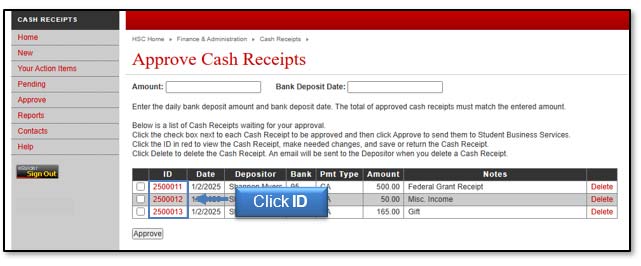
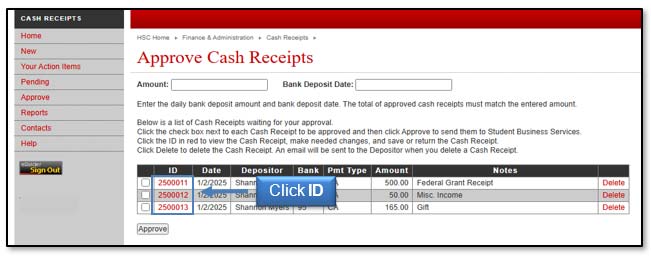
A list of all cash receipts that you are authorized to approve will populate. To view the cash receipt, click the red ID in the ID column.
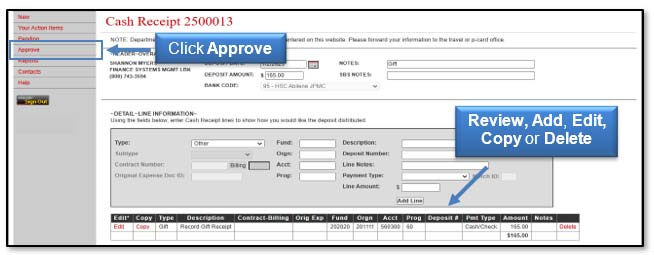
The cash receipt will display and provide you with the opportunity to Review, Add, Copy, Delete, or Edit the line items. If changes to the cash receipt are not necessary, navigate back to the list of documents awaiting your approval by clicking Approve from the menu bar on the left side of the page.
Refer to page 6 of this document for Approving Cash Receipts.
Edit a Cash Receipt Pending Approval
If you determine that a change to the cash receipt is necessary, you can delete a specific line, edit the current information, copy a specific line, or add an additional line.
To delete an entire line from the cash receipt, click Delete to the right of the line. To edit a line, click Edit to the left of the line. To copy an entire line, click Copy to left of the line. You can also add new lines by completing the information in the "Detail Line Information" (grey box) and clicking Add Line.
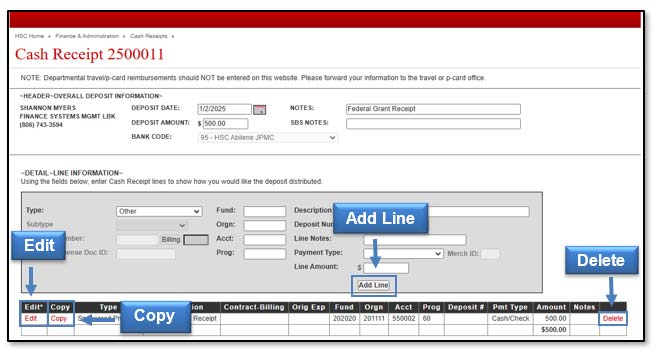
When you select Edit, the line will be removed from the table and added to the Detail Line Information box for you to edit. You will have the ability to change the Type, Description, Fund, Orgn, Acct, Prog, Deposit Number, and Amount. You must click Add Line to add this information to the cash receipt.
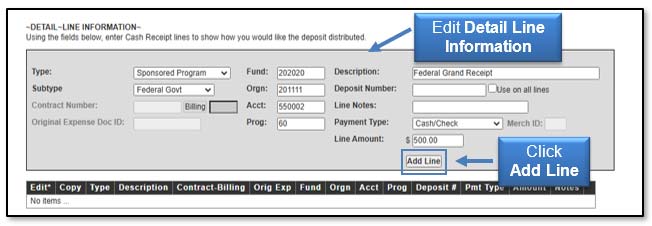
Once the line is added back to the cash receipt table, click Save to keep any changes.
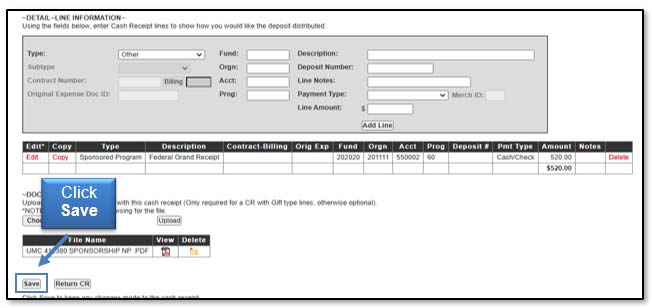
Note: If you make an adjustment to the amount of a line item, you will need to change the total Deposit Amount in the header. The Deposit Amount must equal the total of all lines.
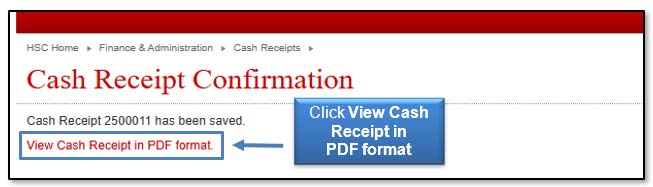
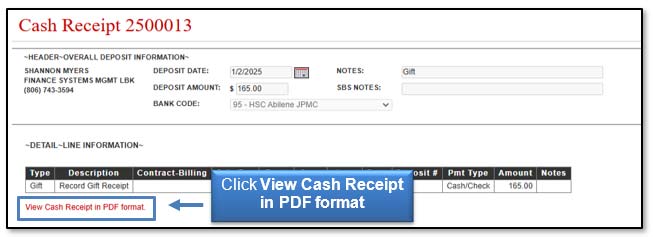
You will receive a Cash Receipt Confirmation and will have the ability to view the cash receipt in a PDF format. Click View Cash Receipt in PDF format.
Return a Cash Receipt
If there is an error with a cash receipt and you choose not to edit the CR to correct, you can return the cash receipt. The depositor will receive an email notification that the cash receipt was returned. The depositor will have the ability to correct the CR and resubmit to the approval process.
Click the red ID in the ID column next to the cash receipt that will be returned.
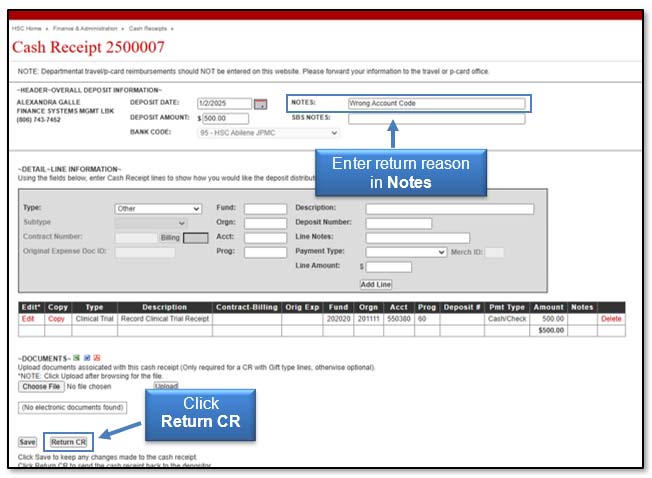
The cash receipt will display and provide you with the opportunity to return the CR to the depositor. It is suggested to enter a message to the depositor in the Notes field.
Click the Return CR button and the cash receipt will be returned to the depositor.
Delete a Cash Receipt
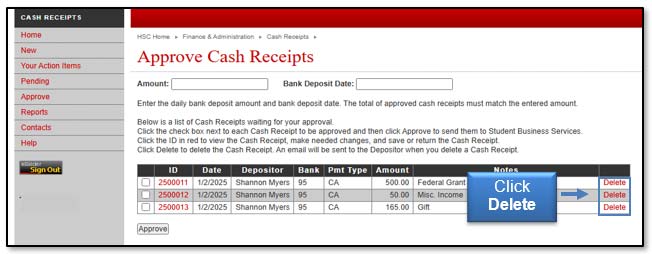
As an approver, you also have the ability to delete a cash receipt. Click Delete on the cash receipt line you wish to delete. The cash receipt will be removed from the Cash Receipts System and the depositor will receive an email.
Approving Cash Receipts
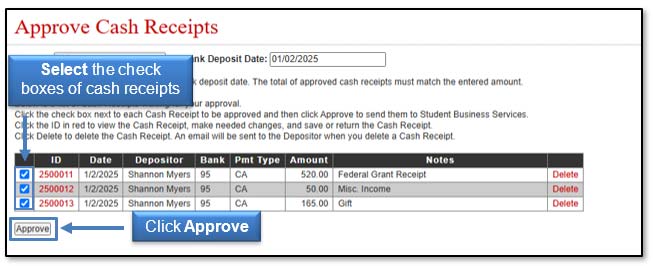
Once you have reviewed the cash receipts, you will need to approve them by batching them according to your Daily Bank Activity Report. As an example, the Daily Bank Activity Report for 01/02/2025 has a total of $735.00
To batch cash receipts, enter the amount of the Daily Bank Activity Report in the Amount field of the Approve Cash Receipts screen. The approved cash receipts must match this total. You will also need to populate the Bank Deposit Date with the date the cash actually posted to the bank.
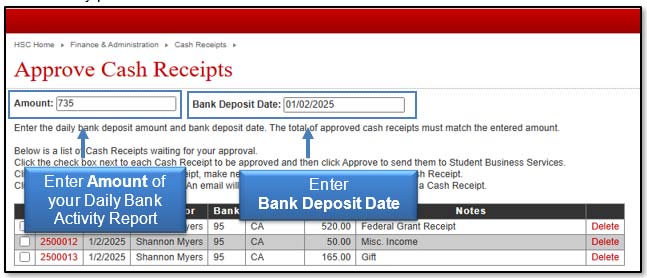
Note: The Bank Deposit Date entered in the header of the Approval screen will determine the fiscal period the cash receipt will post into the ledgers. This date will also over-write the dates on the cash receipts selected for approval.
Select the check boxes next to the cash receipts you wish to approve, and click the Approve button.
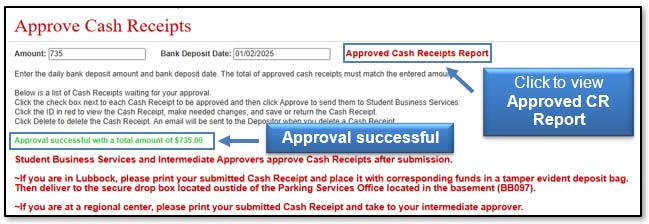
If the total of the cash receipts approved equals the amount listed at the top of the screen, you will be notified that the approval was successful and the cash receipts will no longer display in your approval list.
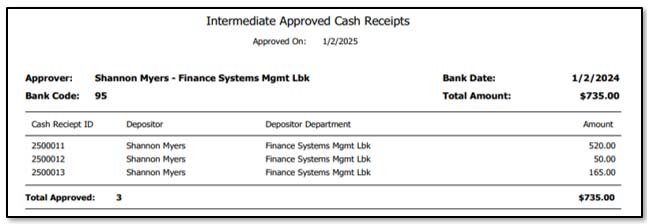
A link is also provided to access a PDF report - Approved Cash Receipts Report that details the cash receipts approved. Click the link and open the report.
Forward the Intermediate Approved Cash Receipts Report and an electronic copy of your Daily Bank Activity Report via email to Student Business Services. It is recommended that you save a copy of the Intermediate Approved Cash Receipts Report to keep with your cash receipt backup documentation.
Note: Student Business Services only requires a copy of your Daily Bank Activity Report along with the Approved Cash Receipts Report. The department that is responsible for the approvals are responsible for maintaining the backup associated with the cash receipts, including but not limited to, deposit slips, wire transfer confirmations, and credit card batch settlement reports. This should be maintained for 10 years.
Features
Pending Cash Receipts
To view Pending Approval cash receipts, click Pending in the menu bar on the left side of the Cash Receipts page.

You will see a list of all Pending Approval cash receipts waiting for intermediate approval or approval from the Student Business Services' office. To view the detail of a pending cash receipt, click the red, cash receipt number in the ID column.
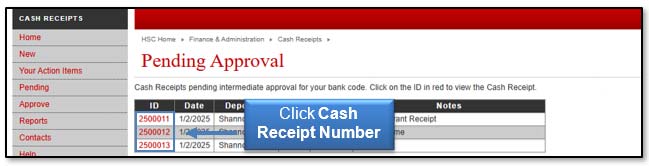
The Pending Approval cash receipt will display. To view and print the cash receipt, click View Cash Receipt in PDF format.
Reports
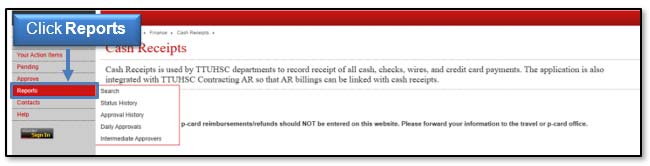
To access available reports, click Reports in the menu bar on the left side of the page.
There are five Reports options available to help you manage your cash receipts:
- Search - Allows you to search for any cash receipt in the system regardless of status and permissions.
- Status History - Displays a table with the status history of the cash receipt. The last status in the Status column indicates the current status.
- Approval History - Displays a list of all approved and posted cash receipts that you have permission to view. You can click on the cash receipt ID to view the cash receipt details (CRs must have been approved by Student Business Services)
- Daily Approvals - Provides a list of the CRs that Student Business Services has approved based on a given date.
- Intermediate Approvers - Provides a list of all Intermediate Approvers. You can sort the list by bank code by selecting the bank code from the drop-down list.
If you have questions about the online Cash Receipts system or the Intermediate Approval process, please contact Student Business Services at (806) 743-7867, or email Student Business Services at SBSCashReceipts@ttuhsc.edu.
Contact
Finance Systems Management
-
Address:
3601 4th Street STOP 6209 | Lubbock, Texas 79430-6209 -
Email:
fsm@ttuhsc.edu