
TechBuy - Guidelines for Use of Direct Pay Forms
- Access the TTUHSC Direct Pay Forms from the TechBuy homepage at:
- TechBuy
- WebRaider Portal > Business Affairs Tab > Links to Financial Systems > TechBuy.
- Scroll to the bottom of the TechBuy homepage and find TTUHSC Direct Pay Forms - Group of Forms.
- Select the Form for the Direct Pay Expenditure. Hover over the lower part of the box and click the "i" for additional information, i.e., employee reimbursement allowed or not.
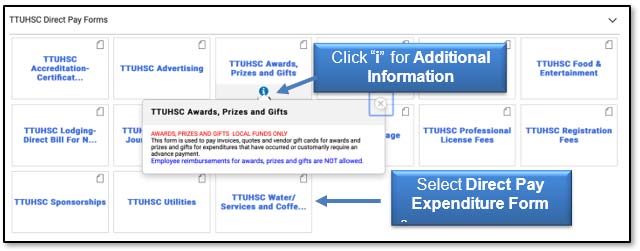
- Information available on the left side of the form.
- Account code identified must be used.
- Link to TTUHSC OP 72.03 Direct Pay Expenditures.
- Links to additional forms if required for this expenditure.
- Enter the required items on the form or attach documents to the form:
- Vendor
- If invoice gives a "Remit-To Address" and it is different than the address of the vendor just entered, proceed to column on the right side of the form "Remit-To Address" and complete.
- Business Purpose
- Product Description should be relevant and precise.
- Attach invoice.
- Attach supporting documentation.
- ENTER INVOICE AMOUNT ONLY - Do not enter invoice #, due date or invoice date.
- Check Disbursement Instructions should be used only if the check needs to be sent to the attention of a specific person.
- After all information is entered, go to the top of page.
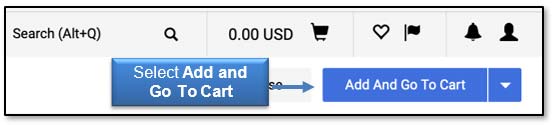
- Select Add and Go To Cart. Review shopping cart and correct any errors.
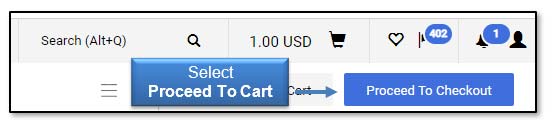
- Select Proceed To Checkout.
- Creating lines for one invoice and using multiple FOAPs:
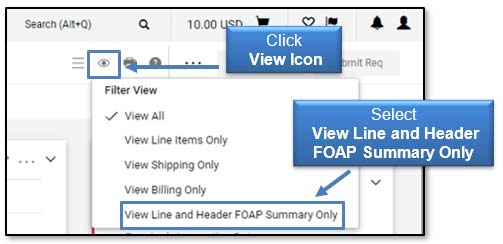
- Click the View icon and select View Line and Header FOAP Summary Only.
- Go to line item and click ... (dots) to open the Line Items Actions menu.
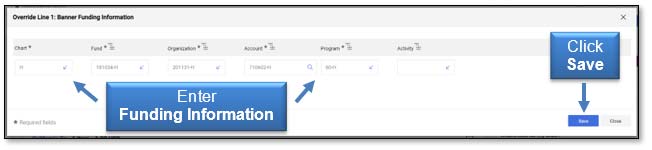
- Click Funding Information, and enter your lines.
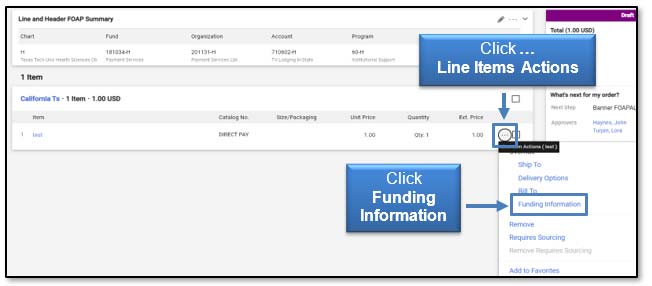
- Hover over funding information and Click + (plus sign).
- Add FOAPAL information and click Save.
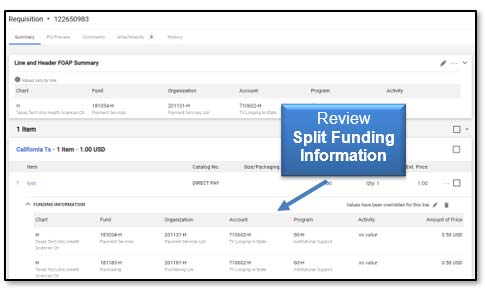
- Review FOAPAL split at the line to verify correct information was entered.
- Click the Submit Requisition button.
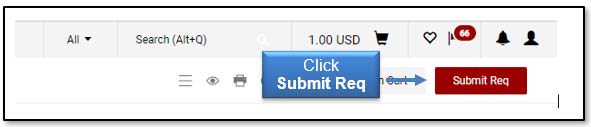
A Fund Manager will receive an email to approve the invoice. A Requisition will be created with an identifying #. The requisition will route to Accounts Payable. When AP approves the requisition, simultaneously a PO and an e-Invoice is created and the payment processes as a "V8xxxxxx".
- Click the View icon and select View Line and Header FOAP Summary Only.
- DO NOT MAIL the invoice and supporting documents to Accounts Payable. All payment information and history is in TechBuy.
- All questions or assistance should be directed to Accounts Payable and not the Purchasing Department.
Contact information is as follows:
Accounts.Payable@ttuhsc.edu
Payment Services: (806) 743-7826
Contact
Finance Systems Management
-
Address:
3601 4th Street STOP 6209 | Lubbock, Texas 79430-6209 -
Email:
fsm@ttuhsc.edu