
Accounts Payable/ Direct Pay Training
Training Resources are located on the Accounts Payable and Direct Pay websites. Training Center
The invoice management system provides a guide located on the search for invoice page. This guide is also located in the training center.
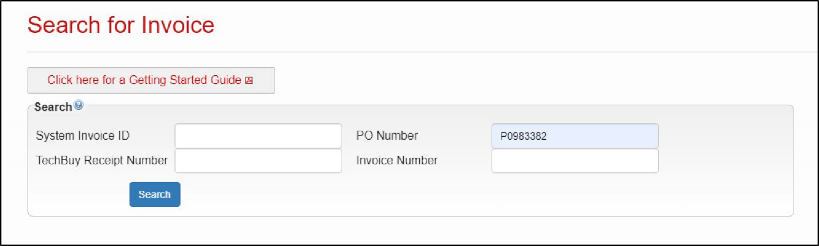
Training Resources
As stated in OP 72.10, State law requires payments to be scheduled in accordance with Texas Government Code, Chapter 2251.
Invoices are placed in line for payment based on the Prompt Pay Law which states that invoices are due for payment 30 days after the date the invoice was received or the goods/services were received, whichever is later.
Interest begins accruing on the date the payment is overdue (31 days) and stops accruing the date the payment is postmarked. Interest will not be added on institutional funds until the amount accrued exceeds $5.00.
Current interest rate increased from 5.75% to 9.25%.
Prompt Vendor Payment Procedures Training Guide https://www.fiscal.ttuhsc.edu/training/trainingcenter/AccountsPayable/PromptVendorPaymentProcedure.aspx
Prompt Pay Law
Receiving
- Per OP 72.09 - Stamp all invoices with the date that the invoice was received directly from the vendor. For invoices received by email, the email must be submitted with the invoice to show the date the invoice was received from the vendor.
- Per OP 72.10 - Departments must enter receiving information in TechBuy within 3 days after the goods are received or services are completed.
- Enter "Receipt Date" as the actual date the goods are received or the services are provided.
- Input invoice number into the notes section of receipt.
- If goods are not received, lost, or damaged, please add a comment on the PO with documentation from the vendor. This will inform us that receiving is not required for that item.
- If there is an issue with shipping on a particular item, please add a comment on the PO with documentation from the vendor (if available). This will inform us that receiving cannot be completed and shipment has been delayed.
Returns/Credit Memos
- If goods have not been received or returned and the department is aware a credit is owed, the department should follow up until the credit is received and processed.
Receiving
Departments are responsible for submitting invoices timely so payments can be made promptly and late interest is avoided.
Invoice Process - Step by Step Overview:
- Invoice Received
- Verify receiving is completed in TechBuy
- Submit invoice to Accounts Payable through the Invoice Management System
- Invoice will be put in line for payment per the Prompt Pay Law
Invoice Received
- Date stamp invoice with the date that the invoice was received directly from the vendor. For invoices received by email, the email must be submitted with the invoice to show the date the invoice was received from the vendor.
- Verify PO# is listed on the invoice. If not, please contact vendor to add to the invoice
- Verify receiving is completed in TechBuy
Invoice Process
Submit invoice to Accounts Payable through the Invoice Management System (IMS)
- Invoices/Credit Memos received in the department from vendors:
- To be submitted into the Invoice Management System in PDF format.
- TechBuy comments will no longer be accepted.
- One invoice attached per submission
- Invoices/Credit memos received in department by mail (paper copy):
- Should be date stamped, scanned, and submitted into Invoice Management System in PDF format.
- Invoices/Credit memos received in department electronically by email:
- The email should be submitted with the invoice into the Invoice Management System in PDF format.
- This will provide the date the invoice was received electronically.
- New PO’s processed in TechBuy:
- Invoices cannot be submitted the same day the PO was completed.
- The system needs to run overnight and invoices can be submitted the following day.
- Enter requested details in each field
- Receipt date is the same date as TechBuy Receipt date
-
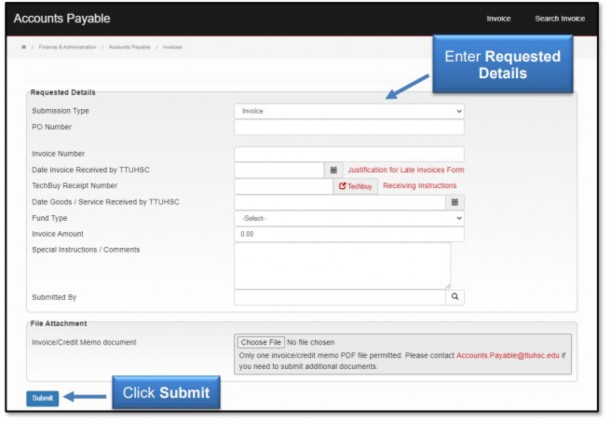
- Submitted by is the person that will receive notification
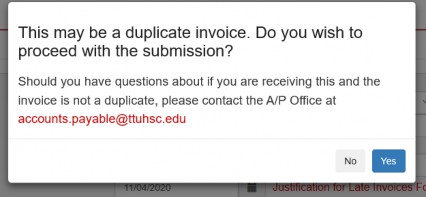
IMS Duplicate Warning Message
- When the duplicate warning message is received, this indicates the invoice number has already been submitted.
- Please verify if the invoice is already submitted.
IMS Receiving notifications
- AP does not get notified when a receipt is completed in TechBuy.
- The invoice management system sends automated emails on Sunday and Wednesday requesting receiving to be entered.
- Please reply to the email with the receipt date so that Accounts Payable is notified the receipt has been entered.
- If receiving is requested, the invoice does not need to be resubmitted.
IMS Invoice Status
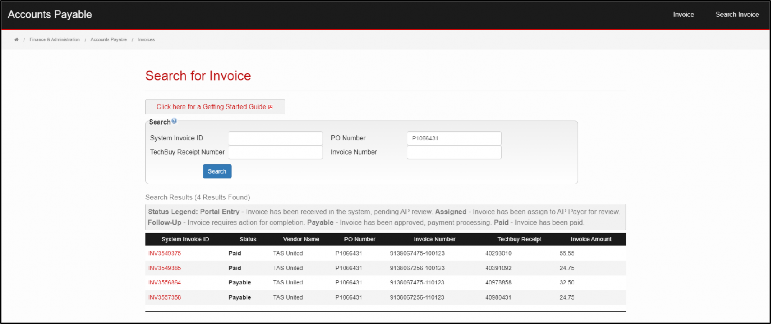
- Select Search Invoice on IMS submission page
- Enter information into one or more fields to search for status. Example: PO#
- IMS will display all the invoices and their status based on the field entered. Example: This PO has 4 invoices with different status’s. A status legend is displayed above the results.
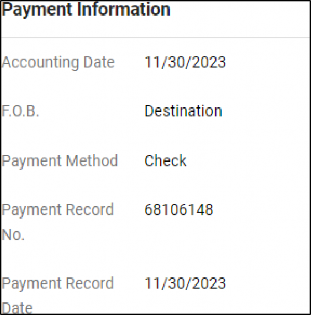
Payment Information
- TechBuy provides the Check/ACH/SUA number once the payment has processed.
- On the V8 in TechBuy the Check/ACH/SUA and payment record date are located under payment information.
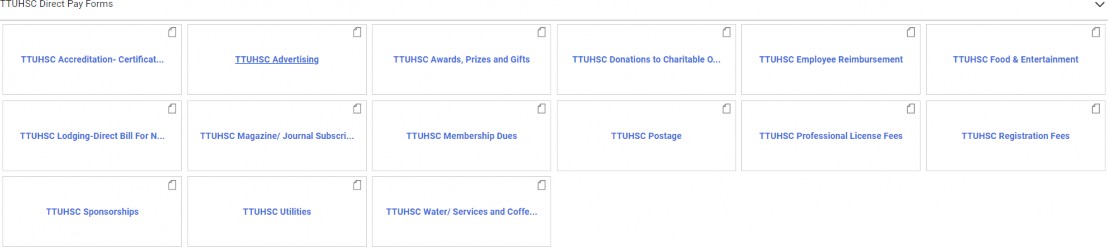
Direct Pay Forms
- Direct pay forms are located on the TechBuy Shopping Home Page.
- There are 15 forms available to use for current (no more than 45 days) invoices listed in these categories.
- If the invoice does not fall into one of these categories another payment method must be used.
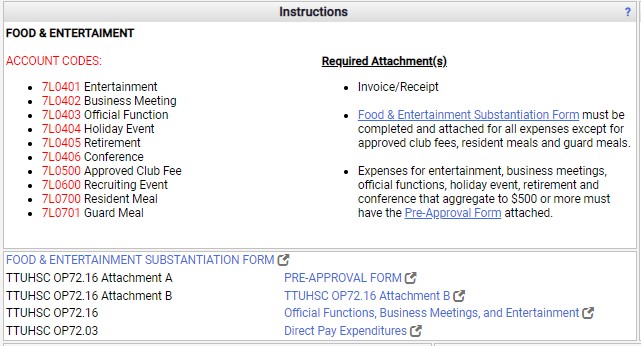
Form Instructions
- All Direct Pay forms contain an "Instructions" section on the left side of the form.
- The "Instructions" section include what is allowed to be submitted on the form, attachments required, account codes, and references to the OP’s.
- To eliminate delay, please review form instructions before submitting direct pay requisitions.
Employee Reimbursement
- Proof of payment is required (cancelled check, credit card, or bank statement). These documents should be redacted before being attached in the TechBuy system.
- Only one expense per form should be submitted for employee reimbursements.
- Reimbursements should be submitted in a timely manner. After 60 days they become taxable and need to be processed through EOPS.
Memberships
- Professional Societies list showing the approved organization screen print is required to be attached to the membership form or employee reimbursement form.
Account Code
- Verify the account code is correct before submitting the requisition. The account code is provided in the instructions section on each form.
Quotes/Estimates
- Invoices must be attached to the requisition. Quotes/Estimates should be processing on a non-catalog form.
- Submitted by is the person that will receive notification
Contact
Payment Services
-
Address:
3601 4th Street STOP 6283 | Lubbock, Texas 79430-6283 -
Detailed Contacts:
Accounts Payable | Direct Pay | PCard | Swift Card | Travel