
Swift Card - System Training
The Swift's Order Management System (OMSI) can be accessed from:
- Swift Card OMSI
- WebRaider portal > Business Affairs tab > Links to Financial Systems > Swift Card OMSI
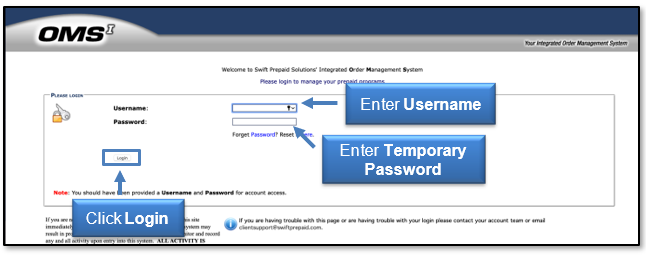
A Welcome page will be displayed. To access the system, enter the username and temporary password provided by your administrator. Click the Login button.
Upon the initial login, read and accept the Terms & Conditions. Simply click Accept to proceed.
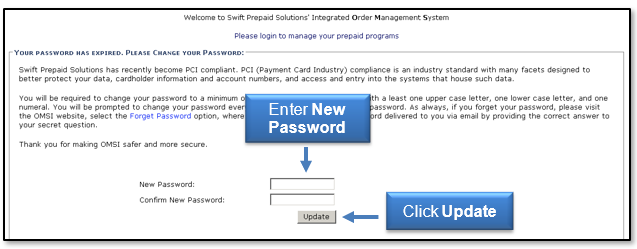
After accepting the Terms & Conditions, you will be prompted to change your password for security purposes. Choose your New Password and be sure to confirm your entry by clicking Update.
You will also be asked to select a security question and answer to verify your identity should you need to reset your password at a later date.
Note: Your security answer is case sensitive.
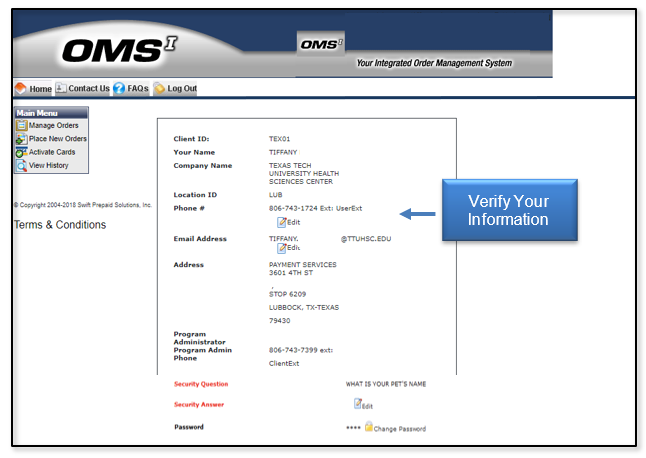
Upon initial login, you will see the Home Screen. You should verify that all the information is accurate. If changes are required, contact your program administrator.
Single Activation
To activate cards via the single-card activation method, you will need the following:
- An inactive Mastercard Card
- First and last name of the participant
To activate a card, click the Activate Cards option in the upper left corner of your screen under the Main Menu.
Manually type in the account number from the card to activate, but please remember to double-check the account number for accuracy before you continue.
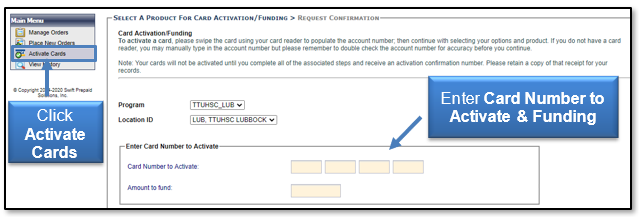
You will need to fill in the required fields to activate the card. A Social Security Number is required on cards funded with amounts of more than $25.
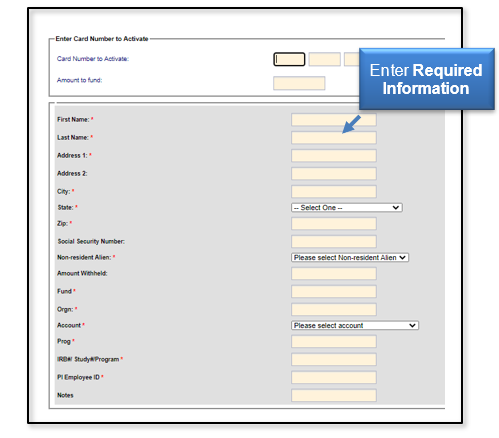
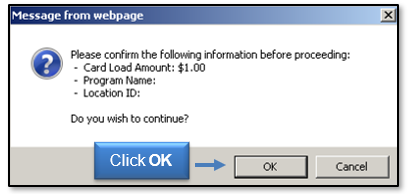
After submitting your data, a message will appear confirming the Card Load Amount. Click OK.
The confirmation number displayed is a verification of the funding and activation of the card and will be used for identification purposes. The confirmation number will automatically be stored in the View History section of the site for later reference.
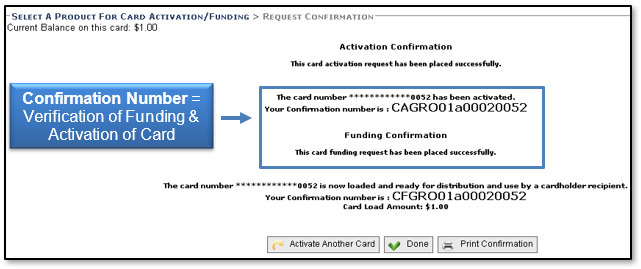
You can now choose to Activate Another Card, Print Activation & Funding Confirmation, or select Done and return to the home page.
Copy Previous
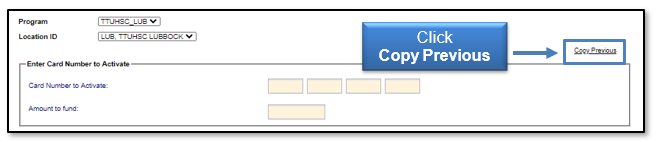
When funding multiple cards for the same amount, study, etc., save time by using the Copy Previous link. The previously entered amount and client-assigned fields will be automatically populated for you.
All information entered on the previous card in the fields below the Amount Withheld field is designated as our client-assigned fields, Fund, Orgn, Account, Prog, etc., and will be copied to each card to save time when you choose the Copy Previous feature.
When using this feature, please be sure to validate the information on your first activated card to ensure that the correct information will be populated on all your following cards.
You will be able to view the history of all funding activity on your account. This feature is available so that you can confirm if a card has been activated or run custom reports by date range or client-assigned data. Select View History under the Main Menu, then select Search Card Funding Transactions.
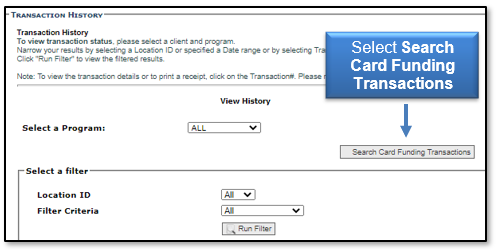
Select Search or choose to customize your search by name, date, project, etc.
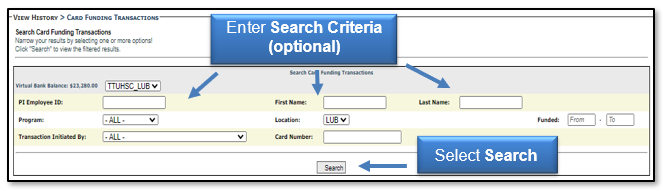
You may export the results into an Excel, Word, or Notepad document.
Nonresident Withholding Fee
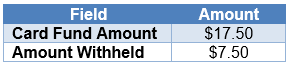
At the time a Swift Card is activated for nonresident alien participants, a 30% federal tax withholding must be deducted from the participant's payment (see OP 72.19 for more information).The OMSi program will not automatically calculate the final award value. Reference the Nonresident Alien Withholding Chart for help determining withholding and card funding amounts. The “Amount to fund” field in the Swift Card OMSi Program should be the adjusted award value (participant fee less the 30% withholding fee). You must also enter the 30% withholding fee in the “Amount Withheld” field in OMSi.
Example:
$25 Original Participant Fee
(before applying foreign tax withholding)

Entries in OMSi
If you have additional questions, contact Swift Card at swiftcard@ttuhsc.edu.
Contact
Finance Systems Management
-
Address:
3601 4th Street STOP 6209 | Lubbock, Texas 79430-6209 -
Email:
fsm@ttuhsc.edu