
Package Tracking Guide
Package Tracking
Log into the Package Tracking system to start tracking your package. The system will use your R number. This means you no longer need to provide the usernames or passwords associated with your Stop to track packages.
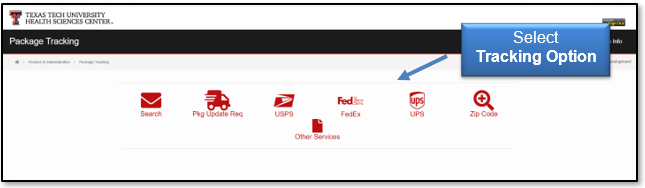
After logging in, the system provides several tracking options including:
- United States Postal Services (USPS)
- FedEx
- UPS
- Zip Code
The USPS, FedEx, UPS, and Zip Code icons are direct links to websites. They provide quick and easy access to the tracking pages for Distribution's daily delivery services.
Click an icon to begin tracking.
Search
The Search icon allows you to look at all packages delivered to your Stop, as well as look for individual tracking numbers, statuses, and orders on specific dates. You can even filter results by carrier. Enter the search information, then click Search.
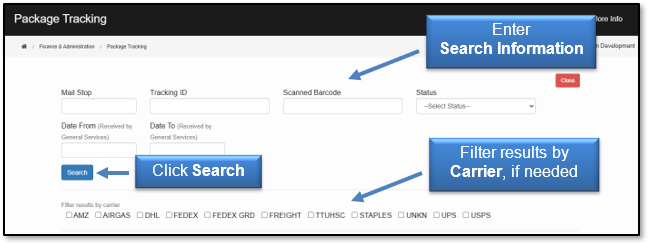
From the search results, you can also see when a package was delivered, and the person who signed for it by clicking the rounded arrow icon next to the Delivered status.

The Package Status History screen will pop up, displaying the date and time the package was received (and the person who signed for it), when it was sorted, and the date, time, and signature for when it was delivered.
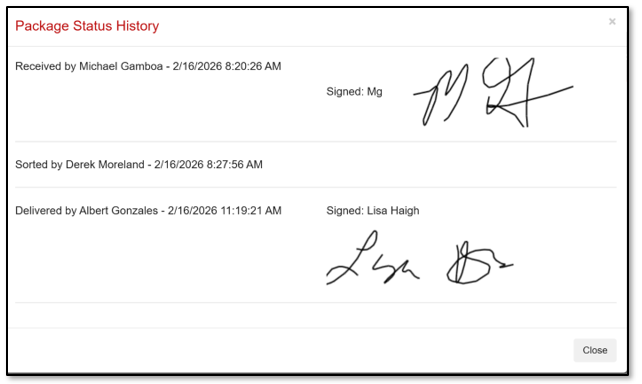
If a package is shown as Received or Sorted, Distribution is still working to get it delivered.
Pkg Update Req
The Pkg Update Req icon lets you request an email notification when a specific package is received by the Distribution team. Package tracking requests only apply to packages delivered to your Stop.
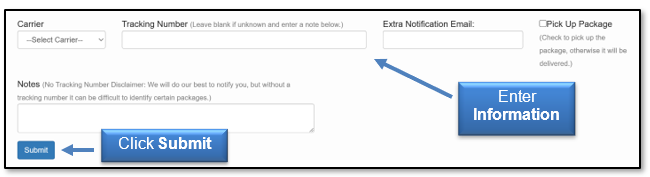
Enter the information in the new request:
- Carrier - Select a Carrier from the drop-down list.
- Tracking Number - Enter the Tracking Number. If you don't have a carrier's specific tracking number, you can still put in a request to be contacted. However, Distribution CAN NOT GUARANTEE that you will be alerted when your package arrives, as all packages are received and sorted by the carrier's tracking number.
- Extra Notification Email - All email alerts will be sent to the email address of the person submitting the request. If you want an additional person notified, enter their email in this text box.
- Pick Up Package - If you prefer to skip the delivery wait time, select the Pick Up Package check box. The package will be set aside, otherwise, if not selected, the package will be delivered.
- Notes - If you have any additional information about the package, please provide it to the Distribution team. This is especially important when there is no confirmed tracking number with the Carrier.
Note: not every Carrier has a tracking number we can use. Most of the third-party delivery services that truck in our freight pallets do not, neither does Airgas. In these cases, Distribution generates our own barcodes from the information provided on the paperwork. As a result, these orders are not an ideal candidate for this tracking feature.
Once the information is provided for the new request, click Submit.
Other Services
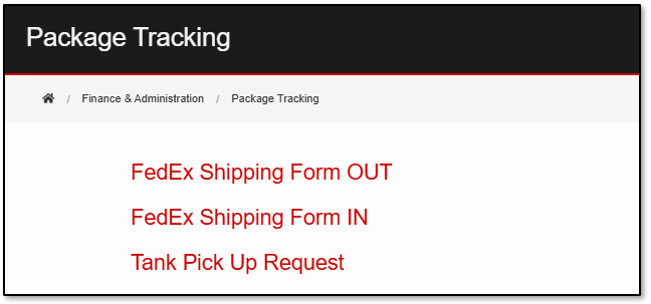
The Other Services icon provides links to print Incoming and Outgoing FedEx Requests, as well as the Airgas Tank Pick-up Request page.
For additional questions, contact MailServices@ttuhsc.edu.
Contact
Finance Systems Management
-
Address:
3601 4th Street STOP 6209 | Lubbock, Texas 79430-6209 -
Email:
fsm@ttuhsc.edu