
Certify My Statement in ecrt - Certifier Role
Effort Certification and Reporting Technology (ecrt) is designed to help you comply with the provisions of TTUHSC's effort reporting policies, federal policy OMB Uniform Guidance (UG) section 2 CFR 200.430, NIH Salary Limitation on Grants, and other relevant agency policies that govern the need to provide certification of an individual's effort pursuant to his/her sponsored and non-sponsored programs.
TTUHSC's effort certification process is simplified and standardized as a result of this technology.
The system can be accessed from:
- ecrt
- WebRaider Portal > Business Affairs tab > Links to Financial Systems > Effort Certification and Reporting Technology (ecrt)
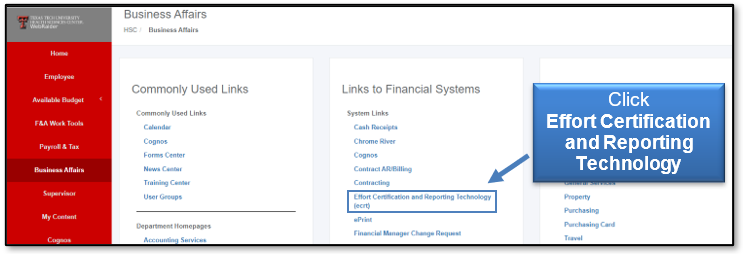
The link may also be found in the F&A Work Tools tab.
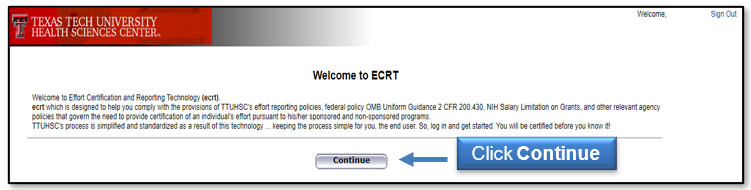
Once logged into the system, the ecrt welcome page is displayed. Click Continue.
Navigation
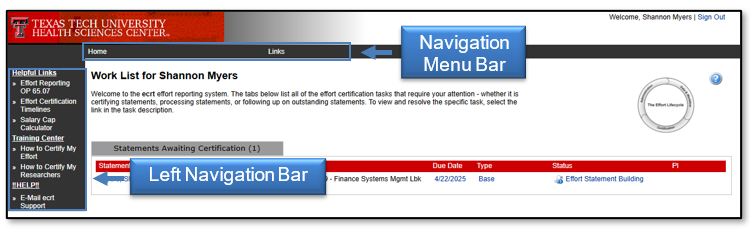
The primary method of navigating within the system is using the navigation menu bar along the top of the screen. The navigation menu bar is on every screen of the application, allowing you to move from one page to another quickly. The Home menu on the far left returns the user to the Work List from anywhere in the application. There are also clickable links available on certain pages of the application that allow you to select for navigation to other pages.
The Left Navigation Bar that is available on the Work List page contains useful links to training documents and other reference material. These links are also displayed in the Links drop-down menu in the navigation menu bar, which is available at the top of every page of the application.
Work List Page
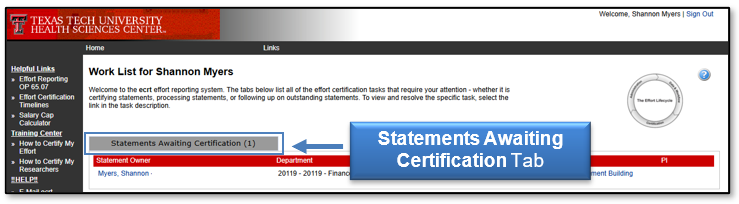
The Work List page for the Faculty/Certifier lists the tasks that require your attention in the Statements Awaiting Certification tab. Next to the tab name is the number of items displayed on the page. This list shows all statements for which you have certification responsibility.
To access a statement from the list, select your name from the Statement Owner column. This will direct you to your effort statement page. Selecting the Due Date, statement Type, or Status of a specific statement will also direct you to your effort statement.
You may also access your statement by selecting My Statements from the Certify navigation menu located in the navigation menu bar at the top of the screen.
Certify My Statement
The Effort Statement page displays three panes containing information relevant to the certification process:
- the Work List pane;
- the Statement Information pane; and
- the Effort Statement pane.
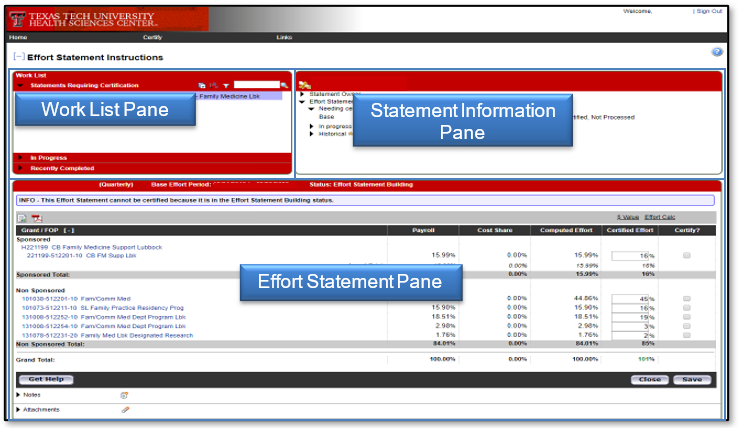
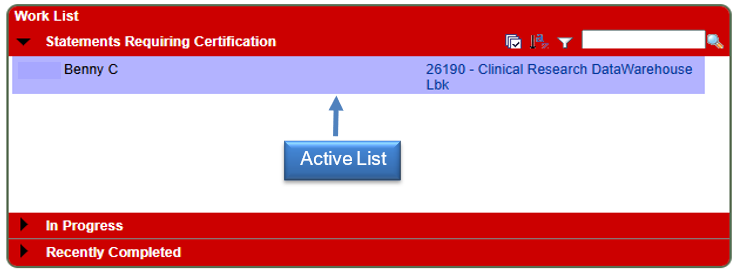
The top left pane is the Work List. The Active list in this pane shows your name, department number, and department name.
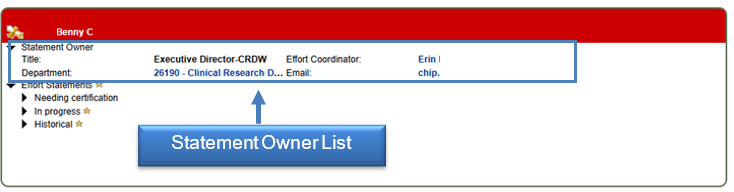
The top right pane on the Effort Statement is the Statement Information pane. There are multiple expandable/collapsible lists in the pane. The first list is the Statement Owner list. Click the arrow to the left of Statement Owner to expand the list.
The Statement Owner list displays demographic information about you including your title, the Primary Effort Coordinator, your home department, and your email.
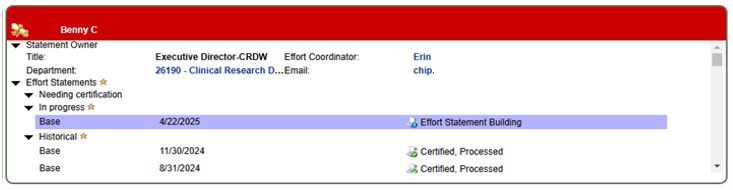
The next list, titled Effort Statements, contains information about all of your statements. A gold star will appear next to the Effort Statements label if there are any statements for you. The statements in the Effort Statements list are grouped into three additional lists.
The first list is the Needing Certification list, which contains any statements in a Not Certified, Not Processed status. The certification due date (the end date of the Certification Period) and the status of the statement are displayed.
The second list is the In Progress list. The In Progress list contains any statements in the Certified, Not Processed status or Effort Statement Building status.
The third list is the Historical list. The Historical list contains statements from any previous period.
The Effort Statement Header displays your name and R number, the employee type, the statement type, the Base Effort Period, the Due Date, and the Status of the statement.
Below the header is the Message Box that will under certain circumstances display information about the statement.
Below the Message Box is the Statement Action Bar, which is an area that contains a variety of icons and links that allow you to perform certain actions:
- List of Reports icon - allows you to run selected reports to which you have access that contain more information about the data on the effort statement.
- PDF Report icon - generates the Effort Statement PDF that is used for a Manual Certification.
- $ Value link - displays the payroll dollars underlying the percentages on the effort statement. Remember, you can't certify in $ Value mode.
- Effort Calc link - is a tool that calculates a percentage of effort based on an input of average hours worked.
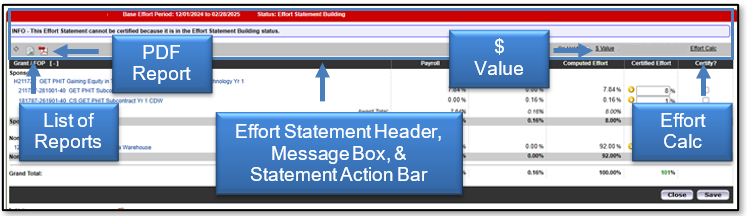
The body of the effort statement contains the data that is critical to your certification. The Grant/FOP column displays a list of all the Grants/FOPs that you were paid from. The Payroll column shows the percentage that you were paid from a FOP for the period. The Cost Share column shows the total cost share recorded for you for that FOP for the period. The Computed Effort column shows the sum of the Payroll and Cost Share columns. This is your total effort for the period.
Before you certify, it is critical that you review all of the FOPs on your statement and confirm that your effort is correctly documented. The Certified Effort column is where you can make adjustments to your effort. It is pre-populated with a best guess based on your payroll distribution, but you should certify based on how you actually spent your time.
To change a percentage, click in the Certified Effort box and type the percentage of effort you spent on the FOP. When you do make changes to your effort, it is helpful to leave a note describing your changes in the Notes section. To leave a note, click the Create New Note icon. Enter your note in the Create New Note text box and click Save Note.
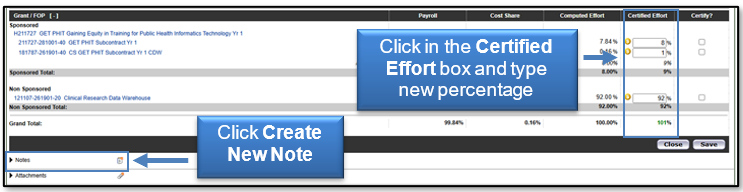
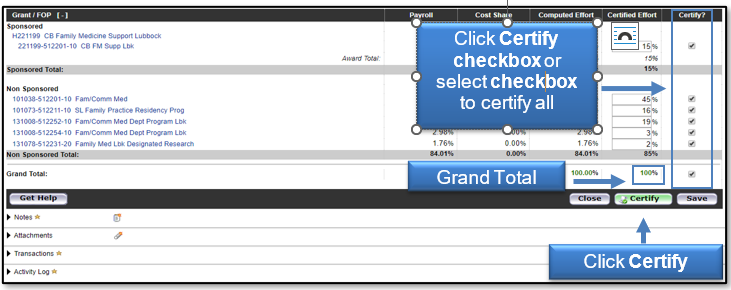
The Grand Total of the Certified Effort column must be between 99% and 101%. When you are comfortable with how your effort percentage is documented, click the Certify checkbox for each line or select the checkbox for all.
The Certify checkbox(es) must be checked to certify that line of the effort statement. After you have reviewed all lines of the statement and are ready to certify, click the Certify button.
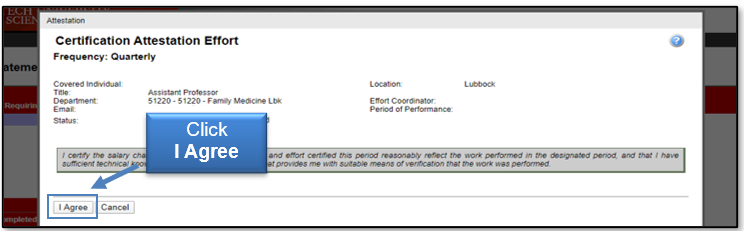
Review the Legal Attestation text and consider the effort that you are certifying. If you agree with the statement, click the I Agree button.
After you have certified, the In Progress list will update the status of your statement to Certified, Not Processed. Your effort statement has been routed to the effort coordinator for processing. If you have no other obligations to complete in the system, you can log out by clicking the Sign Out button in the upper-right corner.
For help with ecrt system navigation or questions regarding this training, contact the Central Administrator at EffortReporting@ttuhsc.edu.
Contact
Finance Systems Management
-
Address:
3601 4th Street STOP 6209 | Lubbock, Texas 79430-6209 -
Email:
fsm@ttuhsc.edu