
ecrt - Effort Coordinator Training
Effort Certification and Reporting Technology (ecrt) is designed to help you comply with the provisions of TTUHSC's effort reporting policies, federal policy OMB Uniform Guidance (UG), NIH Salary Limitation on Grants, and other relevant agency policies that govern the need to provide certification of an individual's effort pursuant to his/her sponsored and non-sponsored programs. TTUHSC's effort certification process is simplified and standardized as a result of this technology.
ecrt Basic Information
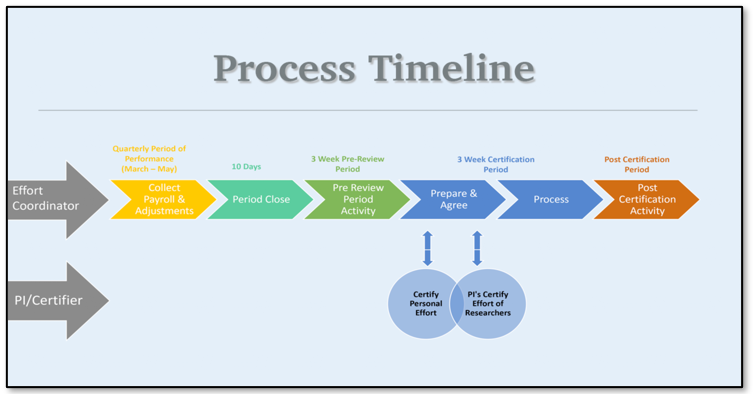
The Process Timeline chart below reflects one whole quarter of effort reporting and certification for TTUHSC. The top section of the chart shows the breakdown of each period. Highlighted in yellow on the left side of the chart are the roles of the Effort Coordinator and the PI/Certifier. The activities that are performed by each role are shown in the center of the chart, divided by each period.
- During the Period of Performance and 10 Days period representing the Period Close, the activities are shaded, indicating very limited activity by the Effort Coordinator.
- During the 3 Week Pre-Review Period, the Effort Coordinator is reviewing effort statements.
- During the 3 Week Certification Period, PIs and Certifiers are certifying their effort, and PIs are certifying the effort for all related individuals. Effort Coordinators are processing effort statements.
- During the Post Certification Period, Effort Coordinators will follow up on any Labor Redistributions and/or Sponsor Notices and initiate the Escalation Policy for any individuals on the list of non-certifications.
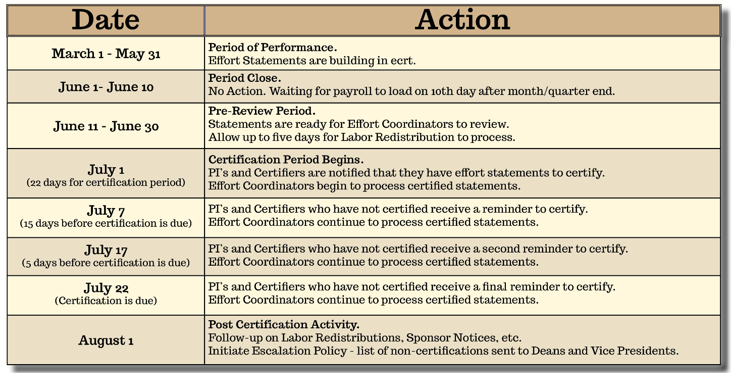
In this example, Process Timeline chart, actual dates have been added associated with each of the actions that are occurring during this quarter of effort reporting and certification.
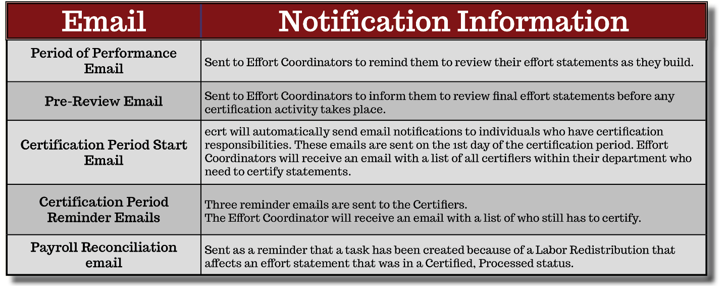
Automatic Email Notifications - ecrt will automatically send email notifications to all Certifiers, PIs, and Effort Coordinators:
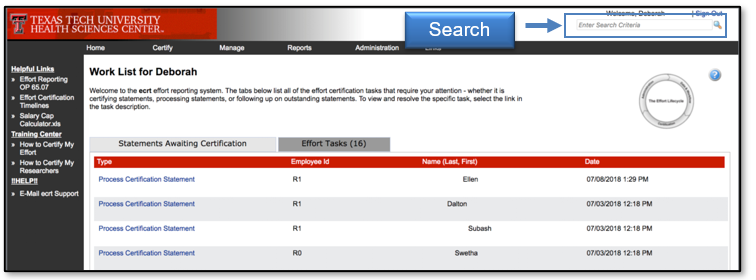
Search
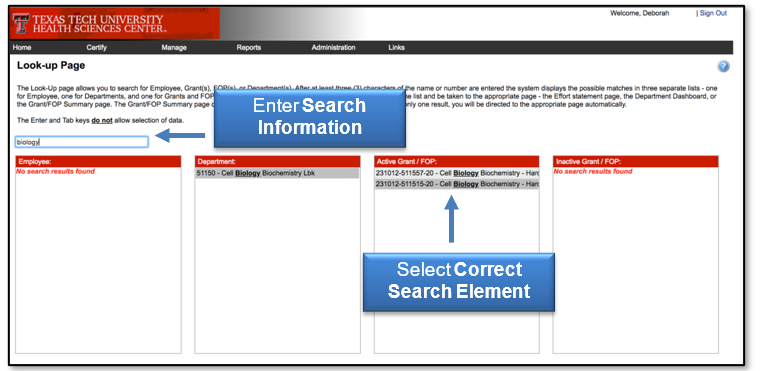
At the top of every screen is a search box that allows you to search for data within the system. This feature allows you to search for an employee, department, grant, or FOP. You will only be able to search for departments, individuals, grants, and FOPs that are associated with you and your departments (ORG Level 5).
If there are multiple possible results based on the text entered, a message appears below the search box displaying the number of possible results. You can continue to enter text to narrow the results, or you can select the magnifying glass icon, which directs you to the Look-up page with the results from the search.
From the Look-up page, you can select the correct element or continue entering information to yield a single result, at which point you are directed to the appropriate page for the data element.
Navigation
The system can be accessed from:
- ecrt
- WebRaider Portal > Business Affairs tab > Links to Financial Systems > Effort Certification and Reporting Technology (ecrt)
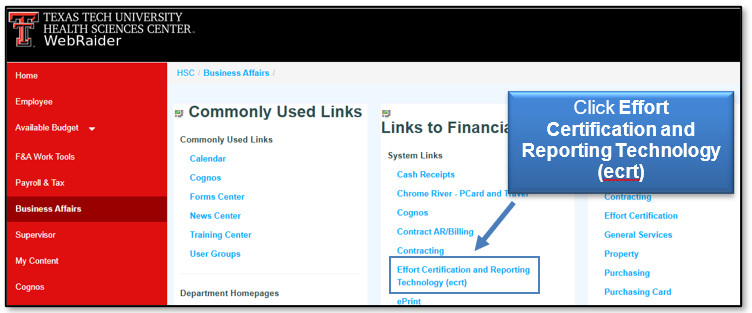
The link can also be accessed through the F&A Work Tools tab.
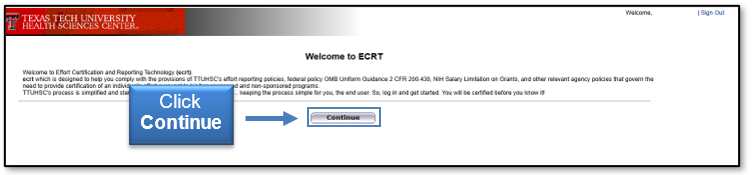
The ecrt Welcome page is displayed. Click Continue.
Navigation Menu Bar
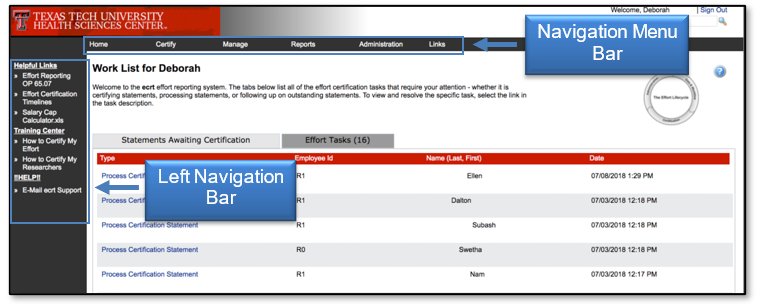
The primary method of navigating within the system is using the navigation menu bar at the top of the screen. The navigation menu bar is on every screen of the application, allowing you to move from one page to another quickly. The Home menu on the far left returns the user to the Work List from anywhere in the application.
The Left Navigation Bar that is available on the Work List page contains useful links to training documents and other reference material. These links are also displayed in the Links drop-down menu in the navigation menu bar, which is available at the top of every page of the application.
Work List Page
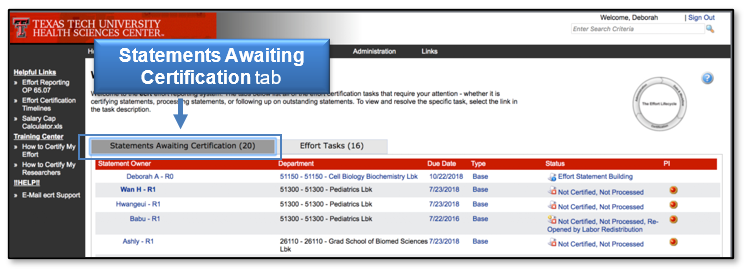
The Statements Awaiting Certification tab shows all statements for which you have certification responsibility. Your statement will always appear first on the list.
To access a statement from the list, select a name from the Statement Owner column, which will direct you to the effort statement page. Selecting the Due Date, Statement Type, or Status of a specific statement will also direct you to the effort statement. Selecting the Department will take you to the Department Dashboard.
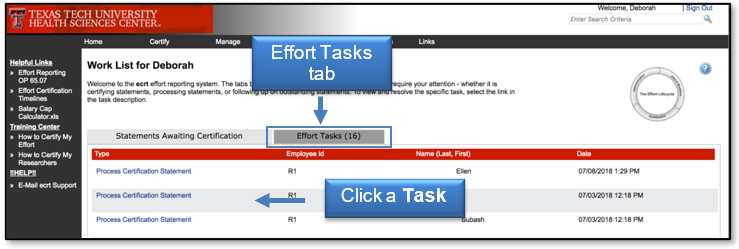
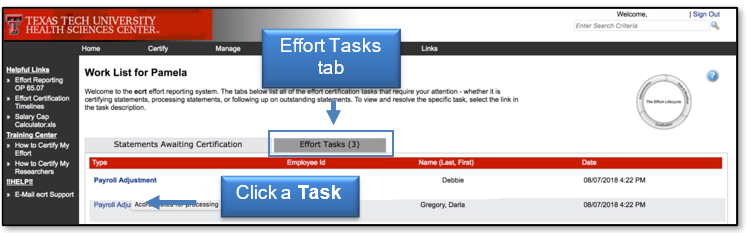
The Effort Tasks tab contains the list of effort processing tasks and Payroll Adjustment Reconciliation tasks that you are responsible for resolving. This tab will appear only if you have tasks and the Work List page will default open to the Effort Tasks tab. To resolve a task, click a task and be taken to the appropriate page for action.
Salary Caps
In the event that a sponsor has a mandatory salary cap, an individual's salary above the salary rate cap is considered an unallowable cost that cannot be charged directly to the grant. The unallowable portion of salary over the cap is considered cost sharing and must be charged to a non-sponsored, non-federal fund. A separate salary cost-sharing fund must be created for each grant that is subject to the salary cap limitation.
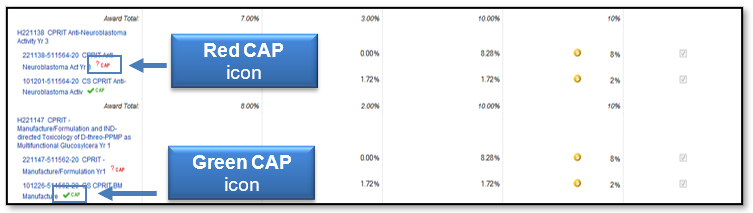
The red CAP icon indicates that salary cap cost-sharing is required. The red CAP icon appears on the statement next to the appropriate account name only if the Adjusted Cap Salary exceeds the salary cap amount associated with the sponsor for the Period of Performance. For the cost-sharing account, if the amount of cost-sharing on the account exceeds the calculated salary cap cost-sharing amount, the CAP icon will be green. If the cost-sharing amount is less than the calculated salary cap cost-sharing amount, the icon will be red.
The Salary Cap Calculator link, which is available on the Left Navigation Bar of the Work List Page or in the Links menu drop-down list, is a good tool designed to assist the Certifier in determining how much the current salary rate is over the NIH salary cap and how much will need to be recorded as cost sharing.
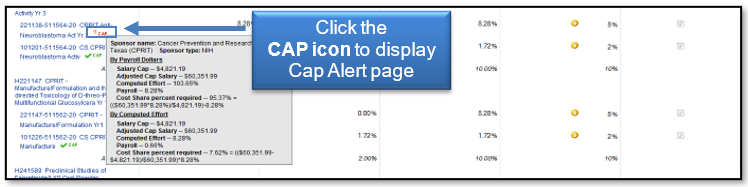
Hovering over the CAP icon, the sponsor's name, sponsor's type, and the calculated minimum required cost share will display two possibilities for the Salary Cap calculation - By Payroll Dollars and By Computed Effort. Clicking the CAP icon will display the Cap Alert page.
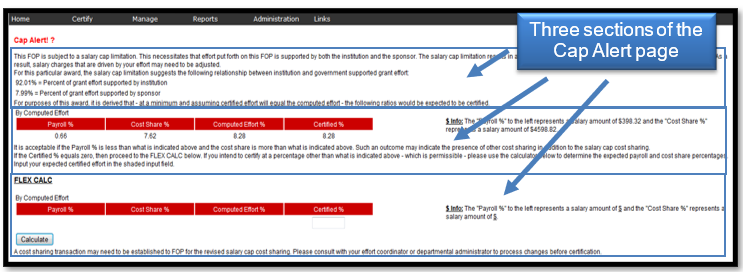
The Cap Alert page contains three sections of important information: The first section shows the ratio of support from the sponsor and the institution based on the certifier's salary.
In the middle section, the system will calculate the necessary payroll and cost share amounts required to meet the committed effort based on two measures. The first calculation determines the minimum amount of cost-sharing that should be present on the statement based on the payroll dollars and the salary cap. The second method calculates the distribution between payroll and cost-sharing based on the total Computed Effort amount.
At the bottom of the page is a flex calculator. If the certifier intends to certify at a different percentage, they can enter the percentage of desired payroll to determine the additional amount of cost-sharing that should be present or the intended Certified Effort to determine the distribution between payroll and cost-sharing.
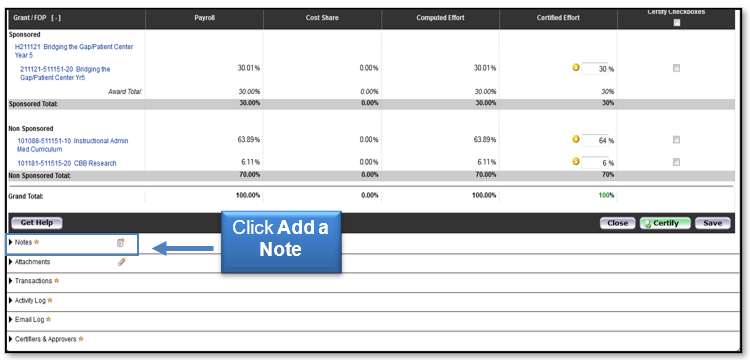
Below the body of the statement are expandable sections for Notes, Attachments, Transactions, Activity Log, Email Log, and Certifiers and Approvers. The Notes section is available to facilitate communication among people who share access to a statement including an effort coordinator and a Certifier/PI. When the certifier does make changes to their effort, it is helpful to leave a note describing the changes in the Notes section. To leave a note, they must click the Add a Note icon.
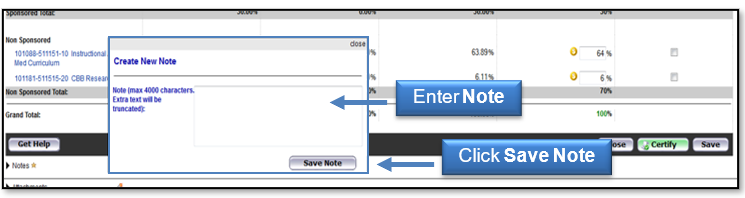
The certifier enters the note in the Create New Note text box and clicks Save Note.
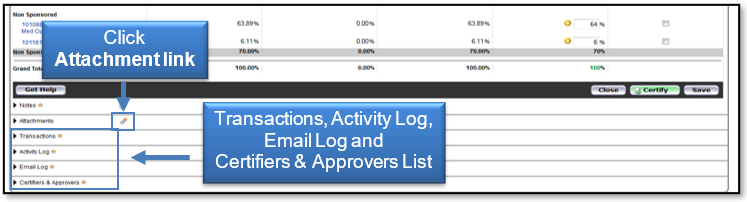
In the Attachments section, the certifier can attach supporting documents to an effort statement by clicking the Attachment link.
The Transactions Log provides details of each of the payroll transactions that were loaded to the effort statement. It also documents the certification process and can be a helpful tool when determining who took an action on a statement and when.
The Activity Log tracks actions and activities that are not captured in the Transactions log. The actions that are tracked in the log include:
- Accessing and viewing the statement.
- Saving the statement.
- Placing the statement on hold.
- Taking the statement off hold.
The Email Log captures all emails relevant to the specific effort statement to which the log is related. The log records the following emails:
- All notification emails and all reminder emails specific to the statement.
- Emails about the statement being put on hold.
- Group emails based on the status of the statement, regardless of where the message was initiated.
- Emails about the statement being returned to the certifier(s) or reopened.
The List of Certifiers and Approvers is a helpful tool to determine what users have access to this statement. The Processor is the Primary Effort Coordinator who will process the statement when it is certified. The Certifiers are any PIs or Designees who can certify the statement based on their association with grants/FOPs on the statement.
Effort Tasks
The Effort Coordinator will have several effort tasks that need to be performed based on actions taken during the certification period. The tasks can be accessed from the Effort Tasks tab on the Work List page. This tab will appear only if you have tasks, and the Work List page will default open to the Effort Tasks tab. The Effort Tasks tab contains the list of effort processing tasks and Payroll Adjustment Reconciliation tasks that you are responsible for resolving.
To review an effort statement waiting to be processed, click a task from the Effort Task list and be taken to the appropriate page for action.
Processing an Effort Statement
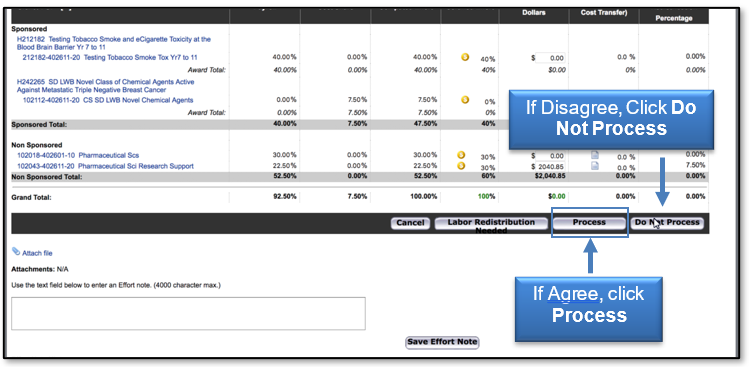
It is the Effort Coordinator's responsibility to review the appropriateness of the effort that has been certified. If you disagree with how the statement was certified, click Do Not Process. This will return the statement to the individual, and the status of the statement will change back to Not Certified, Not Processed. It is important to leave a note in the Effort Note section to explain why you took this action.
If you want to stop your review, click the Cancel button. This cancels any action you have taken and returns you to the Work List page. If you agree with how the statement was certified, click the Process button to finalize the statement and move it into Certified, Processed status.
You will be presented with this processing message. Click OK. You will be returned to the Work List page.
Cost Transfer
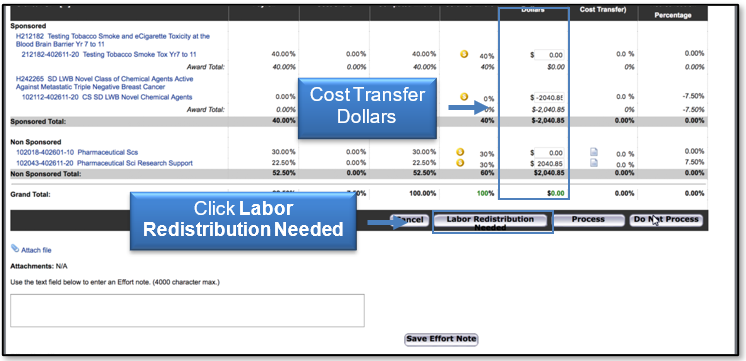
If the individual correctly certifies to a percentage that is different than the computed percentages, ecrt calculates the dollars related to the changes and shows them in the Cost Transfer Dollars column. Click the Labor Redistribution Needed button because a Labor Redistribution needs to be processed. This will move the status of the statement to Certified, Labor Redistribution Required, or Pending. A Labor Redistribution Notice is created in the Manage Effort Notifications Labor Redistribution tab.
This serves as a reminder to process a Labor Redistribution in Banner based on the review that you just performed. This is simply a list of tasks that can be manually deleted (using the red X) at any time.
You will be presented with a processing screen. Click OK.
Payroll Adjustment Reconciliation
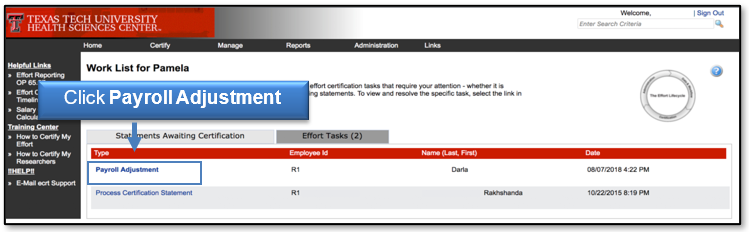
Once the Labor Redistribution is processed in Banner, it will be picked up by ecrt the next day. If it brings computed and certified effort within the 2% threshold, it will automatically apply to the statement and update the statement status to Certified, Processed. If the labor redistribution does not bring the computed and certified effort within 2%, a Payroll Adjustment Reconciliation task will be created in the Effort Tasks tab of the Work List page.
Click the Payroll Adjustment link to review and resolve the task.
The Payroll Adjustment Reconciliation screen displays the details of the Labor Redistribution and also the effects it has on the effort statement. The Effort Coordinator can review how much the individual originally was paid and certified on each FOP, and then review how the current Labor Redistribution will change those numbers.
The only option an Effort Coordinator has on this screen is to click Post & Re-open (because computed and certified effort are not appropriately aligned). The statement status is updated to Not Certified, Not Processed, Reopened by Labor Redistribution, and the individual will need to re-certify this statement.
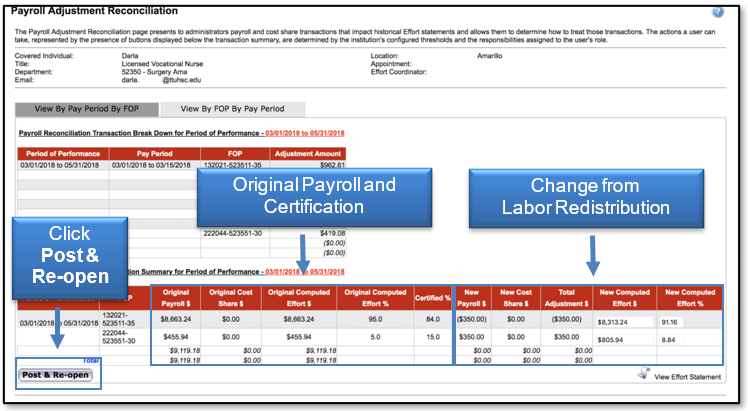
You will be returned to the Work List page, and the Payroll Adjustment Reconciliation task is removed from the list.
Manage
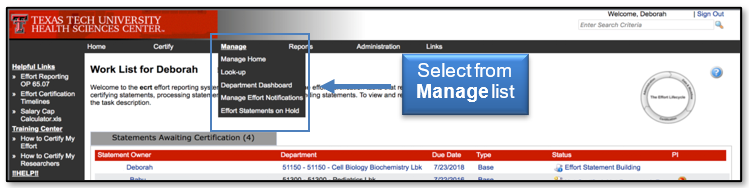
There are four links available in the menu drop-down list for the Manage label on the navigation menu bar: Look-up, Department Dashboard, Manage Effort Notifications, and Effort Statements on Hold.
Look-Up page
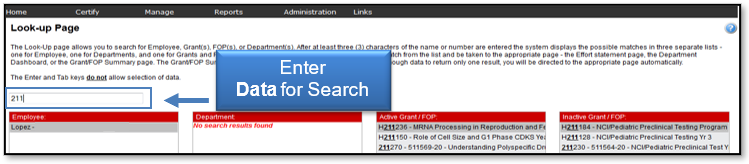
The Look-up page allows you to search for select data elements in the system, specifically people, departments, active and inactive Grants/FOPs. Users can enter employee name, employee R number, department name, department number, grant/FOP name, or grant/FOP number to see results.
Department Dashboard
The Department Dashboard page is broken into three tabs: People, Grants and FOPs, and Department Information. At the top of the Department Dashboard page, the department name and number are displayed above the search field. On the right side of the page is a link to the Monthly Funding and Effort Information Report. The link opens the PDF version of the prior month's report for the department.
The first tab on the Department Dashboard page is the People tab, which contains information about all of the institution's employees who have a relationship with the department.
The Certification Summary Chart allows you to define the statistics to review. You can select the Statement Type, either Base or Non-IBS, by using the checkboxes, the Employee Type from a drop-down, and the Period from a drop-down.
To the right of the Period drop-down is the Related Reports link. When first accessing the page and no parameters are established, the chart shows the statistics for all statement types and all employee types for the most recent Period of Performance. For each status, it shows the number of individuals in the status and the percentage of the total in each status.
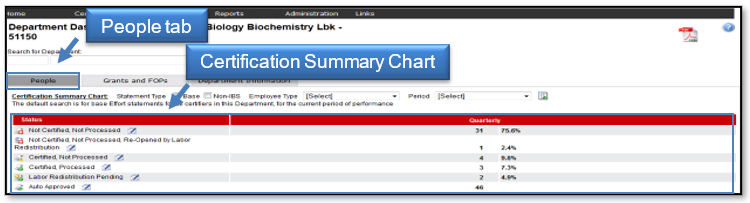
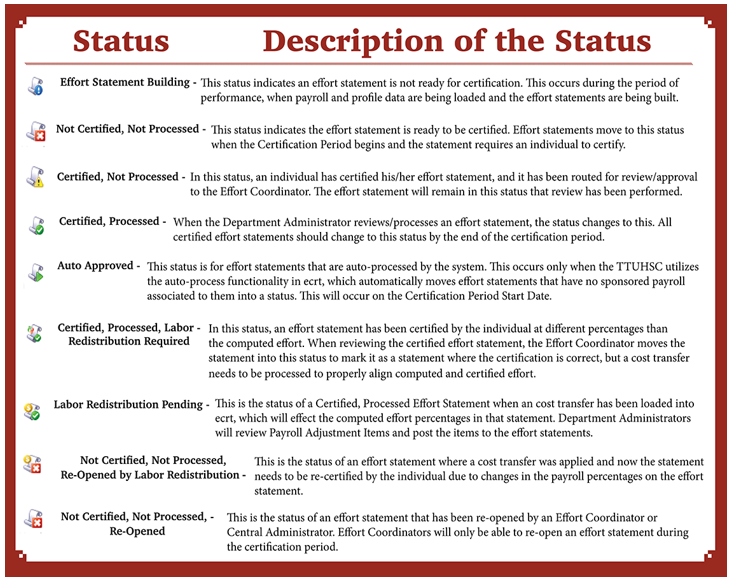
This chart shows the most common statuses used and gives a brief description of each status.
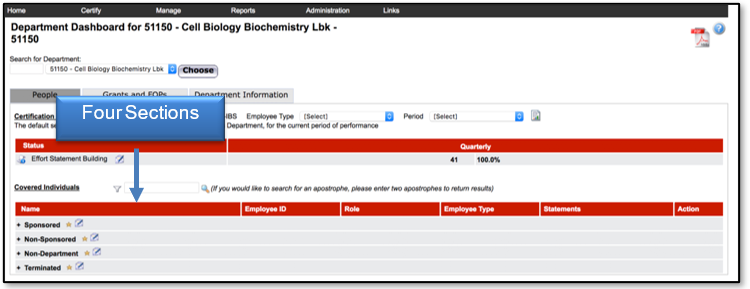
The Covered Individuals List is below the Certification Summary Chart. Covered individuals are assigned to a department based on the individual's primary department assignment.
The list is divided into four sections:
- Sponsored - individuals in this Department who work on sponsored projects.
- Non-Sponsored - individuals in this Department who do not work on sponsored projects; these statements will be automatically approved.
- Non-Department - individuals who are in a different home department but work on a grant in this department.
- Terminated
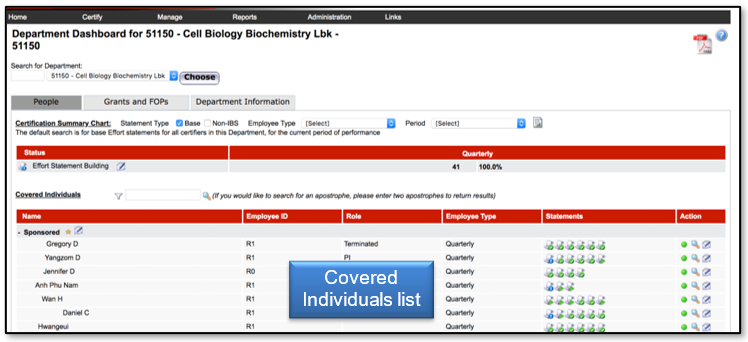
The Covered Individuals list can be filtered in four ways: name, employee ID, role, and employee type. To apply a filter, select the funnel icon to see the list of filters. Then select the appropriate radio button corresponding to the desired filter and select the magnifying glass.
The Covered Individuals list contains 7 columns for additional information. For the employee's Role column, if a user has more than one role, then hovering over the listed role will display a list of all roles assigned to the person. The Statements column will show up to 5 icons representing the individual's most recent effort statements. If you hover the mouse over the icon of the effort statement, the period and status of that statement will display. To review the certification statement, simply click the icon.
The Action column contains the magnifying glass icon. It provides a link to the Manage Users page for that individual. The pen and envelope icon will send an email to the individual.
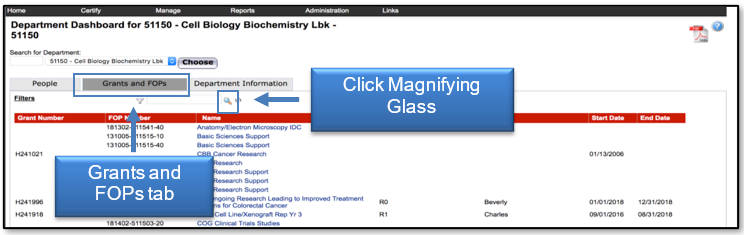
The Grants and FOPs tab contains all of the Grants and FOPs that are assigned to the department, whether active or inactive. The Grant Number and FOP Number for each are shown, as is the Grant or FOP Name, the Sponsor R number, the PI of the grant, and the Start Date and End Date. The last column allows you to run the SPES report (Sponsored Project Employee Summary). This report lists all of the employees who had salary or cost-sharing charged to a specific Grant or FOP. All of the columns are sortable by clicking the header of the column.
The Grant/FOP Name is a link to the Grant/FOP Summary page. When you hover over the yellow icon to the left of the Name, it indicates that this is inactive.
The two circular arrows icon next to the magnifying glass allows you to refresh the list to show only the active Grants and FOPs. You can reset the page by clicking the magnifying glass.
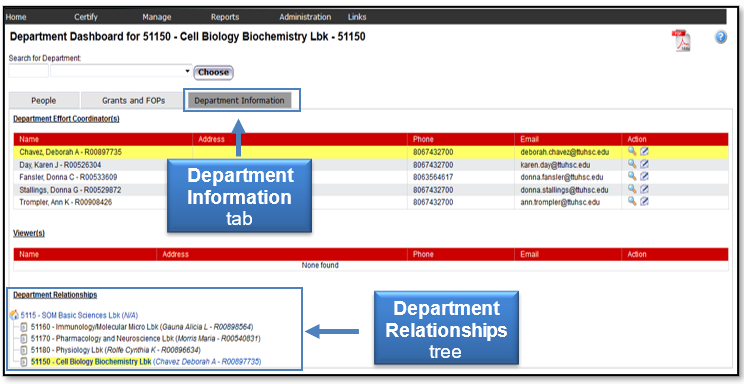
The Department Information tab contains information about the Department's Effort Coordinators and the Department Relationships Tree.
The names, phone numbers, and email addresses of the Department's Effort Coordinators are shown. The Primary Effort Coordinator is highlighted in yellow. This individual will receive all of the effort processing tasks that are created when individuals certify effort statements. The secondary effort coordinators are listed without highlighting. Any additions or changes to this list will be made by the Central Administrator.
The Action column in the Effort Coordinators list allows you to go to the Manage Users page for the coordinator by clicking the magnifying glass icon and email the effort coordinator by clicking the pen and envelope icon.
The Department Relationships tree shows the department's position in the organization structure.
Manage Effort Notifications
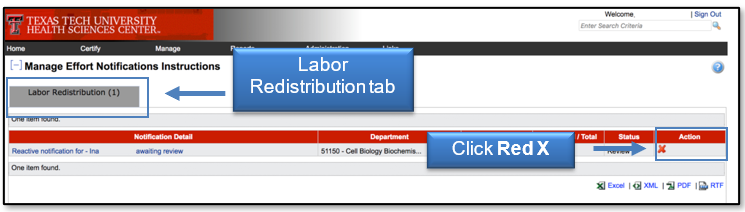
The Manage Effort Notifications page contains the Labor Redistribution tab, which has a list of notifications that require your attention. To resolve an item on the list, select the link in the Notification Detail column to be directed to the review page.
The Labor Redistribution tab list is populated with tasks when an Effort Coordinator selects the Cost Transfer Needed button when reviewing an effort statement. This task serves as a reminder to process a Labor Redistribution in Banner based on the review that you just performed. This is simply a list of tasks that can be deleted at any time by clicking the Red X under the Action column.
Effort Statements on Hold
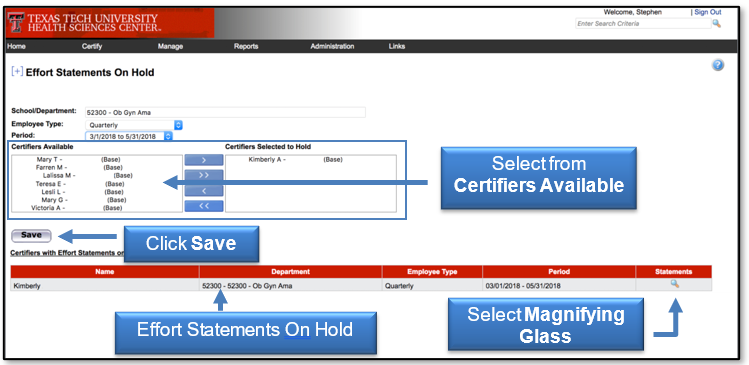
The Effort Statements on Hold page allows you to select multiple certifiers and then place them all On Hold at one time rather than having to navigate to each statement individually. When you click Save, each of the certifiers will be listed at the bottom screen in the Certifiers with Effort Statements on Hold section.
To take an effort statement off Hold, you will have to go to the individual's effort statement and uncheck the On Hold checkbox. You can navigate to the individual's effort statement from the Effort Statements on Hold page by selecting the magnifying glass icon in the Statements column.
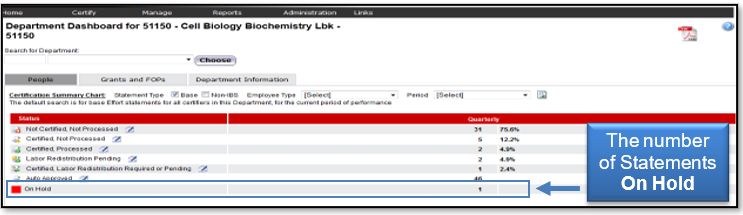
To reference the total number of effort statements On Hold, review the Certification Summary on the Department Dashboard page.
The statement icon of an effort statement that has been placed On Hold is highlighted in RED as a visual indicator to the Effort Coordinator. This can be seen in the Statements Column of the Covered Individuals List on the Department Dashboard page.

Reports
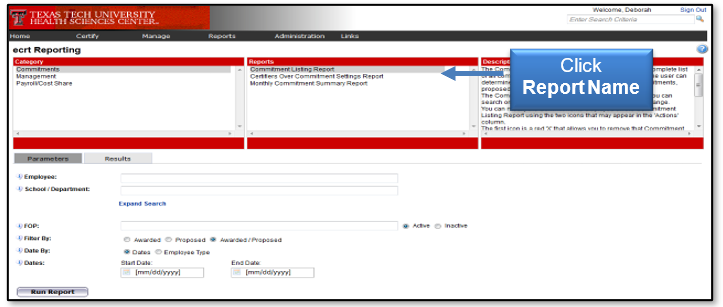
The ecrt Reporting page is accessed by clicking the Reports menu label on the navigation menu bar. The page contains three window panes across the top that show the report Category, the list of Reports associated with the selected category, and a Description of the selected report. To access the report, click the report name in the Reports pane.
Administration
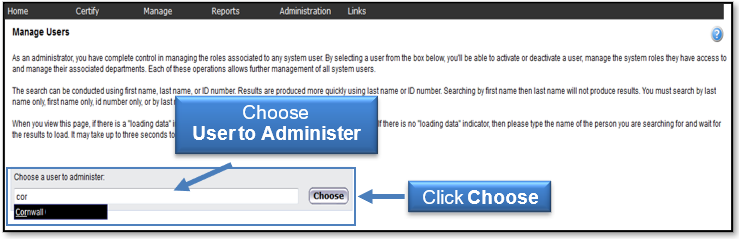
The Manage Users link is the only link available to the effort coordinator in the menu drop-down list for the Administration label. The page presents a data entry search box.
You must search by last name only, first name only, ID number only, or by last name then first name. Type in a minimum of three characters from the intended result, and then pause for a few seconds.
The program will query the database and download a list of matches to the search text, which appears in a blue box under the search box. Put the cursor on the intended result, click the mouse or hit the enter key, and then click the Choose button.
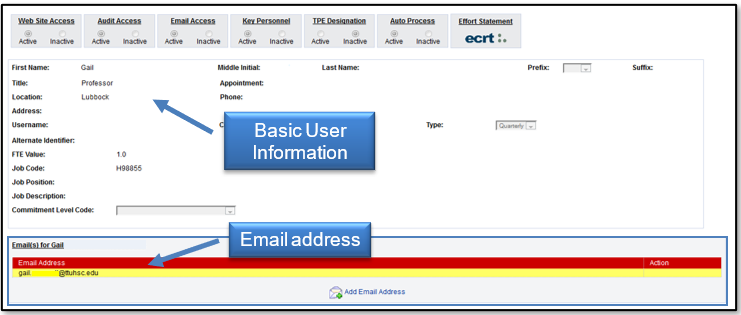
In the top section, you can see the basic user demographic information and their email address. If any of this data is not correct, a change needs to be made in Banner. All ecrt data is fed directly from Banner.
A list of the departments that the user is associated to is displayed in the next section. If the user is an Effort Coordinator for a department it will be listed in the Effort Coordinator Department Relationship section.

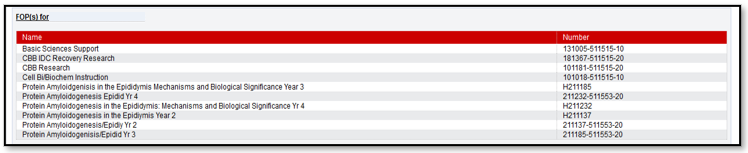
The next section lists the FOPs that the individual has been paid from or has a commitment to and associated grant numbers.
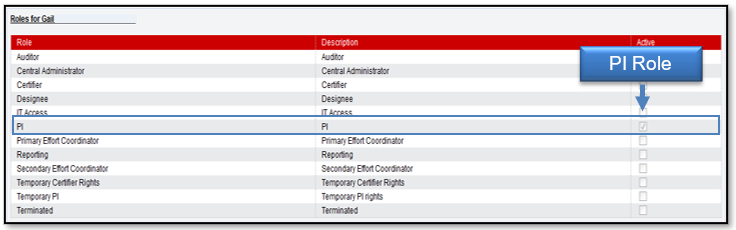
The last section lists the user's role. Users can be assigned to as many roles as determined appropriate. Roles govern access security and will be assigned by the Central Administrator.
For information regarding effort reporting or grant compliance, please contact the Research Integrity Office at (806) 743-4752.
For questions about a specific grant, please contact the Office of Sponsored Programs at sponsoredprograms@ttuhsc.edu or by phone at (806) 743-4569.
For help with ecrt system navigation or questions regarding this training document, please contact the Central Administrator at EffortReporting@ttuhsc.edu.
Contact
Finance Systems Management
-
Address:
3601 4th Street STOP 6209 | Lubbock, Texas 79430-6209 -
Email:
fsm@ttuhsc.edu