
Emburse Enterprise - Travel Pre-Approval Reports
Pre-Approval Reports in Emburse Enterprise will encumber the traveler’s estimated expenses for future reimbursement and send automated email notifications to the appropriate Fund Manager(s) and designated Approver. Electronic departmental approvals are not required for this report type.
Pre-Approval Reports will also handle requests for the use of TTUHSC Business Travel Accounts (BTA) for airfare. The traveler must qualify for the use of BTA, and the report will be routed to the Travel Administration for review and approval.
For more information on the BTA process, reference the Travel Training Center.
Do not submit a Pre-Approval Report with a BTA request before reviewing BTA training. Requests to utilize the BTA for unqualified applicants will be denied.
Travel Pre-Approval Report Submission
To submit a Pre-Approval Report, complete the following steps.
Confirm Traveler Dashboard
If you are an employee submitting your pre-approval report, signing into Emburse Enterprise via SSO will automatically open your dashboard for report submissions.
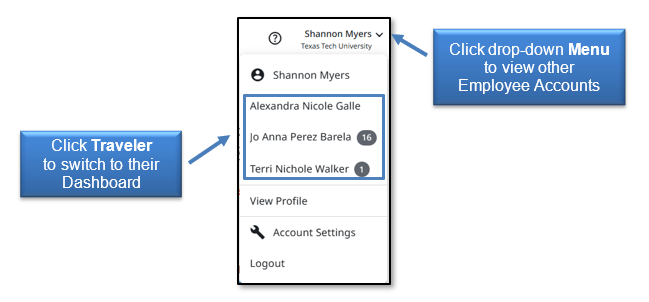
If you are a delegate for another employee and need to submit a pre-approval report on their own behalf, click your account name in the top right corner. This will populate a drop-down menu that will list other employee accounts that have granted you delegate rights.
Click the correct traveler to switch to their dashboard.
Create New Pre-Approval Report
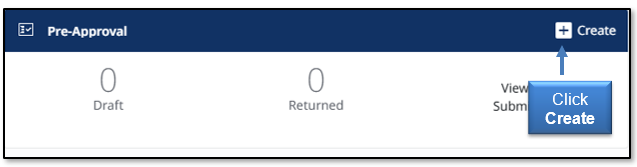
Click the Create button on the top right corner of the Pre-Approval bar.
Verify Basic Trip Information on Pre-Approval Report Header
Report Name - Traveler Last Name, First Initial - Trip Start Date, Destination City, State
Start Date/End Date - Verify when the traveler will depart from and return to their headquarters.
Number of Days - No action needed. Information is automatically calculated by the system, based on the trip dates provided.
Business Purpose - Enter the detailed reason for the trip that affirms the travel is related to TTUHSC business. Do not use acronyms.
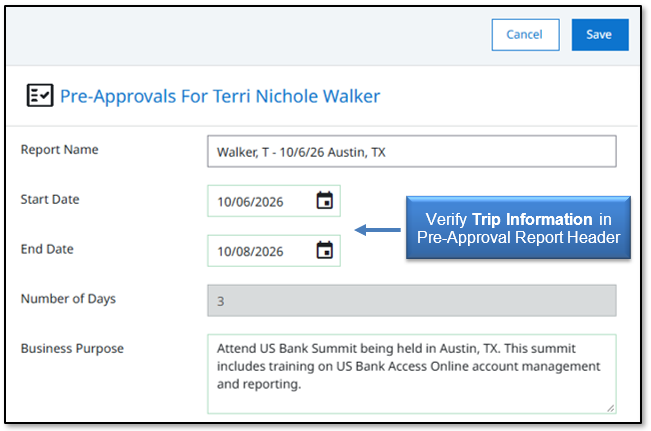
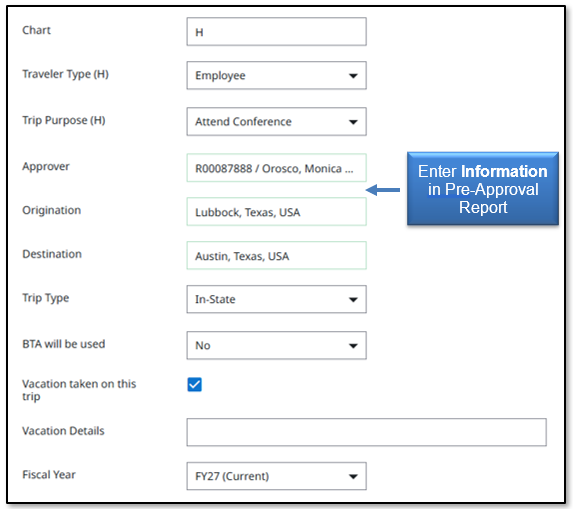
Chart - This field verifies the Chart of Account (COA) that will be used for the trip and automatically populates H for TTUHSC funds. Do not choose options E, S, or T unless TTUHSC El Paso, TTU System, or Texas Tech University funding is needed. Only one chart per report is allowed.
Traveler Type (H)/Trip Purpose (H) - Choose the appropriate selection from the options provided.
Approver - Search and select the traveler's direct supervisor. If the submission is for a non-employee, search and select the Department Head or Fund Manager.
Origination/Destination - Search and select the traveler's origination and destination locations. If the individual is traveling to multiple locations for business, enter the furthest destination traveled and ensure detailed information is provided in the business purpose field.
Trip Type - Do not alter. The system will automatically determine the appropriate trip type based on the information entered in the Destination field.
BTA will be used - Select the appropriate No/Yes option. If requesting BTA approval, you must choose Yes to ensure appropriate routing for approval.
Vacation Taken (checkbox) - If a vacation will be taken during the trip, click this checkbox to view a Vacation Details field that will allow the entry of dates and further information.
Fiscal Year - Select the appropriate Fiscal Year that the travel will occur. If travel dates take place across two fiscal year periods, use the trip end date to determine the correct FY.
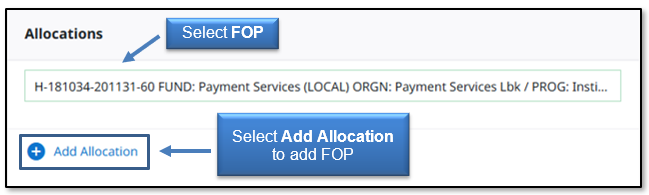
Allocations - Search and select the appropriate FOP for the trip expenses. If multiple FOPs are used, choose Add Allocation to add an FOP.
After entering all information, click the Save button on the top right corner. The report progress will be saved and can now be viewed in the Pre-Approval Drafts Folder.
Add Supporting Documentation (If Applicable)
Supporting documentation can be uploaded to any Pre-Approval Request but is only required for Pre-Approvals that include a BTA request. BTA requests must include the Ticket Request (or quote) provided by the travel agency.
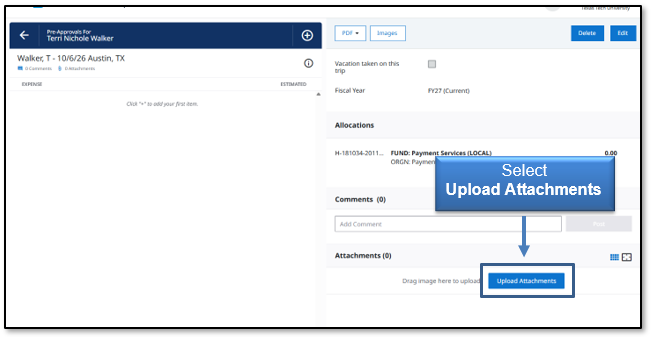
After saving the report header information, the system will display a blank pre-approval report on the left-hand panel. Click the report name to display the report header on the right-hand panel.
Scroll to the bottom of the report header to view the Attachments section and upload any documentation.
Add Estimated Expenses to Pre-Approval Report
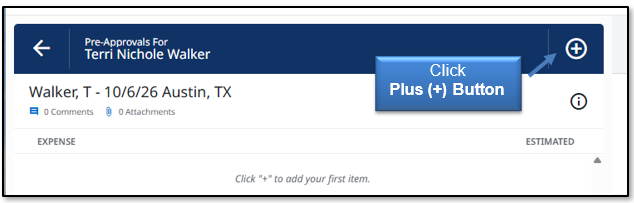
Click the plus (+) button at the top right corner of the report to add an expense.
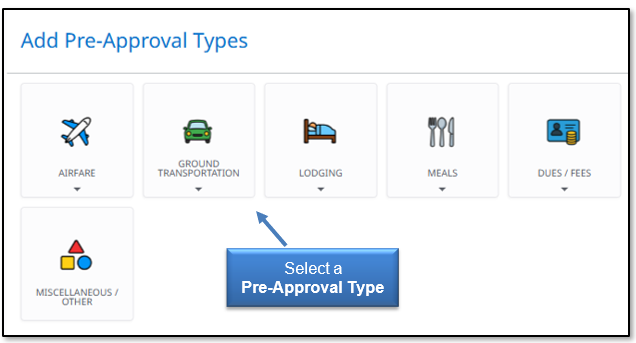
The Add Pre-Approval Types option will appear on the right-hand panel and display the following expense drawers:
- Airfare: Airfare, Air Wi-Fi, Baggage Fee, Seat Upgrade Fee, Ticket Change Fee, Travel Agency Fee, and Personal Plane Mileage
- Ground Transportation: Car Rental, Car Rental Fuel, Mileage, Parking, Public Transportation, Tax/Car Service, and Tolls
- Lodging: Lodging and Apartment/Long Term Rental
- Meals: Meals - Per Diem, Meals - Itemized
- Dues/Fees: Membership, Registration Fees, Training/Education, and Visa/Passport Fee
- Miscellaneous/Other: (single expense tile)
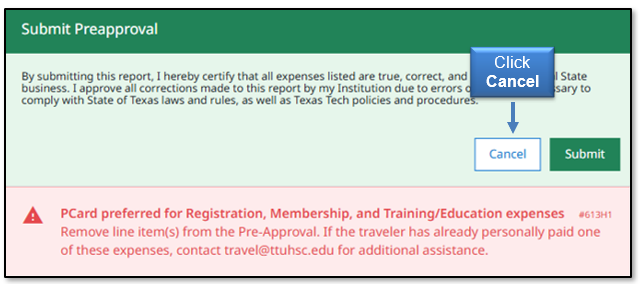
Note: The expense types displayed above in red italics are not allowed in TTUHSC Travel Reports. TTUHSC Travel reimburses itemized meal expenses only and PCard is the preferred method of payment for Membership, Registration Fees, and Training/Education expenses. The system will not allow the submission of a TTUHSC Pre-Approval Report with these line items.
Choose the appropriate expense type from the Pre-Approval Options to enter your estimated cost.
Enter the Estimated Amount and additional information in the optional Description field, then click Save.
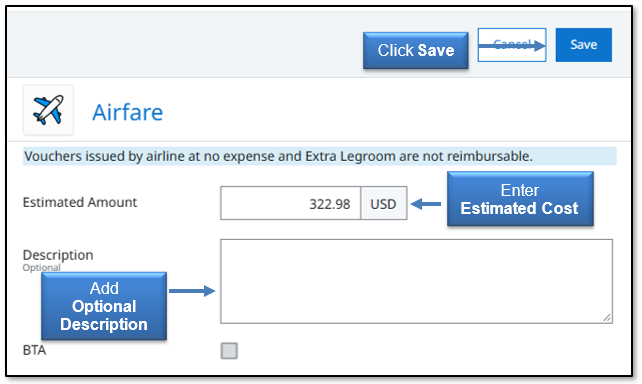
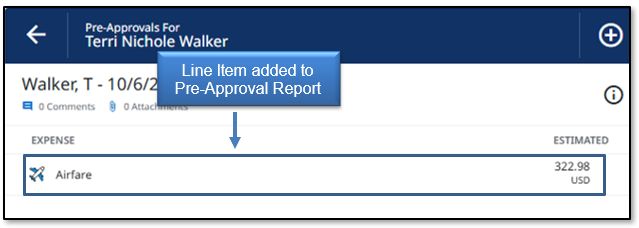
After saving, the expense will be saved as a line item on the Pre-Approval Report and displayed on the left-hand panel.
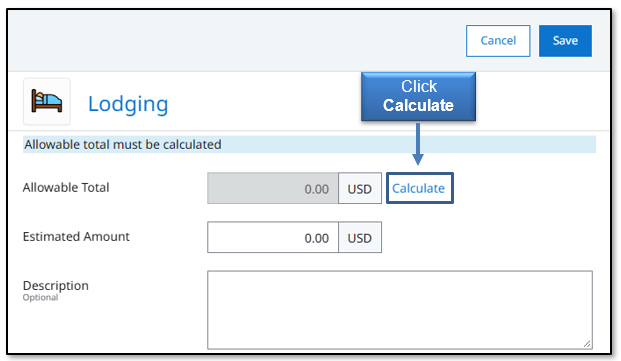
The expense forms will provide additional information regarding any action needed on certain expense types. For example, the encumbrance of lodging expenses requires the calculation of maximum GSA rates for the dates and location of the stay. Click Calculate to view the Allowable Total Calculator.
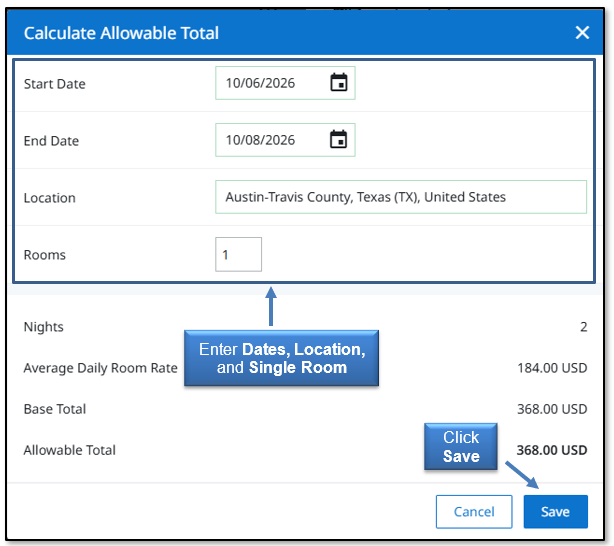
Enter the correct start/end dates, location of the stay, and single room (multiple rooms are not allowed for reimbursement). Click Save to apply the calculated rates to your lodging expense tile.
The Lodging expense form will display the calculated amount, but the true estimated amount should still be entered in the Estimated Amount field.
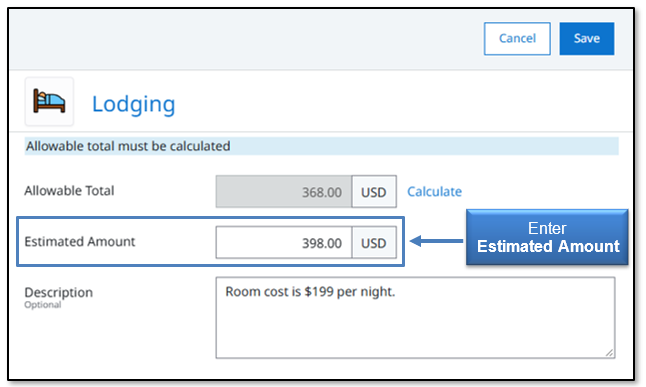
If your estimated nightly rate exceeds the allowable total, overages are allowed only on a local FOP.
Note: Only the total estimated cost of the nightly rate(s) should be input on the Lodging expense tile. Do not include lodging taxes/fees in this estimation because those charges utilize an incidental travel account code. To encumber lodging taxes/fees, use the Miscellaneous/Other expense tile.
Click the plus (+) button to continue adding estimated expenses to the report until all expenses have been added.
The estimated expenses saved can be edited or deleted before submission. To delete or edit, click the appropriate line item to view, and choose the Delete or Edit option.
Submit Pre-Approval Report
After adding all expenses and estimates, click Submit at the bottom of the left-hand panel.
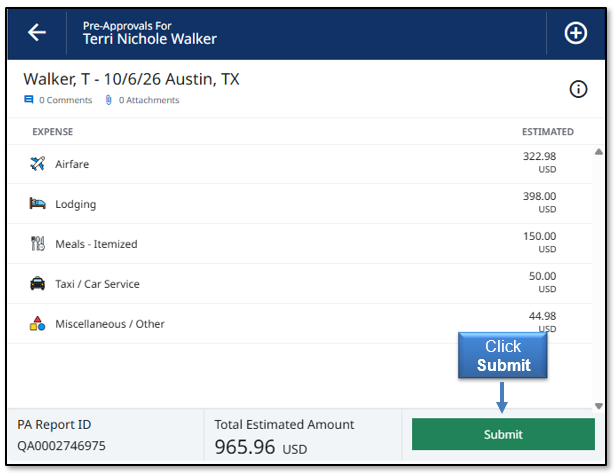
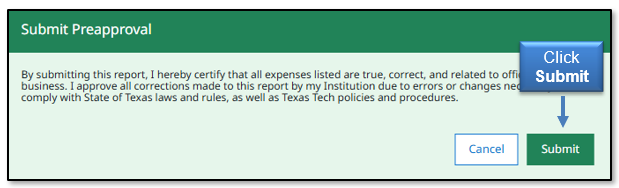
Submission confirmation and a report summary will be displayed on the right-hand panel. Click Submit if all information appears correct.
If a compliance violation is received after attempting to submit the report, click Cancel and take the appropriate action indicated on the violation message, and resubmit.
Travel Pre-Approval Report Routing
Submitted Pre-Approval Reports will be electronically routed as follows:
- Automated Budget Check
- Automated Email Notification to Approver - Supervisor chosen on Report Header
- Automated Email Notification to Fund Manager(s)
- Travel Office Approval - Applicable to BTA requests only
- Export to Banner for Encumbrance Creation
- Automated Email Notification of Completion to Delegate and Traveler - Banner encumbrance ID included.
Travel Pre-Approval Report Review & Cancellation
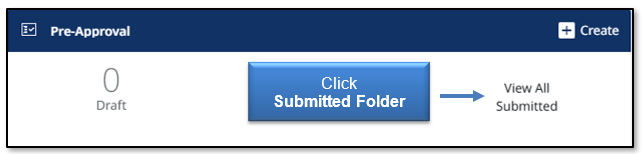
Submitted reports can be viewed in the Submitted Folder of the Pre-Approval Bar. Click the Submitted Folder (third option) to view all Pre-Approvals submitted on the current dashboard.
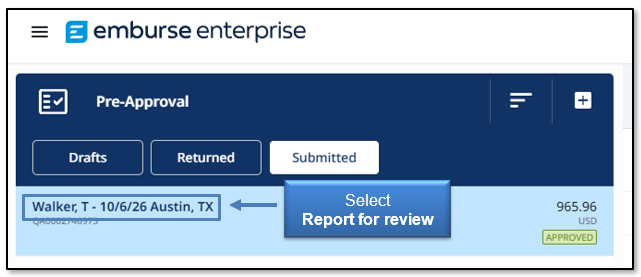
Once the Submitted Folder has been opened, select the appropriate report for review.
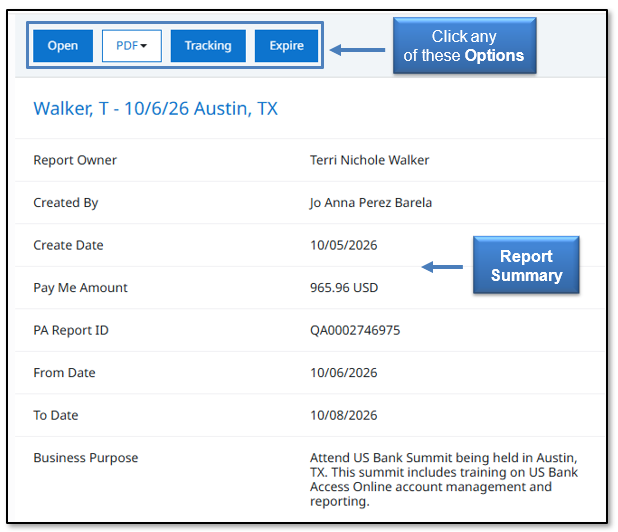
This will open a summary of the report on the right-hand panel with the following options:
- Open - Opens the report and allows a review of the pre-approval line items.
- PDF - Generates a PDF version of the Pre-Approval Report.
- Tracking - Allows viewing of the status of the report line items.
- Expire - Cancels application and releases encumbered funds. Do not expire an application unless the trip has been canceled and no funds have been or will be reimbursed for the canceled arrangements.
If you expire a Pre-Approval and the encumbrance has not been liquidated in Banner by the following business day, contact travel@ttuhsc.edu for assistance.
If a Pre-Approval is not imported to a final expense report more than 75 days after the trip end date, it will automatically be expired by the system.
For more information on final expense reports, reference the Travel Training Center.
For questions, contact the Travel Office at travel@ttuhsc.edu or go to TTUHSC Travel Home.
Contact
Finance Systems Management
-
Address:
3601 4th Street STOP 6209 | Lubbock, Texas 79430-6209 -
Email:
fsm@ttuhsc.edu