
Emburse Enterprise - Travel Prepaid Expense Advance Reports
Prepaid advance travel reimbursement requests for individual airfare and hotel expenses that are incurred before the trip will be processed on a General Travel expense report.
Before submitting a prepaid advance reimbursement request, a Pre-Approval Expense Report must be completed to encumber funds for the trip. The Pre-Approval Report ID will be required for all Travel Advance Expense Report submissions.
For more information on Travel Pre-Approval Reports and how to submit them, reference the Travel Training Center.
Note: Registration fees cannot be submitted for a Travel advance reimbursement through Emburse Enterprise. PCard is the preferred method of payment for registration fees. If the traveler has personally incurred the registration fee before the trip, reimbursement should be claimed through an Employee Reimbursement Direct Pay form in TechBuy.
Travel Expense Report - Prepaid Advance
To submit a Travel Expense Report for an advance reimbursement request, complete the following:
- Confirm traveler dashboard.
- Create a new expense report.
- Verify report type on expense report header = General Travel.
- Verify basic trip information on the expense report header.
- Add prepaid expense advance line-item request to report.
Confirm Traveler Dashboard
If you are an employee submitting your Pre-approval Report, signing into Emburse Enterprise via SSO will automatically place you on your dashboard for report submissions.
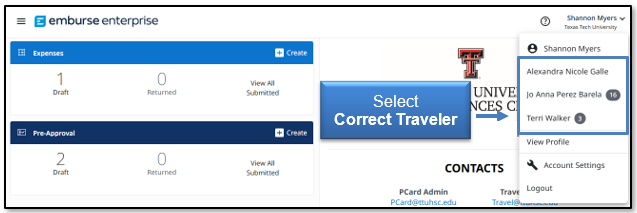
If you are a delegate for another employee and need to submit a Pre-Approval Report on their behalf, click your account name in the top right corner. This will populate a drop-down menu that will list other employee accounts that have granted you delegate rights. Click the correct traveler to switch to their dashboard.
Create New Expense Report
Click the Create button in the top right corner of the Expenses bar.
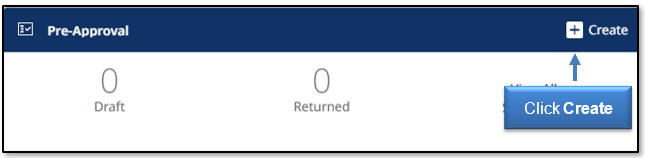
The Create button will populate a report header in the right-side panel.
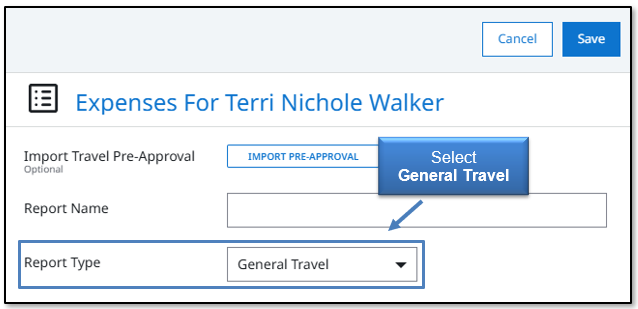
Verify Report Type on Expense Report Header = General Travel
PCard transaction reconciliations are also completed via Emburse Enterprise expense reports. Ensure the report type displayed is General Travel.
Verify Basic Trip Information on Expense Report Header
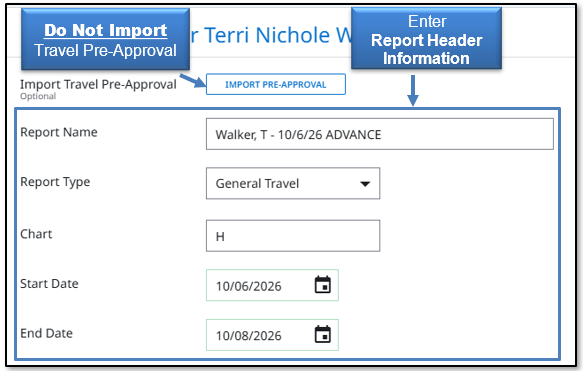
Do not import the Travel Pre-approvals. Pre-approval Reports should only be imported to final expense reports after the trip is completed.
Input report header information.
Report Name - Traveler Last Name, First Initial - Trip Start Date, ADVANCE.
Chart - Verify Chart of Account (COA) that will be used for trip. System will automatically populate H for TTUHSC employees. Do not choose options E, S, or T unless TTUHSC El Paso, TTU System, or Texas Tech University funding is needed. Chart should match the chart designated on the Pre-approval Report.
Start Date/End Date - Dates traveler will depart from and return to headquarters.
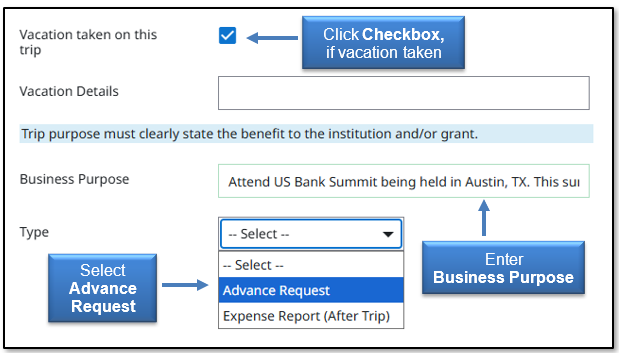
Vacation Taken (checkbox) - If a vacation will be taken during the trip, click this checkbox to view a Vacation Details field that will allow the entry of dates and further information.
Business Purpose - Enter the detailed reason for the trip that affirms the travel is related to TTUHSC business. Do not use acronyms.
Type - Select Advance Request.
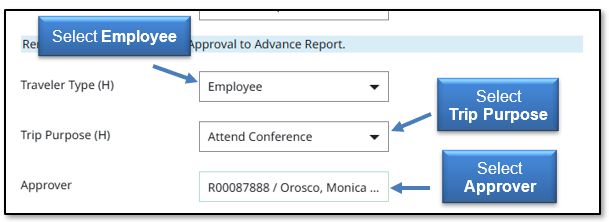
Traveler Type (H) - Select Employee. Other traveler types do not qualify to receive advances for prepaid expenses.
Trip Purpose (H) - Confirm trip purpose from list.
Approver - Search and select the traveler's direct supervisor.
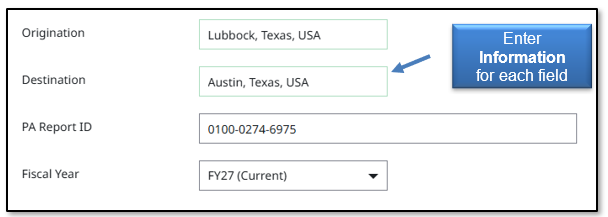
Origination/Destination - Search and select the traveler's origination and destination locations.
PA Report ID - Input the report ID of the Pre-approval Report related to the prepaid advance request.
Fiscal Year - Select the appropriate Fiscal Year that the travel will occur. If travel dates take place across two fiscal year periods, use the trip end date to determine the correct FY.
After entering all information, click the Save button on the top right corner. The report progress will be saved and can now be viewed in the Expense Report Drafts Folder.
Add Prepaid Expense Advance Line-Item Request to Report
After saving your expense report header, the system will display the empty expense report in the left-hand panel and the traveler's eWallet in the right-hand panel.
Click Create New in the eWallet panel to add a prepaid expense advance line-item request to the report.
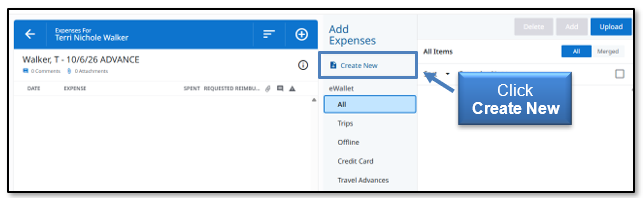
Different expense tiles will become viewable. Select the Prepaid Expense Advance tile.
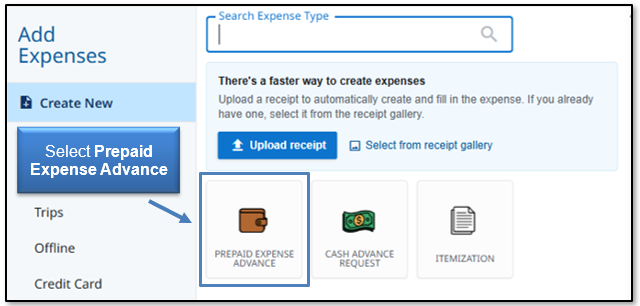
The Prepaid Expense Advance form will be displayed in the left-hand panel after selection.
Provide the following information on the form:
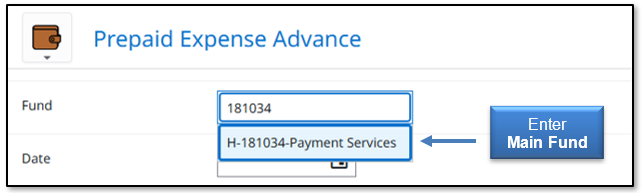
- Fund: Enter the main fund number being utilized for the trip, allow the system to search, and then select when the fund number populates. The fund must match the Chart chosen on the Expense Report Header.
Do not scroll the list to locate the appropriate fund. The fund list is too extensive to select the appropriate fund in this manner.
- Date: Enter the date of purchase for the expense being claimed.
- Spent: Enter the advance amount.
- Type of Expense Paid Before Trip: Verify Airfare, Lodging, or Other Prepaid.
- Description: Optional field to provide any additional information you believe may be noteworthy or necessary for Travel Admin's review.
- Allocation: This is a locked field that will validate the expense as an advance. Do not attempt to alter. Advance expenses upload to a balance account in Banner; therefore, a full FOP is not required.
- Attachments: Upload electronic documentation required to support an advance request. Itemized receipts and redacted credit card statements are required.
After completing a Prepaid Advance Expense Form, click Save at the top right corner to add the line item to the report.
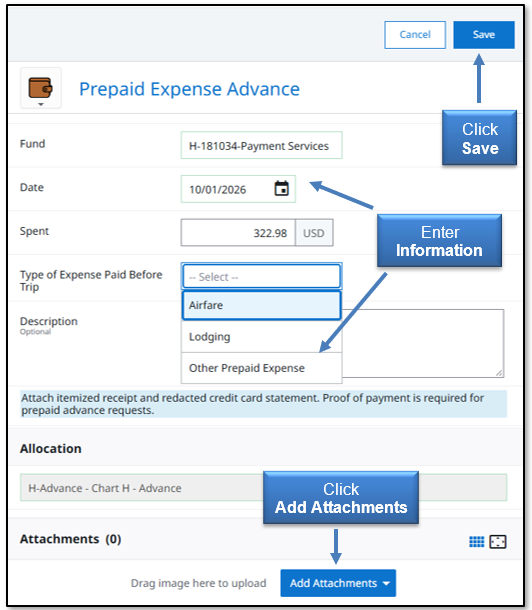
Repeat if additional prepaid expense advance claims are needed for the same trip.
Note: A Travel Expense Report for Advances should not include both a Prepaid Expense and Cash Advance request. Cash Advance requests for qualified employees cannot be approved more than 5 days before the trip start date and including both advance types on the same report will substantially delay reimbursement of a Prepaid Expense Advance request. If a Cash Advance is needed, submit an additional Travel Advance Expense Report.
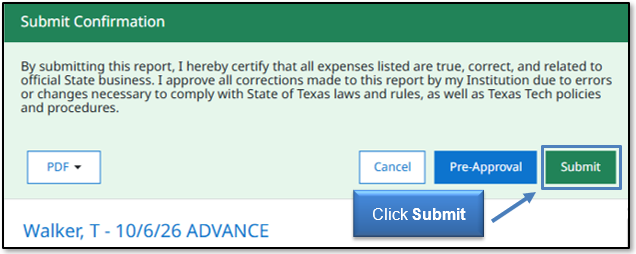
The example below displays an airfare and hotel deposit advance request. Click Submit at the bottom of the left panel when all line items have been completed.
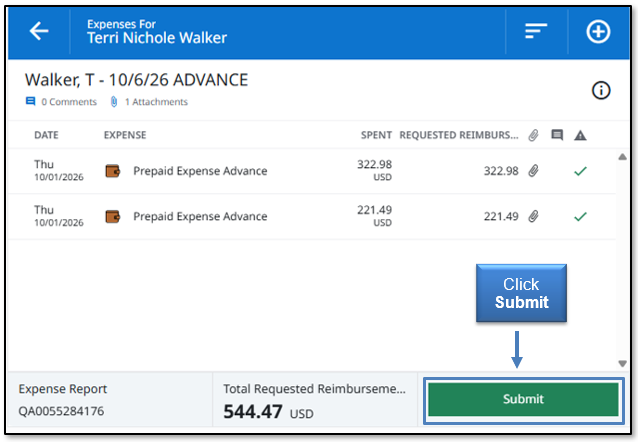
Submission confirmation and report summary will be displayed in the right-hand panel. Click Submit again to verify the report submission.
Travel Expense Report - Prepaid Advance Routing
Submitted Prepaid Advance Reports will electronically route as follows:
- Traveler Approval - Only applicable if the report was created and submitted by a delegate. If a traveler submits their own expense report, no additional traveler approval is required.
- Supervisor Approval - Individual chosen as the Approver on the Report Header.
- Travel Office Approval
- Export to Banner for Invoice Creation - Reimbursement to traveler will process the following business day.
Travel Expense Report - Tracking & Recall
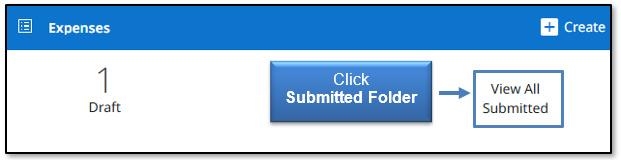
Submitted reports can be viewed in the Submitted folder of the Expense bar. Click the Submitted folder (3rd option) to view all Expense Reports that have been submitted in the current dashboard.
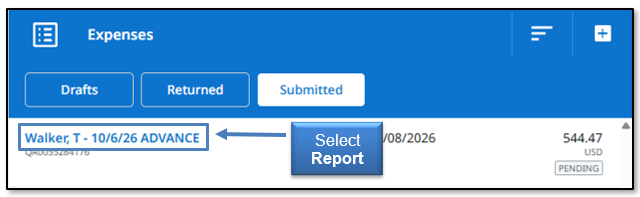
Select the appropriate report for review from the list of submitted Expense Reports.
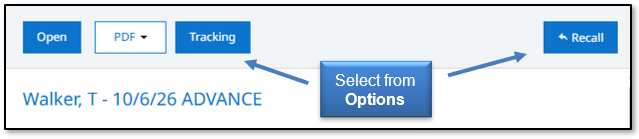
A summary of the report will open in the right-hand panel with the following options:
- Open - Open the report and review the Expense Report line items.
- PDF - Generates a PDF version of the Expense Report.
- Tracking - View the status of the Expense Report line items.
- Expire - Return any expense report to a Draft status as long as none of the line items have been fully approved. All line items must be in a pending status in order to recall the expense report.
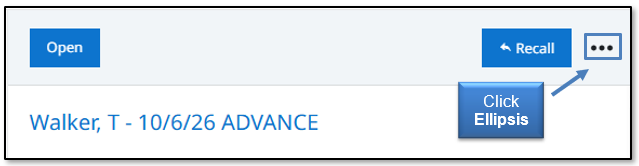
Note: The buttons will disappear if your browser window is too narrow to display them. If the buttons do not appear, click the ellipsis to display the options or widen the browser window.
Fully Approved Prepaid Advances
After a prepaid advance report has been fully approved and exported to Banner for reimbursement to the traveler, Emburse Enterprise will generate an Advance tile in the traveler's eWallet.
The Advance tile identifies the expense as already being paid by the institution and must be added to the final expense report after the trip has been completed.
For more information on Travel Expense Reports after trip completion and how to submit them, reference the Travel Training Center.
For questions, contact travel@ttuhsc.edu.
Contact
Finance Systems Management
-
Address:
3601 4th Street STOP 6209 | Lubbock, Texas 79430-6209 -
Email:
fsm@ttuhsc.edu