
Travel Card - Online Payments
U.S. Bank Access Online allows employees to make efficient online payments to their State Travel Card account. You will need your bank routing number and checking (or savings) account number to make online payments with U.S. Bank.
Note: you must register for an online account prior to making payments through U.S. Bank Access Online. For more information on the online account registration process, reference the Travel Training Center.
Log into your account with U.S. Bank Access Online using the organization short name TTUHSC.
If you are having issues with logging in, please contact travel@ttuhsc.edu.
View Billing Statement
U.S. Bank does not mail paper statements. Monthly statements will be available online on the first business day after the 3rd of each month. If the 3rd falls on a weekend, the statement will be available in two business days.
Account holders can set up an email alert to be notified when a billing statement is available. For more information, reference the Travel Card - Account Alerts guide in the Travel Training Center.
After logging in, select View All Statements from your account dashboard.
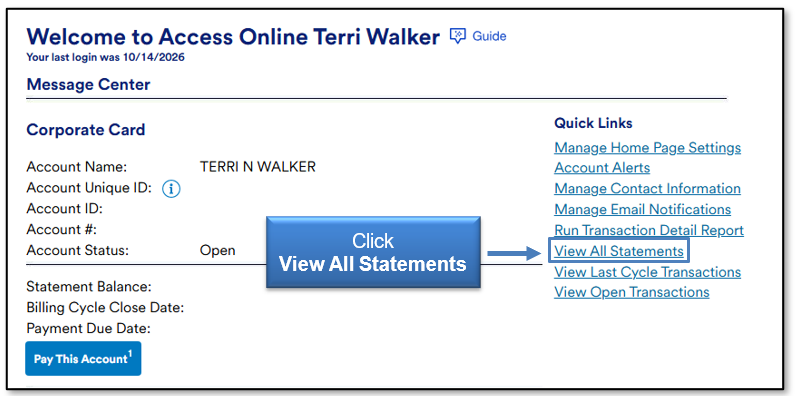
The Statement can be viewed in the web browser or downloaded to your device.
Set up Payment Method
Select Pay This Account from your account dashboard.
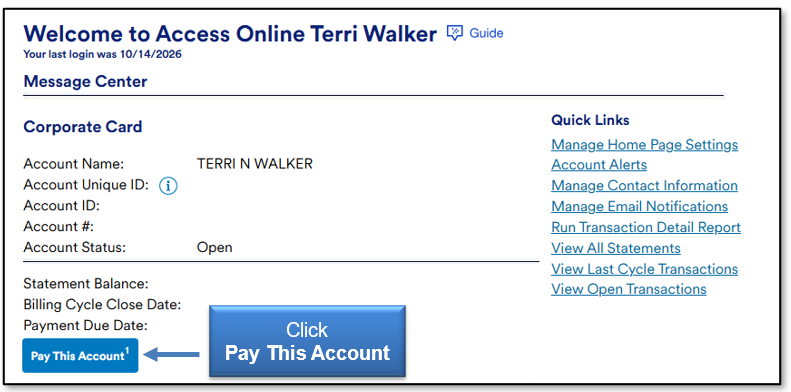
Review and accept online payment terms and conditions.
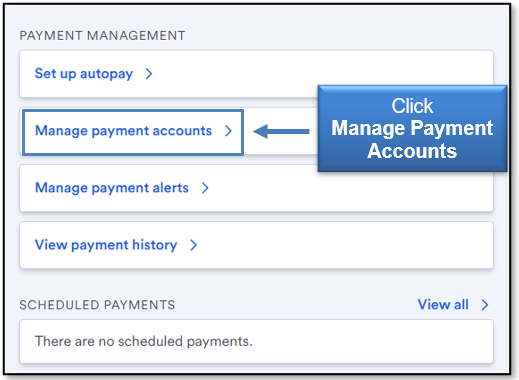
Select Manage Payment Accounts.
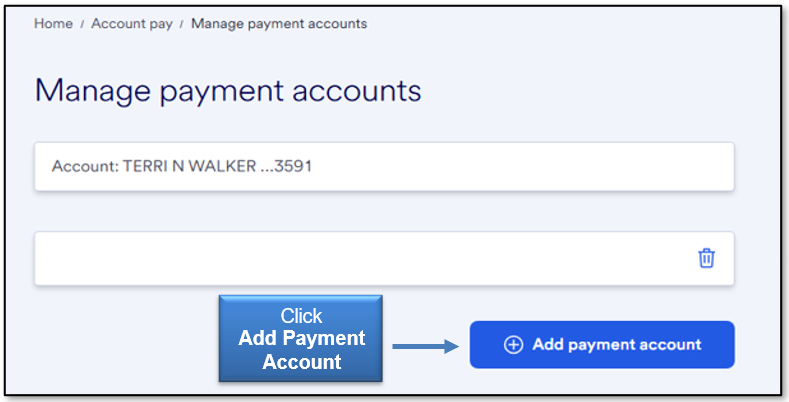
Select Add Payment Account.
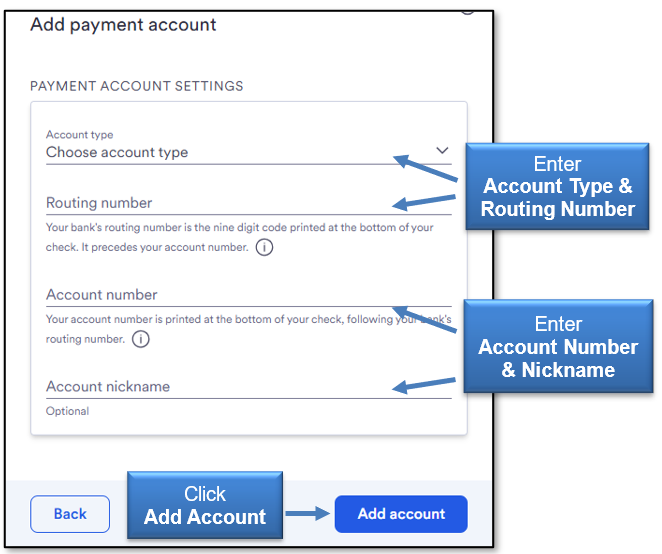
Insert Account Type, Bank Routing Number, Account Number, and Account Nickname (optional). When completed, select Add Account.
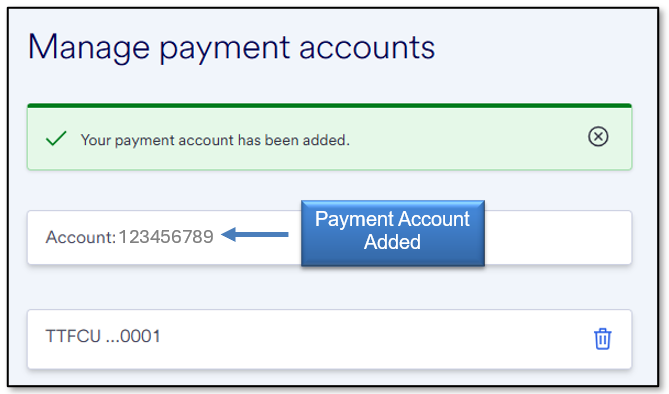
After saving, your payment account will be verified as added.
Make a Payment
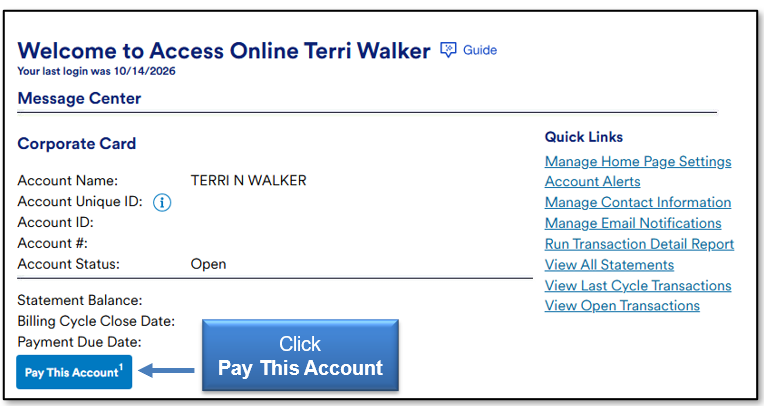
Select Pay This Account from your account dashboard.
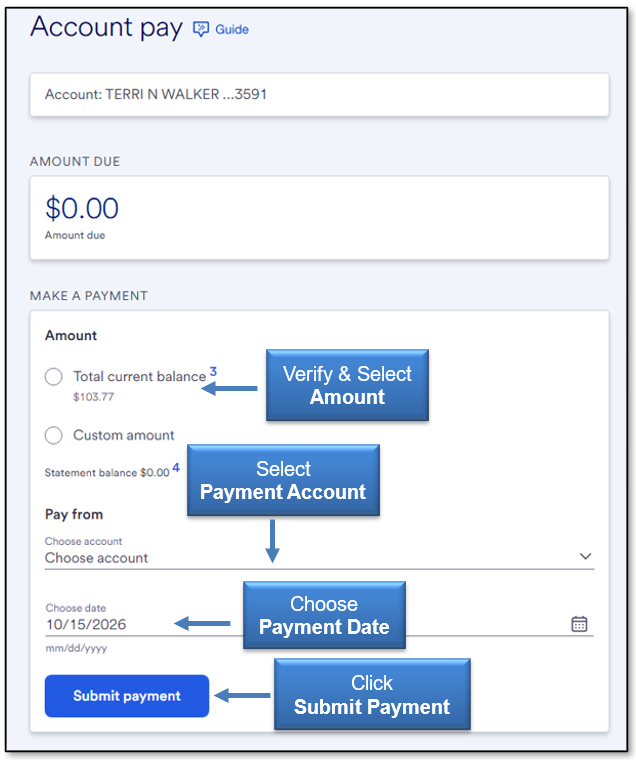
Under Make a Payment, verify the amount to be paid, payment account, and payment date. After complete, select Submit Payment.
Account balances should be paid in full. For expenses incurred prior to the trip, such as airfare and/or hotel deposits, the Travel Office can grant a prepaid advance to ensure that employees pay their accounts timely.
For more information regarding prepaid advance requests, reference the Travel Training Center.
For questions, contact travel@ttuhsc.edu.
Contact
Finance Systems Management
-
Address:
3601 4th Street STOP 6209 | Lubbock, Texas 79430-6209 -
Email:
fsm@ttuhsc.edu